Jump to: Overview · Where · Choose · Audio and subtitles · Share · Limits · FAQ
Watch a demo in your language
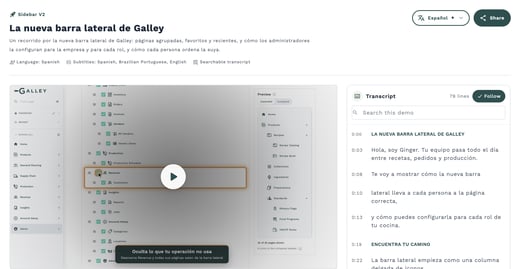
Open the demo, click the language button beside its title, and pick your language. The demo's title, description, transcript and chapters switch to that language, and the video plays in it when the demo has its own video in that language.
Galley remembers the language you picked and opens the next demo in it. When you share a demo, the link opens in the language you're reading in, so your teammate sees the same version.
Not every demo has other languages yet, and the languages are added by Galley. A demo that is only in one language still shows the button, with just that language in it. For example, the demo "The new Galley Sidebar" is available in English, Spanish (Español) and Brazilian Portuguese (Português (Brasil)).
Where you'll find demos
Galley demos open in a demo window or on their own page. Both put the language button beside the demo's title.
From What's new
- Click the bell at the top right of Galley.
- Open the announcement for a feature. An announcement marked NEW DEMO has a new demo ready to watch.
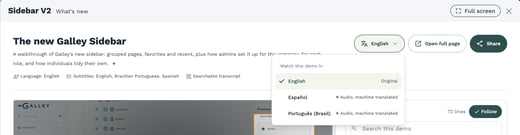
- The demo opens in a window titled with the feature's name and "What's new". Beside the demo's title you'll find the language button, Open full page and Share. Full screen is at the top right of the window.
On the full demo page
Choose Open full page in a demo window, or open a demo link a teammate shared with you. The page shows the language button and Share beside the title, with the video, its chapters and a searchable transcript below.
From the Feature Control tab in Settings
If you manage features for your company, you can also watch a feature's demo from the Feature Control tab.
- In Settings, open the Feature Control tab.
- Search for the feature, for example Sidebar V2.
- Open About, then choose Watch the demo. The demo opens in its own window with the video, its chapters and a searchable transcript.
- Beside the demo's title, choose your language. Languages a machine translated, here Español and Português (Brasil), carry a sparkle (✦).
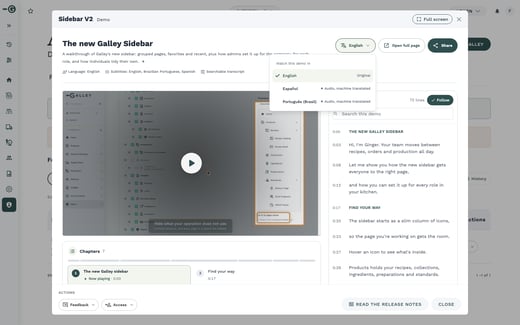
The title, description, transcript and chapters switch to the language you chose. The window also has Open full page, which opens the demo in its own tab in that same language, plus Share and Full screen.
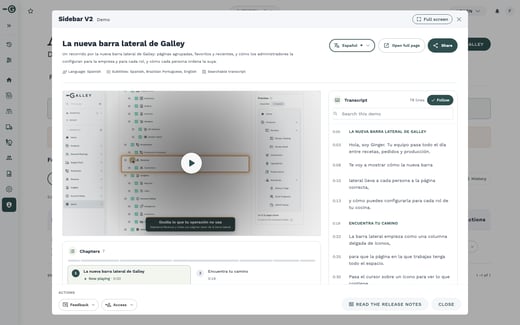
You'll only see the Feature Control tab if your role lets you manage features for your company. It lists features that are still rolling out (early access and upcoming releases), so once a feature is released to everyone, its demo is no longer there. You can still find it in What's new and on its own demo page.
Choose a language
- Open the demo from What's new, the Feature Control tab or its full page.
- Click the language button beside the demo's title. It shows the language you're reading in now, for example English.
- Under "Watch this demo in", pick a language. Each language says what you'll get in it.
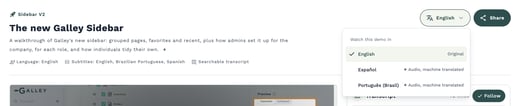
The title, description, transcript and chapters change to the language you picked. When the demo has its own video in that language, the video changes too.
What each language in the list gives you
| Label in the list | What you get |
|---|---|
| Original | The language the demo was made in. |
| Audio and subtitles | The demo's own video in that language, with subtitles. |
| ✦ Audio, machine translated | The demo's own video in that language, voiced from a machine-translated script. |
| ✦ Subtitles, machine translated | The original video, with machine-translated subtitles in that language. |
The sparkle (✦) marks anything a machine translated. It also shows on the language button while you're reading a machine-translated version, so you always know which one you're watching.
Change the audio or subtitles while you watch
The player has its own Audio and subtitles menu. Use it to hear one language and read subtitles in another, without leaving the page.
- Play the video.
- In the player's controls, click the language button. It shows the language you're hearing, for example Español, and its tooltip says "Audio and subtitles".
- Under Audio, pick the language you want to hear. The video switches to that language's version and picks up at the start of the chapter you were watching.
- Under Subtitles, pick a language, or Off. The subtitles change straight away and the video keeps playing.
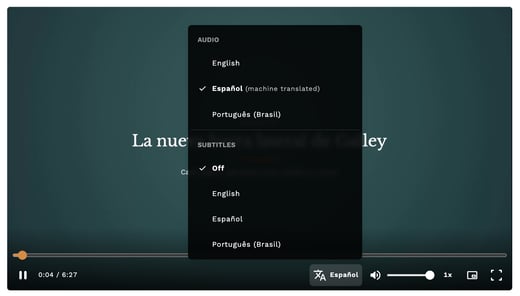
The language you're hearing says "(machine translated)" in this menu when its script was machine translated. If the two versions don't share the same chapters, the new one starts from the beginning.
Training a team that speaks more than one language? Play the demo in one language with subtitles in another, so everyone can follow along on the same screen.
Share a demo in your language
- With the demo in your language, click Share beside its title.
- Click Copy link. The link ends with the language you're reading in, for example ?lang=es for Spanish.
- Send the link to your teammate. It opens the demo in that same language.
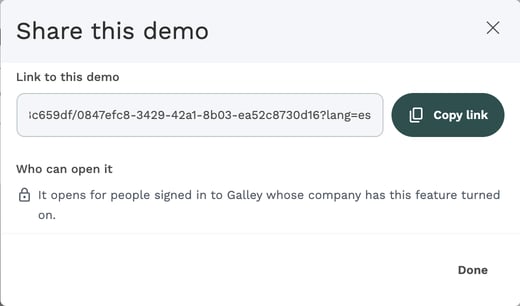
The link opens for people signed in to Galley whose company has the feature turned on. Opening a shared link doesn't change the language Galley remembers for the person who opens it. When you share from the demo's original language, the link has no language at the end, so each person opens the demo in the language they last chose.
What is and isn't translated
- Translated: the demo's own title, description, transcript and chapters, and the video itself when the demo has its own video in your language.
- Not translated: the rest of the Galley screen. Menus, buttons and labels around the demo stay in your app language.
- Galley adds the languages. You can't add a language to a demo yourself.
- Not every demo has other languages yet. A demo in only one language has no language button.
- Galley remembers your choice on this browser. On another computer or browser, pick your language once and Galley remembers it there too.
Frequently asked questions
Why don't I see the language button?
The demo is only available in one language so far. Languages are added by Galley, and not every demo has them yet.
What does the sparkle (✦) mean?
It marks a language a machine translated: a video voiced from a machine-translated script, or machine-translated subtitles. The original language never has it.
Why does it say "Not available in Español. Showing English."?
You chose that language on an earlier demo, or opened a link in that language, but this demo doesn't have it yet. Galley shows the demo in a language it does have, and keeps your choice for the next demo that has it.
Does choosing a language change Galley's language?
No. Only the demo's own title, description, transcript, chapters and video change. Everything else stays in your app language.
The video didn't switch to the language I picked. What happened?
If the other version can't load, Galley tells you (for example, "Couldn't switch to Español. Still playing English.") and keeps playing the version you were watching. Try again in a moment, or reload the page.
Can I get a demo in a language that isn't listed?
Languages are added by Galley. If your team would benefit from a demo in another language, let your Galley contact know.