
Jump to: Overview · Add one · Items covered · PO number · Edit or archive · Troubleshooting · FAQ
Overview
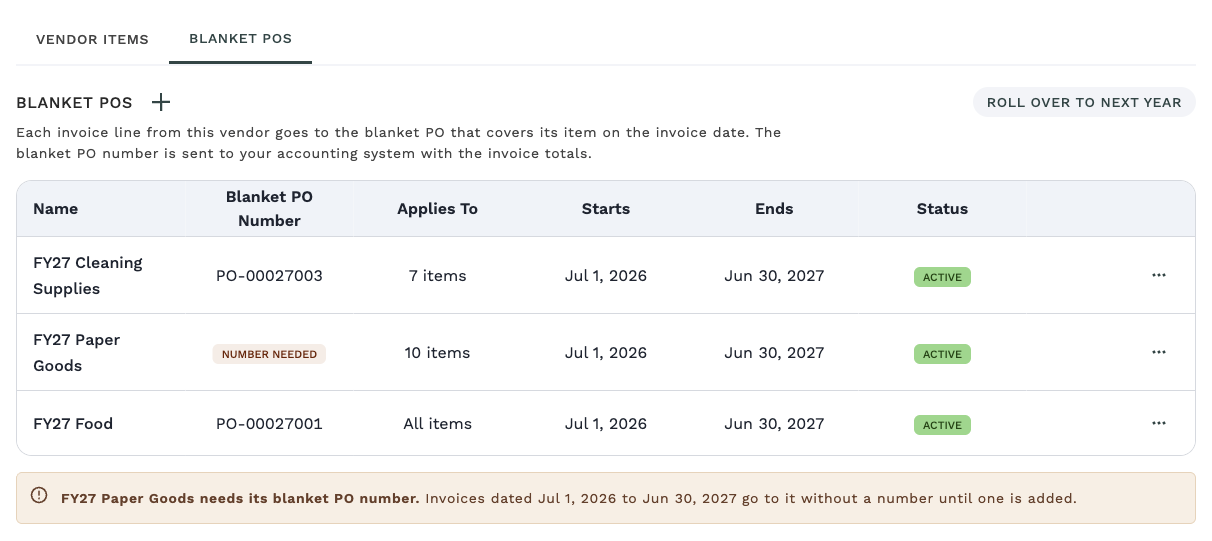
To set up blanket POs for a vendor, open the vendor, choose the Blanket POs tab, and click + to add a blanket PO with its name, dates and PO number. Galley then sends each invoice line from that vendor to the blanket PO that covers its item on the invoice date. The blanket PO number goes to your accounting system with the invoice totals.
You add a blanket PO once for each period, usually a year. If a vendor has more than one blanket PO at the same time, for example one for food and one for supplies, you choose which items each one covers. A vendor with no blanket PO at all, or only archived ones, is left alone: its invoices have no blanket PO totals, and nothing blocks their approval.
To add, edit or archive a blanket PO, you need the Edit Vendor and Vendor Item Data permission. Without it, you can still see a vendor's blanket POs, but the + button and the actions menu don't appear. Ask an admin on your team to update your role.
Blanket POs is available to companies that use it with their accounting system. If you don't see a Blanket POs tab next to Vendor Items on a vendor, contact Galley Support.
Add a blanket PO
- Open the vendor from the Vendors page.
- Below the vendor's details, choose the Blanket POs tab, next to Vendor Items.
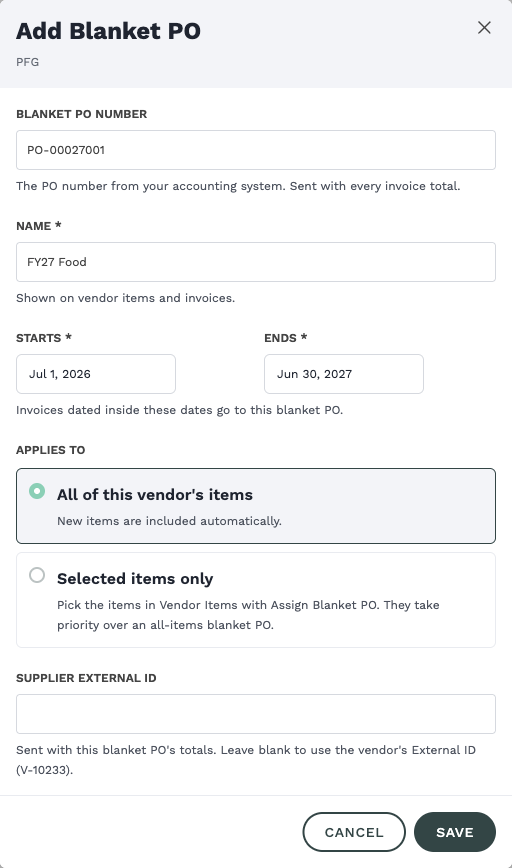
- Click + next to Blanket POs. The Add Blanket PO form opens with the vendor's name at the top.
- Fill in the form, using the table below.
- Click Save.
| Field | What to enter | Required |
|---|---|---|
| Blanket PO number | The PO number from your accounting system. Galley sends it with every invoice total. You can leave it blank and add it later. | No |
| Name | A name your team will recognize, such as "FY27 Food". It appears on vendor items and invoices. | Yes |
| Starts and Ends | The first and last date the blanket PO covers. Both dates are included. Invoices dated inside these dates go to this blanket PO. | Yes |
| Applies to | All of this vendor's items, or Selected items only. See the next section. All of this vendor's items is selected to begin with. | Yes |
| Supplier External ID | The supplier ID to send with this blanket PO's totals. Leave it blank to use the vendor's External ID. | No |
When you click Save, Galley checks the form. If something needs fixing, a message appears in the form and nothing is saved until you correct it.
You don't have to wait for the PO number. Add the blanket PO now, and add the number when your purchasing team has it. Until then, the blanket PO shows a "Number needed" chip.
Choose which items it covers
Applies to decides which of the vendor's items go to a blanket PO. Pick the option that matches how your accounting system split the vendor's purchases.
| Option | Use it when | What happens |
|---|---|---|
| All of this vendor's items | One blanket PO covers everything you buy from the vendor. | Every item goes to it, including items you add later. A vendor can have only one all-items blanket PO covering any date. |
| Selected items only | The vendor's items are split across more than one blanket PO. | Only the items you assign go to it. You assign them on the Vendor Items tab with Assign Blanket PO. |
A selected-items blanket PO takes priority. If an item is assigned to a selected-items blanket PO that covers the invoice date, that blanket PO is used. Every other item goes to the vendor's all-items blanket PO.
If a vendor has no all-items blanket PO, items that aren't assigned to a selected-items blanket PO are on no blanket PO. Invoices show these lines as None, with a warning to add a blanket PO before you approve.
If you change an existing blanket PO from Selected items only to All of this vendor's items, Galley removes the items you assigned to it. The form tells you how many items will be removed before you click Done.
Add the PO number and Supplier External ID
The Blanket PO number is the number your accounting system uses for the blanket PO. Each number can belong to one blanket PO at a time. Galley ignores capital letters and punctuation when it compares numbers, so PO-1042 and po1042 count as the same number.
A blanket PO without a number still receives invoice lines. It shows a "Number needed" chip in the table, and a message under the table lists the dates it covers. Add the number with Edit when you have it.
The Supplier External ID is optional. Galley sends it with the blanket PO's totals so your accounting system knows which supplier the blanket PO is with. When you leave it blank, Galley uses the External ID on the vendor's details.
Most blanket POs leave it blank. Fill it in only when your accounting system books this blanket PO to a different supplier than the vendor's External ID. For example, you might keep a distributor's food and chemicals as two vendors in Galley while your accounting system has one supplier for both. On the chemicals vendor's blanket POs, enter that one supplier's ID.
Edit or archive a blanket PO
Edit a blanket PO
- In the Blanket POs table, click the actions icon at the end of the row (three dots).
- Choose Edit.
- Change the fields you need. Name, Blanket PO number and Supplier External ID save when you leave each field.
- Starts, Ends and Applies to save together when you click Done.
If you close the form with changes that aren't saved, Galley asks whether to discard them or keep editing.
Archive a blanket PO
- Click the actions icon at the end of the row.
- Choose Archive.
- Confirm. Galley asks you to confirm, for example "Archive FY27 Food?", and tells you that invoice lines stop going to it and its number can be used again.
Archived blanket POs are hidden from the table. Click Show archived below the table, which shows how many there are, to see them, and Hide archived to hide them again. You can't edit an archived blanket PO.
Invoices that are already approved keep the blanket PO they were approved with. For invoices that aren't approved yet, lines stop going to an archived blanket PO. If it was the only blanket PO covering a date, those lines show None until you add another.
Troubleshooting
| What you see | Why it happens | What to do |
|---|---|---|
| No Blanket POs tab on the vendor | Blanket POs isn't turned on for your company. | Contact Galley Support. |
| No + button and no actions icon | Your role doesn't include Edit Vendor and Vendor Item Data. | Ask an admin to add the permission to your role. |
| Galley won't save a new all-items blanket PO | The vendor already has an all-items blanket PO covering some of the same dates. Only one all-items blanket PO can cover a date. | Change the dates, or edit or archive the other blanket PO first. |
| Galley won't save the blanket PO number | Another blanket PO that isn't archived already uses this number. | Check the number. If the other blanket PO was a mistake, archive it, then save again. |
| Invoice lines show None | No blanket PO covers the invoice date, the vendor has no all-items blanket PO and the item isn't assigned, or the vendor has no blanket PO that isn't archived. | Check the dates on the Blanket POs tab, then add or adjust a blanket PO. If the vendor doesn't use blanket POs, ignore the None. |
FAQ
Which date decides the blanket PO for an invoice line?
The Invoice Date on the invoice, not the day you approve it. An invoice dated June 28 and approved on July 2 still goes to the blanket PO that covers June 28.
Can two blanket POs for the same vendor cover the same dates?
Yes, as long as only one of them is an all-items blanket PO. An item can be on only one selected-items blanket PO at a time for any date they share.
Will changing a blanket PO change invoices I already approved?
No. An approved invoice keeps the blanket PO it was approved with, even if you later edit or archive that blanket PO.
Can I bring back an archived blanket PO?
Archived blanket POs can't be edited, and there is no option to restore one. Add a new blanket PO instead. The archived one's number is free to use again.
How do I assign items to a selected-items blanket PO?
Use the Assign Blanket PO bulk action on the vendor's Vendor Items tab. See "How do I assign vendor items to a blanket PO?"