
Jump to: Overview · Roll over · New blanket POs · Add numbers · Troubleshooting · FAQ
Overview
To roll over blanket POs for next year, open Blanket POs under Vendors, click Roll over to next year, choose the end date of the blanket POs you are renewing, and click Create N blanket POs. Galley creates each new blanket PO for you, with the same vendor, items and supplier ID and with dates one year later. The new blanket POs have no PO number until you add it.
You do this once a year for every vendor, in one pass, instead of adding each blanket PO again on the vendor's page. When your purchasing team has the new numbers, you add them one at a time on each vendor, or all at once from a spreadsheet.
You need the View Vendor permission to open the Blanket POs page. To roll over or import numbers, you also need the Edit Vendor and Vendor Item Data permission. Without it, you can see and filter the list but the Roll over to next year and Import numbers buttons don't appear.
Blanket POs is available to companies that use it with their accounting system. You'll find it under Vendors in the left navigation, or as the Blanket POs button at the top of the Vendors page. If you don't see either, contact Galley Support.
Roll over blanket POs
- In the left navigation, under Vendors, choose Blanket POs. The page lists the blanket POs for all your vendors.
- Click Roll over to next year.
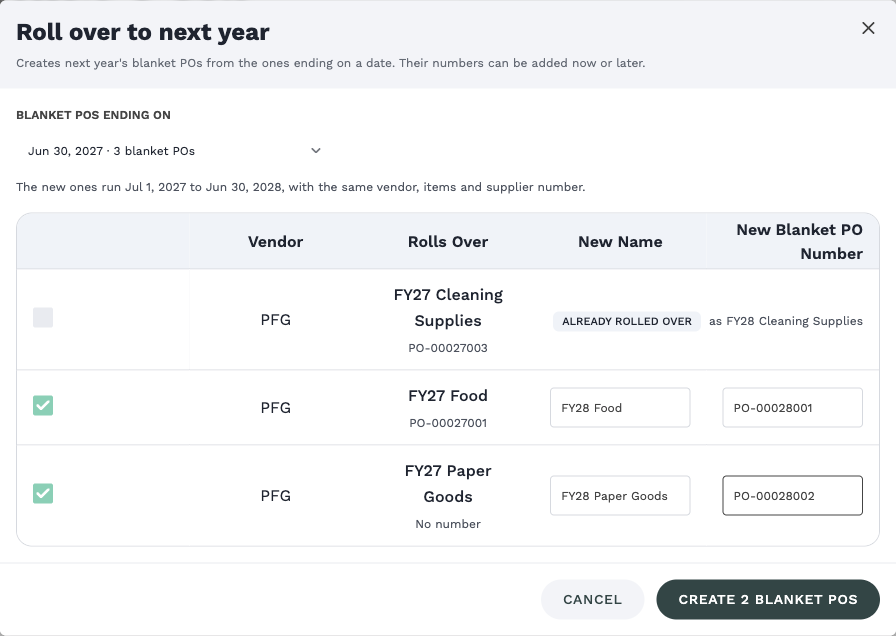
- Under Blanket POs ending on, choose the end date of the blanket POs you want to renew. Each date shows how many blanket POs end that day, and Galley opens on the next one that still has blanket POs to roll over.
- Check each row. Every row is selected to start with; clear the box on any you don't want to renew. You can change the new name, which starts as the current one, and you can add the new blanket PO number now or leave it for later. Rows that show "Already rolled over" can't be selected.
- Click Create N blanket POs, where N is the number of rows selected. For example, "Create 12 blanket POs".
- Galley shows how many it created, and lists any it couldn't create with the reason. Click Done.
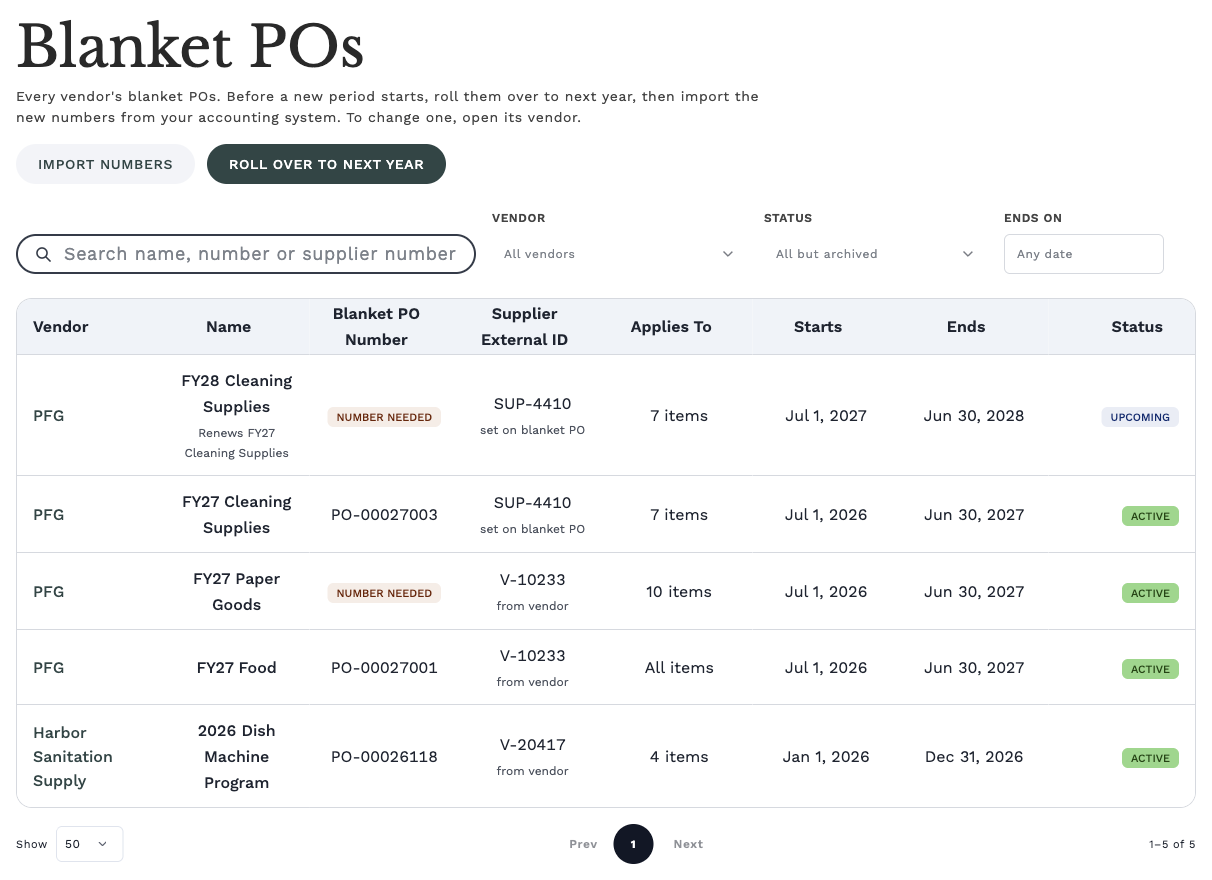
The list shows where each Supplier External ID comes from. "From vendor" means the blanket PO has none of its own and uses the vendor's External ID. "Set on blanket PO" means the blanket PO has its own.
To roll over one vendor's blanket POs, open the vendor's Blanket POs tab and click Roll over to next year. That opens the Blanket POs page filtered to the vendor, with the roll-over already open and listing only that vendor's blanket POs. When the page is filtered to some vendors, Roll over to next year lists only theirs.
You can roll over before the new period starts. This year's blanket POs keep working, and the new ones show Upcoming until their start date.
What the new blanket POs look like
| Detail | On the new blanket PO |
|---|---|
| Vendor | The same as the one you rolled over. |
| Applies to | The same: all items, or selected items. |
| Assigned items | The same items, for a selected-items blanket PO. Nothing on your vendor items changes. |
| Supplier External ID | The same, if the blanket PO had its own. |
| Starts | The day after the old blanket PO ends. |
| Ends | A full year after the new start date, ending the day before the anniversary. |
| Name | The name shown on the row when you click Create. |
| Blanket PO number | Empty, unless you typed one on the row. The blanket PO shows "Number needed" until you add it. |
For example, a blanket PO that ends on June 30, 2027 becomes a new blanket PO that starts on July 1, 2027 and ends on June 30, 2028.
This year's blanket POs stay as they are. Invoices dated on or before their end date keep going to them, even if you approve those invoices later. On a vendor's Blanket POs tab, the new blanket PO shows "Renews" and the old blanket PO's name under its own name.
Galley creates every blanket PO it can. If it can't create one, it tells you why and still creates the others. The usual reasons are that the blanket PO was already rolled over, the new dates overlap another blanket PO for the same vendor that can't share them, or the number you typed is already used by another blanket PO. One exception: if a number you typed has no letter or digit, such as ---, Galley creates none of them and shows "A blanket PO number must contain at least one letter or digit." Correct the number and click Create N blanket POs again.
Add the new PO numbers
Until a new blanket PO has a number, invoices dated in its new period still go to it, but they show Number needed and have no number to send. Add the numbers as soon as your purchasing team has them. See "How do I see blanket PO totals on an invoice?" for how missing numbers affect approval.
Add a number on the vendor
- Open the vendor and choose the Blanket POs tab.
- Click the actions icon at the end of the row and choose Edit.
- Enter the Blanket PO number. It saves when you leave the field.
- Click Done.
Import numbers from a spreadsheet
- On the Blanket POs page, filter the list to the blanket POs you want to number, for example by status or vendor.
- Click Import numbers, then Download template. The spreadsheet lists every blanket PO that matches the page's filters, across all pages, with an id column and columns for the vendor, name, starts, ends, current number and new number.
- Open the file and fill in the new number column, for example by pasting the numbers from your accounting system. Don't change the id column. Leave the new number blank on any row you want to keep as it is.
- Save the file as a CSV.
- Drop the file on the upload area in the Import numbers window, or click it to choose the file.
- Check the preview. It lists each blanket PO whose number will change, and any rows Galley left out, with the line number and the reason.
- Click Save N numbers.
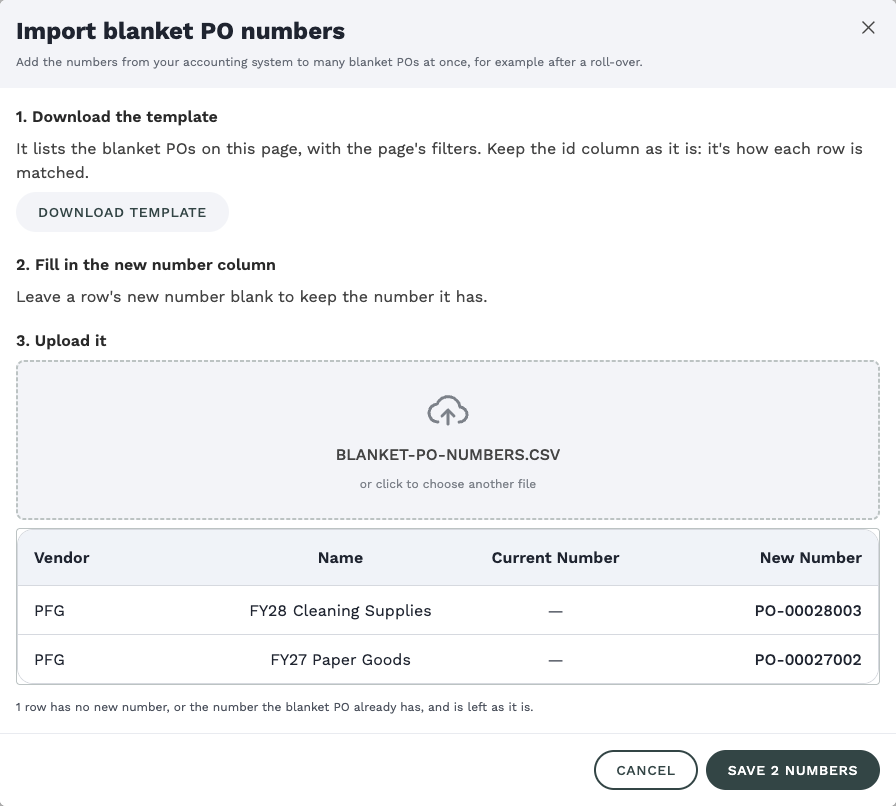
Galley matches each row by the id in the file, not by the vendor or the supplier ID. This keeps the right number on the right blanket PO even when two vendors share a supplier ID.
Galley checks the file before anything is saved. Rows it can't use are left out and listed with the reason, and the rest are saved together. If the save itself is refused, Galley saves none of the numbers and tells you why.
A row is left out when its id doesn't match a blanket PO in your company, when the blanket PO is archived, when the same blanket PO is listed twice (only the first row is used), or when its number would also belong to another blanket PO that isn't archived. Galley ignores capital letters and punctuation when it compares numbers, so PO-1042 and po1042 count as the same number. Two blanket POs in the same file can swap numbers.
You can set up to 500 numbers in one import. For more, split the file.
Troubleshooting
| What you see | Why it happens | What to do |
|---|---|---|
| No Roll over to next year or Import numbers button | Your role doesn't include Edit Vendor and Vendor Item Data. | Ask an admin to add the permission to your role. |
| A blanket PO is missing from the roll-over list | It doesn't end on the date you chose, it is archived, or the page is filtered to other vendors. | Choose its end date, clear the Vendor filter, or check its status on the page. |
| A row says "Already rolled over" | Next year's blanket PO already exists for it. | Find the new blanket PO on the vendor's Blanket POs tab. It shows "Renews" and the old name. |
| A blanket PO wasn't created, and Galley says the dates overlap | The vendor already has a blanket PO covering some of the new dates that can't share them. This happens when both are all-items blanket POs, or both are selected-items blanket POs with some of the same items. | Edit or archive the other blanket PO, then roll over again. |
| A row is left out because of its number | Another blanket PO that isn't archived would have the same number. | Correct the number in the file, or archive the blanket PO that has it, then upload the file again. |
| The import says a column is missing | The file doesn't have the columns from the template. | Download the template again and fill in its new number column. |
| Rows show Number needed after the import | Their rows weren't in the file, their new number was blank, or they were left out. | Check the reasons in the preview, then add the numbers on the vendor or import them again. |
FAQ
Can I roll over a blanket PO more than once?
No. A blanket PO can be rolled over once. If you need to change what Galley created, edit the new blanket PO on the vendor's Blanket POs tab, or archive it and roll over again.
Do I have to roll over every blanket PO?
No. Clear the box on the rows you don't want. You can run Roll over to next year again later for the rest, or add blanket POs one by one on the vendor.
Can I roll over blanket POs that end on different dates?
Roll over one end date at a time. Choose a different end date and run it again.
Do I have to use the spreadsheet import?
No. You can add each number on the vendor instead. The import is useful when you have many blanket POs to number at once.