
Jump to: What it does · What you can archive · Archive · Find archived · Already in use · Imports and issues · Permissions · Availability · FAQ
What archiving does
Archiving takes an item out of day-to-day use without deleting it. An archived item disappears from the lists you pick from and from the catalog page, unless you ask to see archived items. It stays in place wherever it is already used, it becomes read-only, and you can unarchive it at any time.
Archiving is a good fit when you no longer want to see something but you are not ready to lose it, for example a retired recipe, a seasonal menu cycle or a vendor you have stopped ordering from.
What archiving does
- Hides the item in pickers, the lists you search when adding something to a recipe, plan or order.
- Hides the item on the catalog page, until you choose to view archived items.
- Makes the item read-only until you unarchive it.
- Keeps the item where it is already used, so existing recipes, plans and menus keep working.
What archiving does not do
- It never deletes anything. Recipes, menus, plans and recipe books that use the item are not changed.
- It never touches stock. Archiving a vendor or a vendor item does not change on-hand stock, orders or invoices.
- It never blocks you. The grey "(Archived)" marker never stops approval, publishing, costing or saving.
- It does not cascade. Archiving a vendor does not archive its vendor items, and archiving a recipe does not archive the recipes that use it.
An archived item is read-only for everyone until it is unarchived. You can still unarchive it, and you can still delete it, at any time.
What you can archive
Seven kinds of items can be archived, and they all follow the same rules in this article.
| What you can archive | Notes |
|---|---|
| Recipes | Copying an archived recipe gives you a new, active recipe. |
| Ingredients (and supplies) | Merge, dietary flags and tags are locked in the archived view. |
| Menu Cycles (and Menu Programs) | Fields, settings and events are read-only. |
| Menu Plans | You can still delete, duplicate, archive and unarchive. |
| Collections | You can still delete, duplicate, archive and unarchive. |
| Vendors | The vendor's vendor items stay editable. |
| Vendor Items | Archiving never changes on-hand stock. |
Each kind of item is switched on separately, so your company may have archiving for some of these and not others. See "Why don't I see Archive?" below.
If you want to stop using a vendor item, archive it instead of deleting it. Deleting a vendor item writes off its on-hand stock. Archiving does not touch stock.
How do I archive and unarchive something?
You can archive from the catalog page (several items at once) or from an item's own page. The same permission covers archiving and unarchiving on both.
From the catalog page
- Open the catalog page for the kind of item you want to archive, for example Recipes or Vendor Items.
- Select one or more items.
- In the bulk actions bar, choose Archive.
- Confirm when Galley asks.
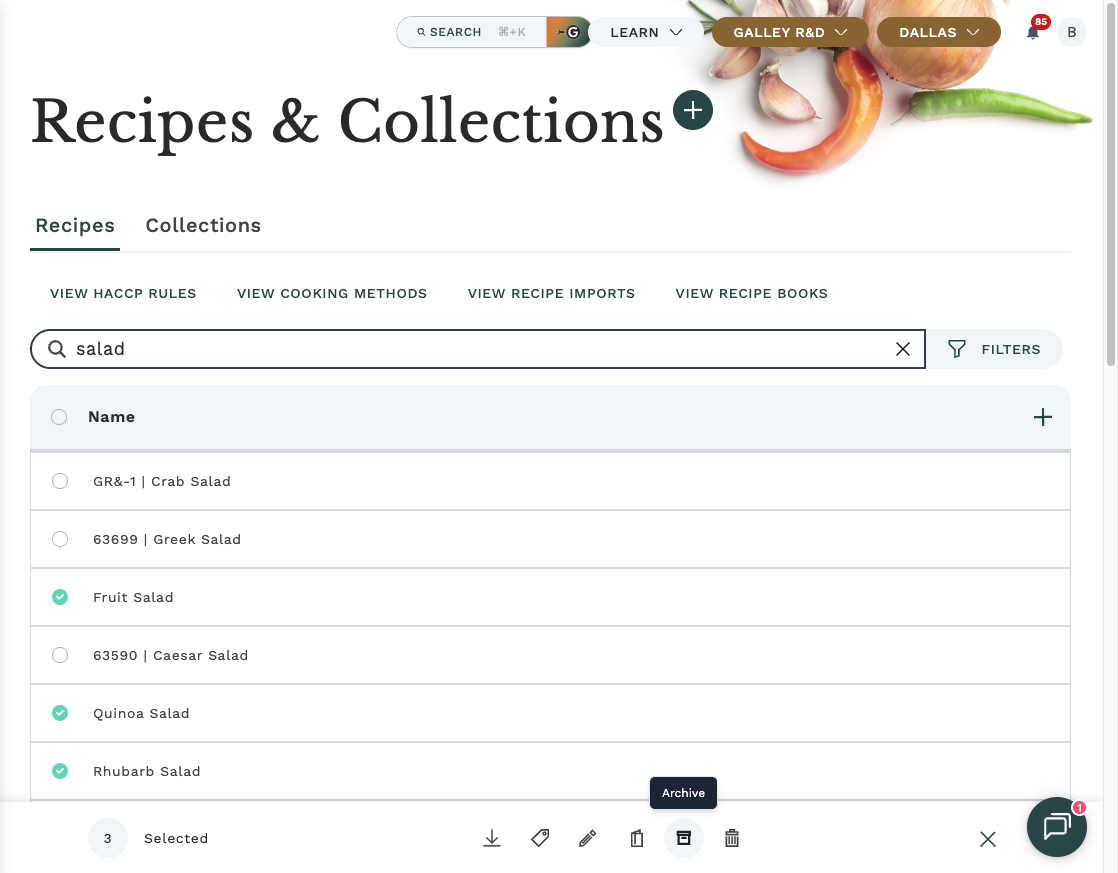
To bring items back, turn on "Show archived" (see below), select them and choose Unarchive in the same bar.
From an item's page
- Open the item.
- Use the page's archive option to archive it, and confirm.
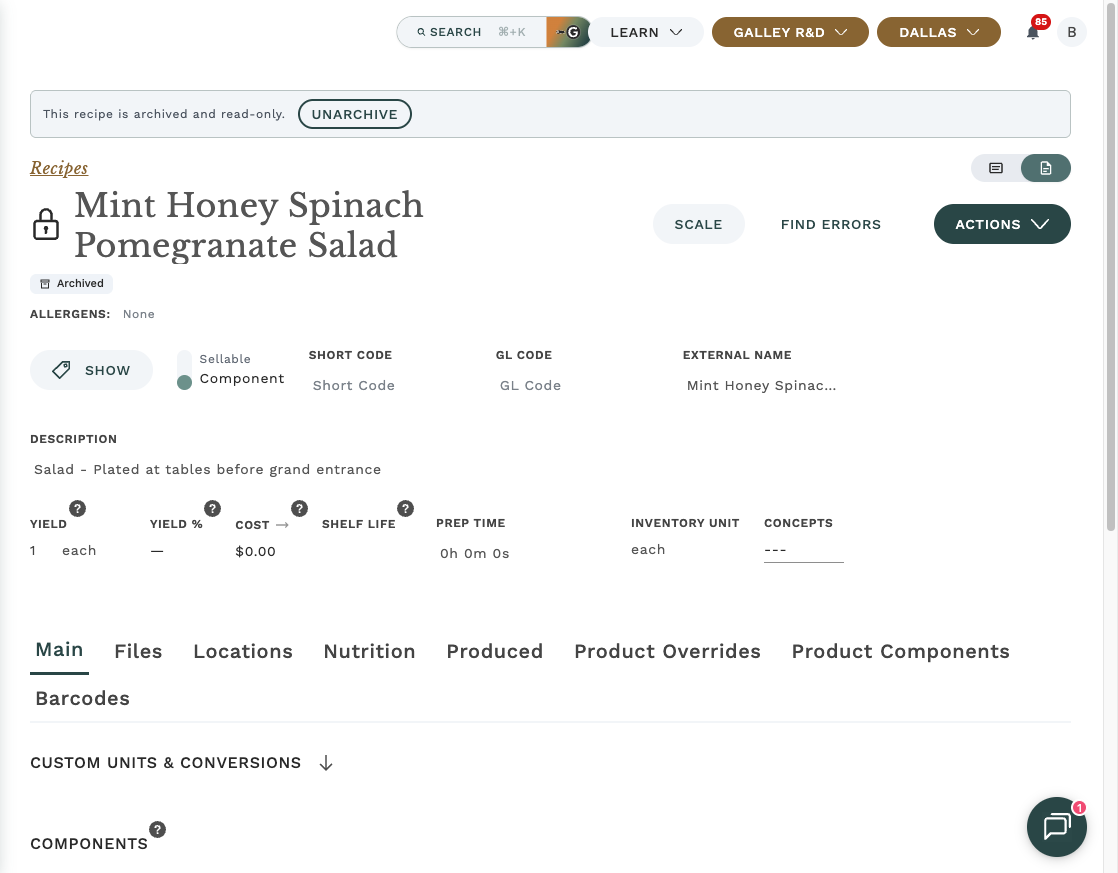
- The page now shows an Archived tag and the notice "This recipe is archived and read-only." The wording changes to match what you are viewing, for example "ingredient" or "collection".
- To restore it, select Unarchive in that notice.
How do I find archived items?
On a catalog page
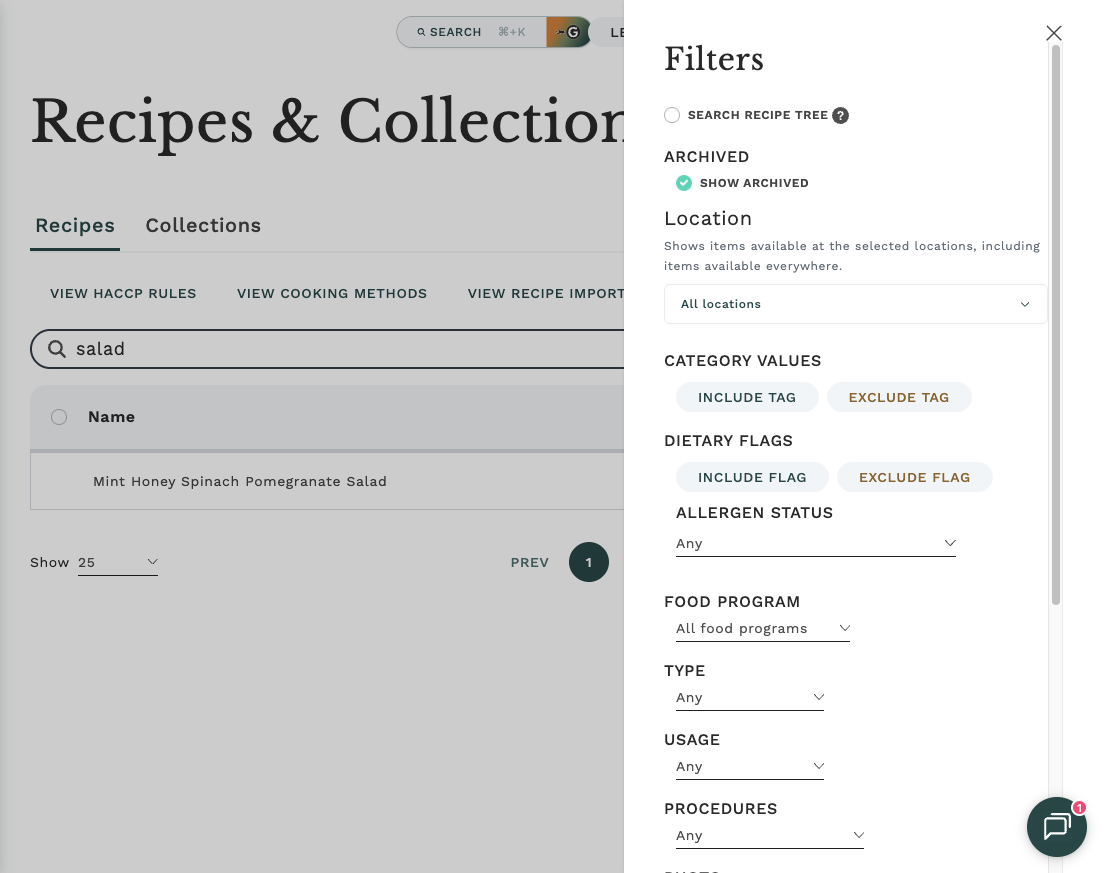
Turn on "Show archived" in the filters. The list then switches to archived items only. It does not add them to your active items.
Turn the filter off to go back to your active items.
In a picker
Pickers hide archived items by default. Tick "Show archived" in the picker to include them. Archived items are marked with an Archived tag. In a picker, the checkbox adds archived items to the active ones.
If a field already holds an archived value, it still shows that value. It never goes blank.
A few screens always list archived items and have no "Show archived" checkbox, for example global search, Generate Invoices, Refill Portions and Copy Overrides. That is expected.
When you look up a vendor item by UPC, or search an ingredient's candidate vendor items, archived vendor items are shown with an Archived tag and an Unarchive button. This helps you avoid creating a duplicate of an item that already exists.
What happens where an archived item is already used?
Archived items stay exactly where they were placed, and everything keeps working.
- On a menu plan or menu cycle, an archived product stays in place with a grey "(Archived)" after its name. The menu plan sidebar adds a grey line such as "1 archived product this week. They stay in place and do not block approval."
- In a recipe, an archived ingredient or sub-recipe shows a grey "(Archived)" after its name. The recipe keeps costing and saving as before.
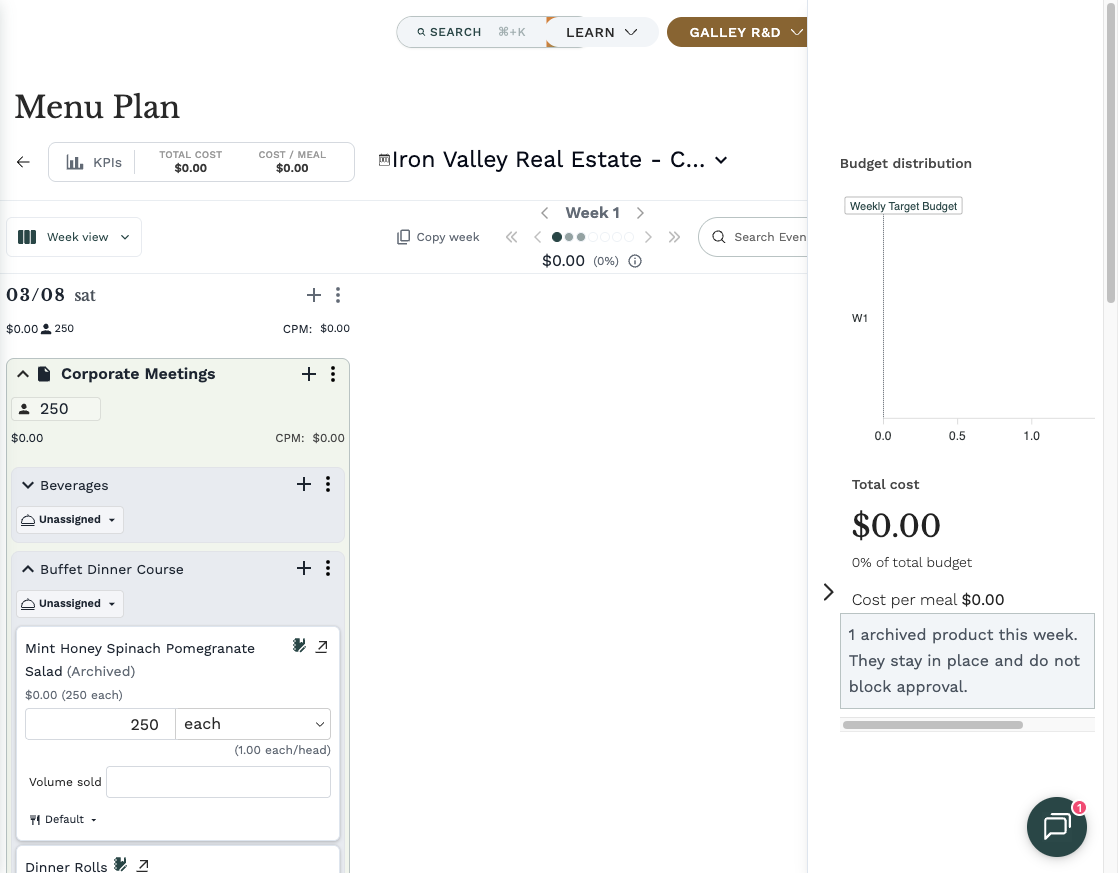
An archived product is different from a deleted one. A deleted product is shown as [DELETED] and does block approval. An archived product never does.
Imports and issues
CSV imports
When you import a file that updates existing rows, any row that matches an archived item is skipped. Galley reports "<name> is archived; unarchive it to update". Other rows in the same file import normally.
This applies to the ingredient, vendor item and recipe imports. The recipe import applies it when recipe archiving is on for your company.
Issues on archived recipes
Issues on an archived recipe are hidden from the Issues queue and from the recipe's cost issues. Nothing is resolved or deleted, so the issues come back when you unarchive the recipe.
An issue on a live recipe that uses an archived ingredient or vendor item stays visible, because the live recipe still uses it.
Who can archive and unarchive?
The same permission covers archiving and unarchiving.
- Recipes, Ingredients, Menu Cycles, Menu Plans and Collections: by default, anyone who can edit that kind of item can also archive and unarchive it. If an admin turns on the separate Archive permissions option in Feature Control, you then need the matching Archive permission: Archive Recipes, Archive Ingredients, Archive Menu Cycles, Archive Menu Plans or Archive Collections.
- Vendors: you need the Archive Vendors permission.
- Vendor Items: you need the Archive Vendor Items permission.
Admins: once the Archive permissions option is on, the Archive permissions appear in the role editor. Each one depends on the matching Edit permission, so a role that gets an Archive permission also gets the Edit permission.
Deleting is separate. It follows the item's normal edit permission and stays available on an archived item.
Why don't I see Archive?
Each kind of item has its own archiving option, turned on per company in Settings > Feature Control. Some of these options are in Beta or Alpha, so your company may have archiving for some kinds of items and not others. Where an option is off, nothing is hidden, marked or locked.
If you don't see Archive or "Show archived", ask your admin to turn it on in Feature Control, or contact Support. If archiving is on but you still don't see the Archive option, check that you have the Archive permission described above.
Frequently asked questions
Why can't I edit this item?
It is archived. The page shows an Archived tag and a notice saying it is read-only. Unarchive it and it becomes editable again. A vendor and its vendor items are separate, so archiving one does not lock the other.
Where did my item go?
It was most likely archived. Open the catalog page and turn on "Show archived", or tick "Show archived" in the picker. If it isn't there, it may have been deleted instead.
My active items disappeared when I turned on Show archived.
On a catalog page, "Show archived" shows archived items only. Turn the filter off to see your active items again.
Does archiving delete stock?
No. Archiving a vendor or a vendor item never changes on-hand stock, orders, invoices or cost. Deleting a vendor item does write off its on-hand stock, so archive it instead.
Can I still use an archived recipe or ingredient in a menu plan or recipe?
Anything already placed stays in place, with a grey "(Archived)" after the name, and keeps costing and saving. New picks are hidden unless you tick "Show archived" in the picker.
Can I reuse the name of an archived item?
No. An archived recipe, ingredient, collection, menu cycle or menu plan keeps its name. Unarchiving never runs into a name clash. A copy of an archived item starts as an active item.
An import skipped a row. Why?
The row matches an archived item. Unarchive it and import again.
I archived a recipe and its issues disappeared.
Issues on an archived recipe are hidden, not resolved. They return when you unarchive the recipe.