The Galley Recipe Book is a digital, media-rich hub for recipes, SOPs, and
training—purpose-built for professional kitchens.
It replaces static PDFs and binders with a visual, interactive system that helps
teams execute consistently, train faster, and maintain compliance with ease
Table of Contents
How to navigate a recipe book
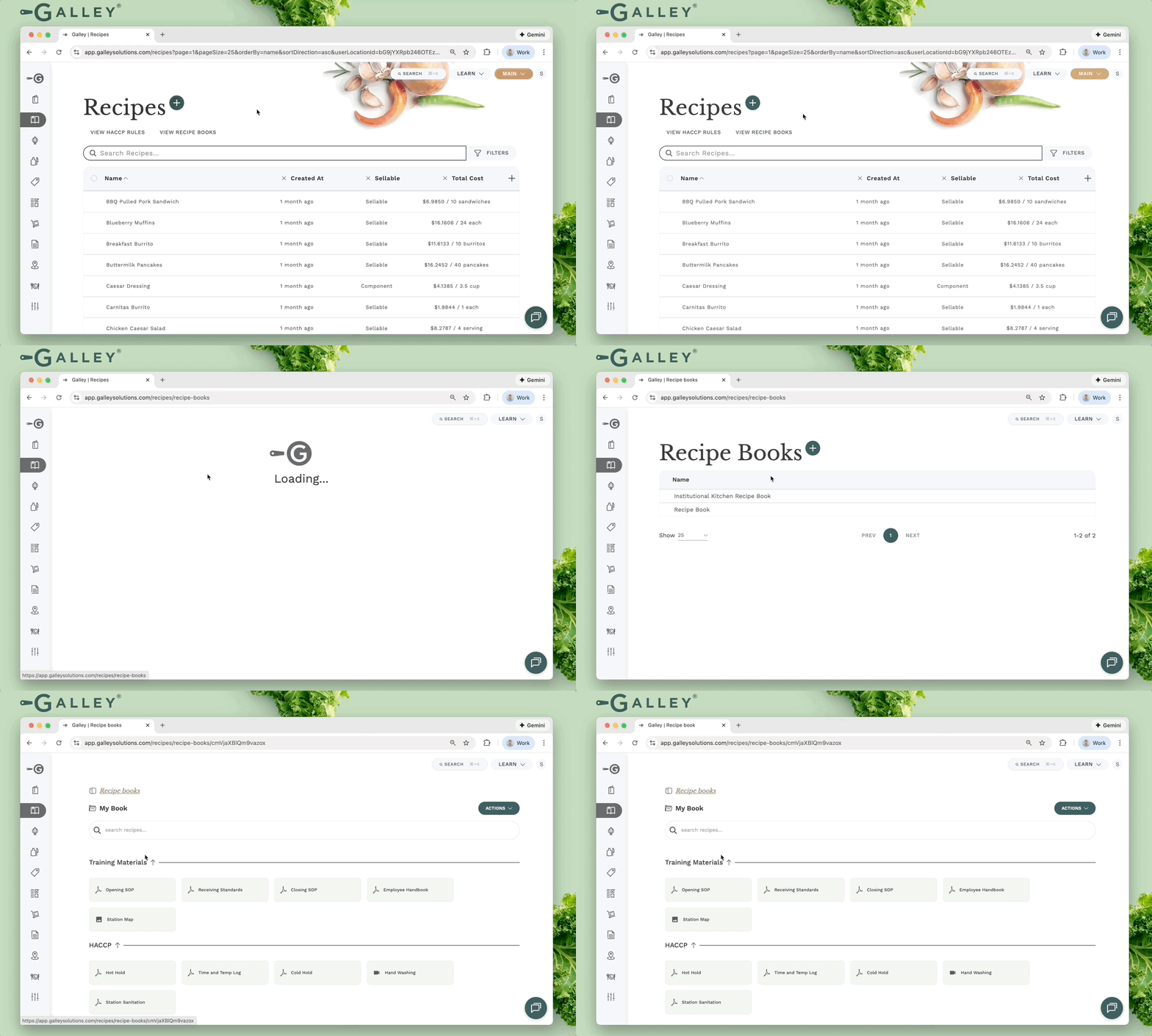
The Recipe Books Catalog Page can be found within the Recipes Catalog Page under the View Recipe Books button. Inside the catalog, you can find the existing recipe books (or create one, which we will walk through below).
You must have the View Recipe Book permission to access recipe books.
Groups
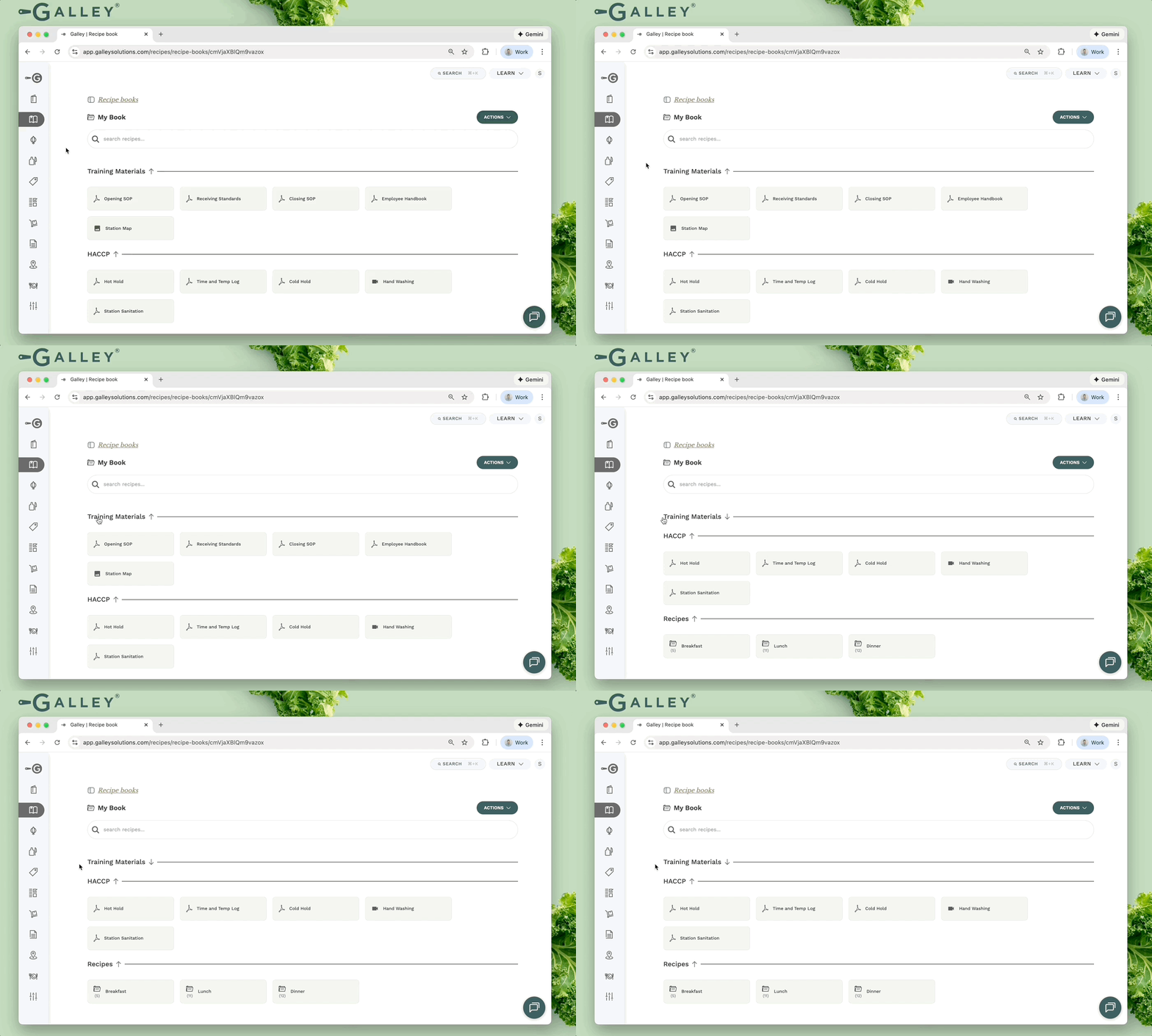
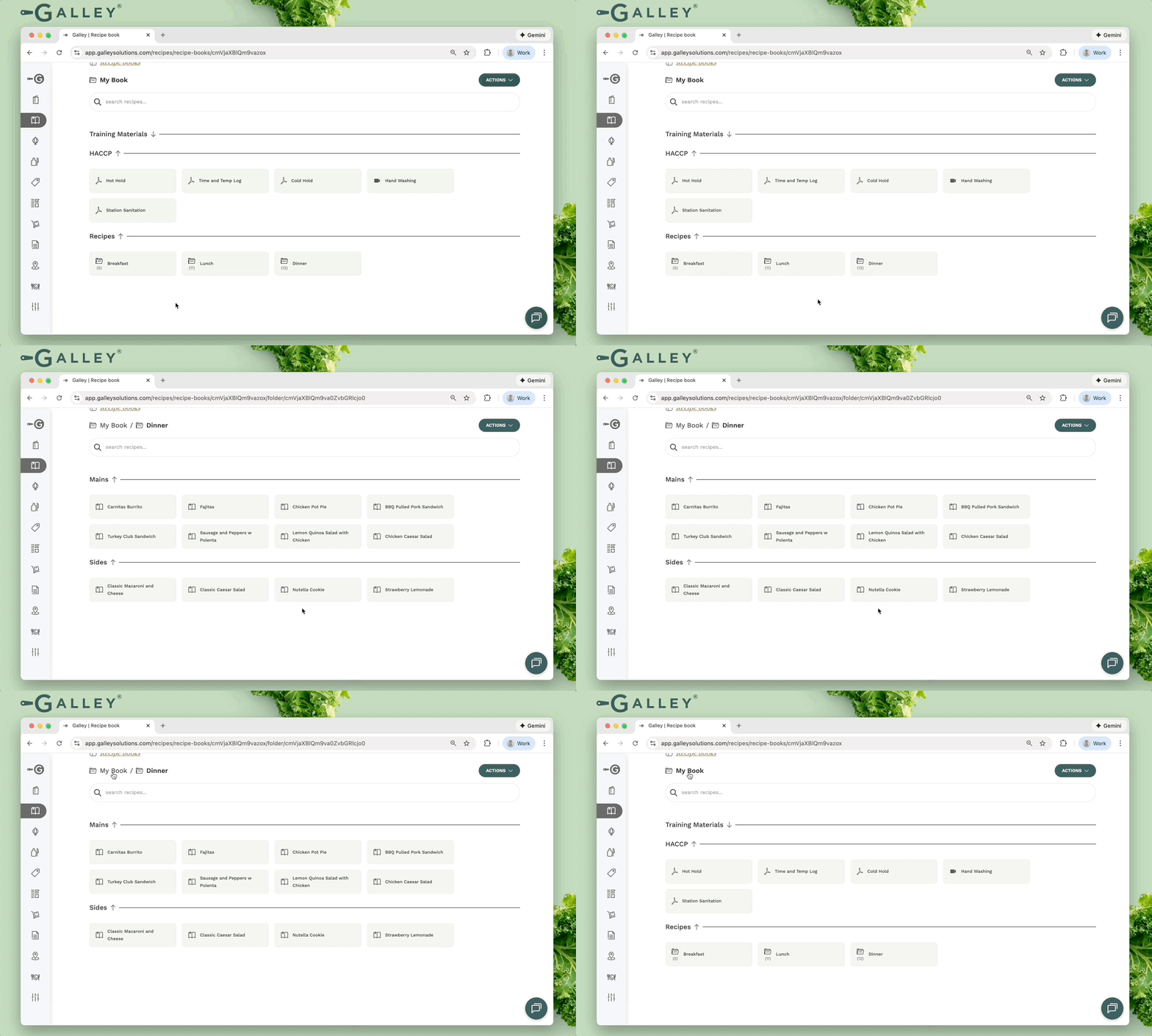
A recipe book is a folder structure that allows you to organize training and recipe content. Inside each folder, you may organize content into collapsible groups.
Files
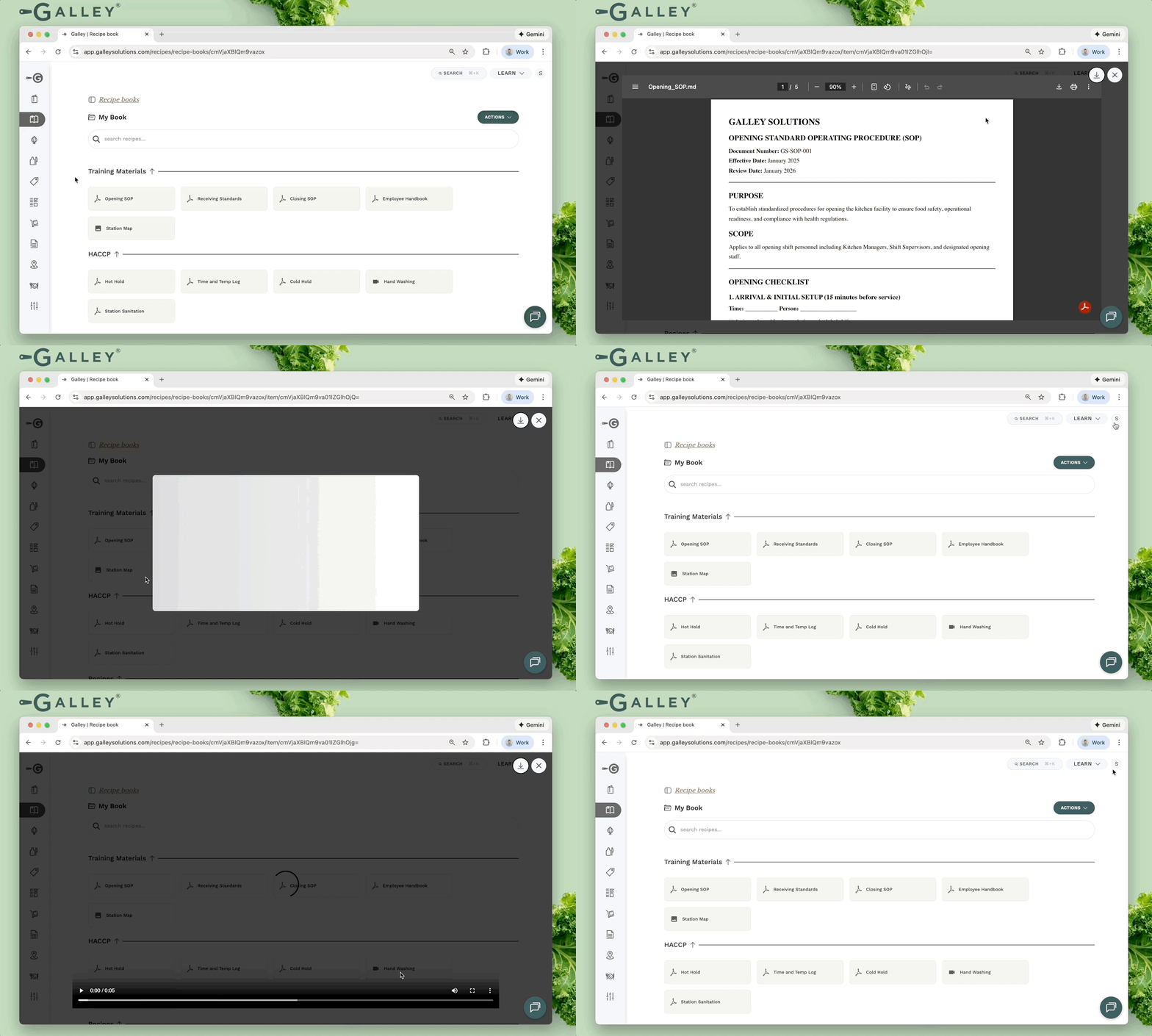
Images, documents, and videos can be viewed inside a recipe book. These files are stored at the company level, via the Files Management tab on the Settings page.
Only admins have access to the Settings page. If you are an admin and do not see the Files Management tab on the Settings page, reach out to the Galley team via the support chat.
Folders
A recipe book is, in essence, a folder structure. Folders allow content to be nested for easy navigability. When inside a nested folder, you can navigate to a parent folder using the breadcrumb at the top of the page.
Recipes
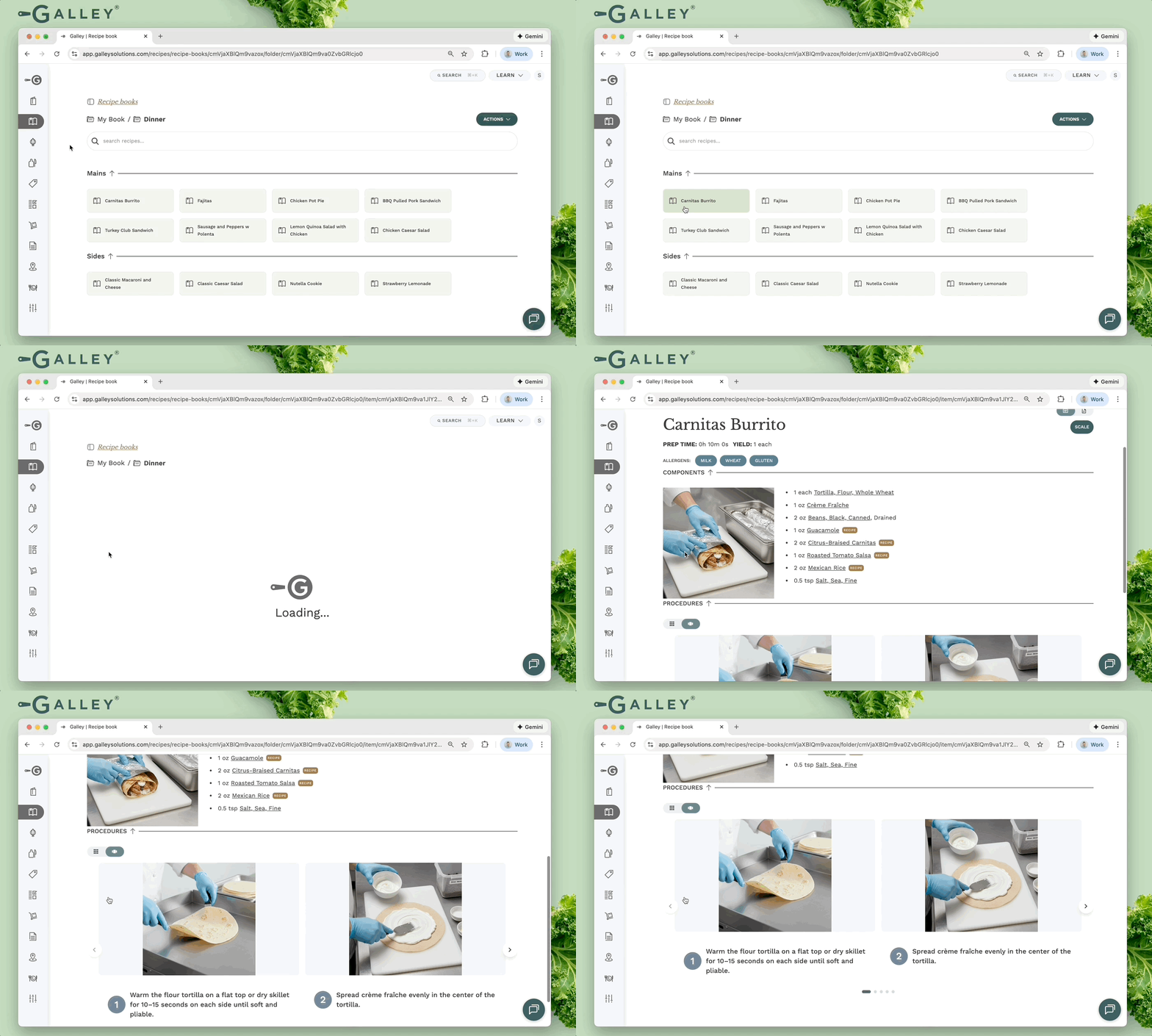
Recipe Books allow your kitchen teams to easily find recipe instructions. Clicking a recipe will open the kitchen-optimized recipe card view, complete with procedure images. Learn more about recipe cards in the article: What is the Recipe Card view?
Create Recipe Book
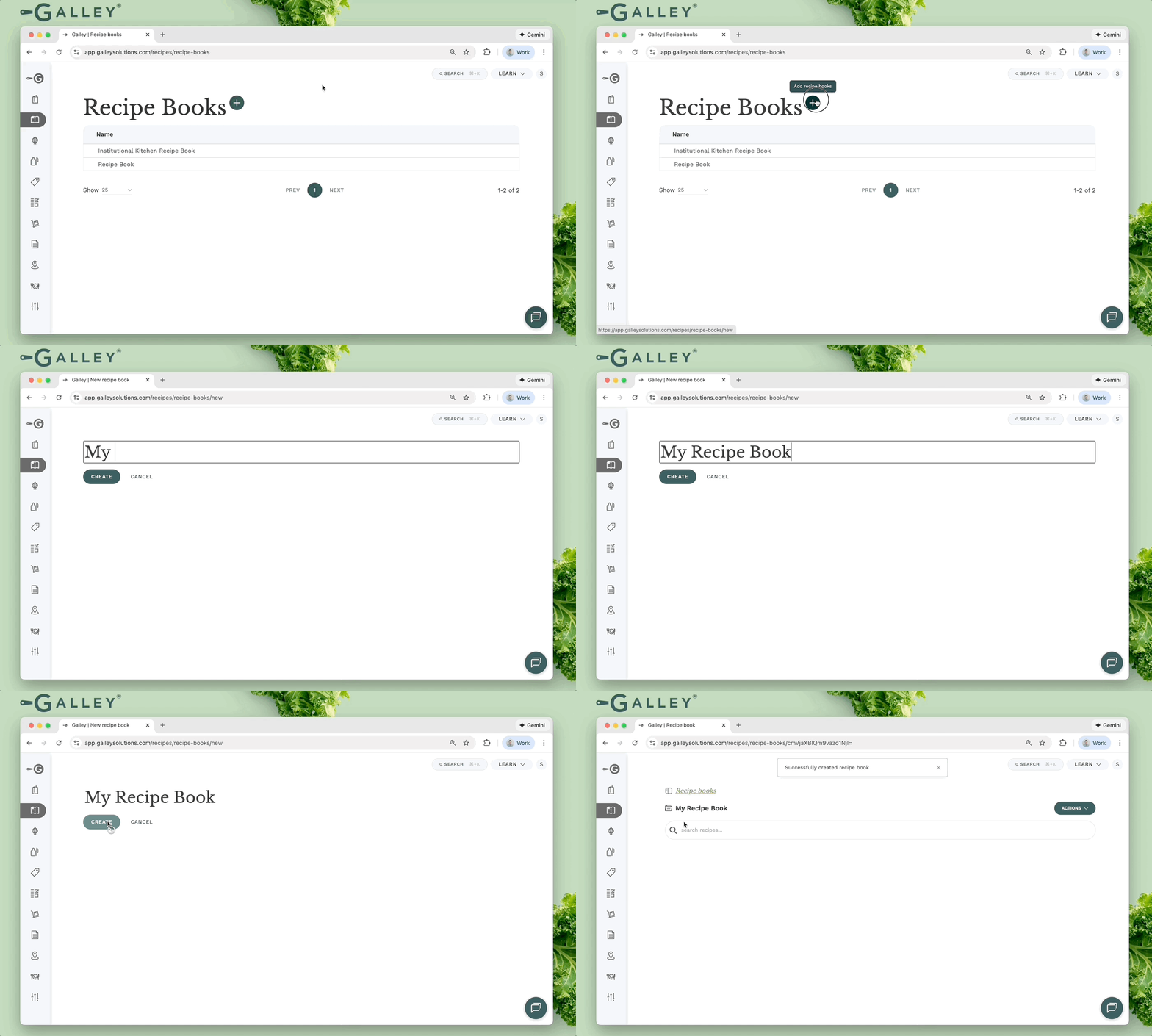
New recipe books can be created using the + on the Recipe Books catalog page.
Edit Mode
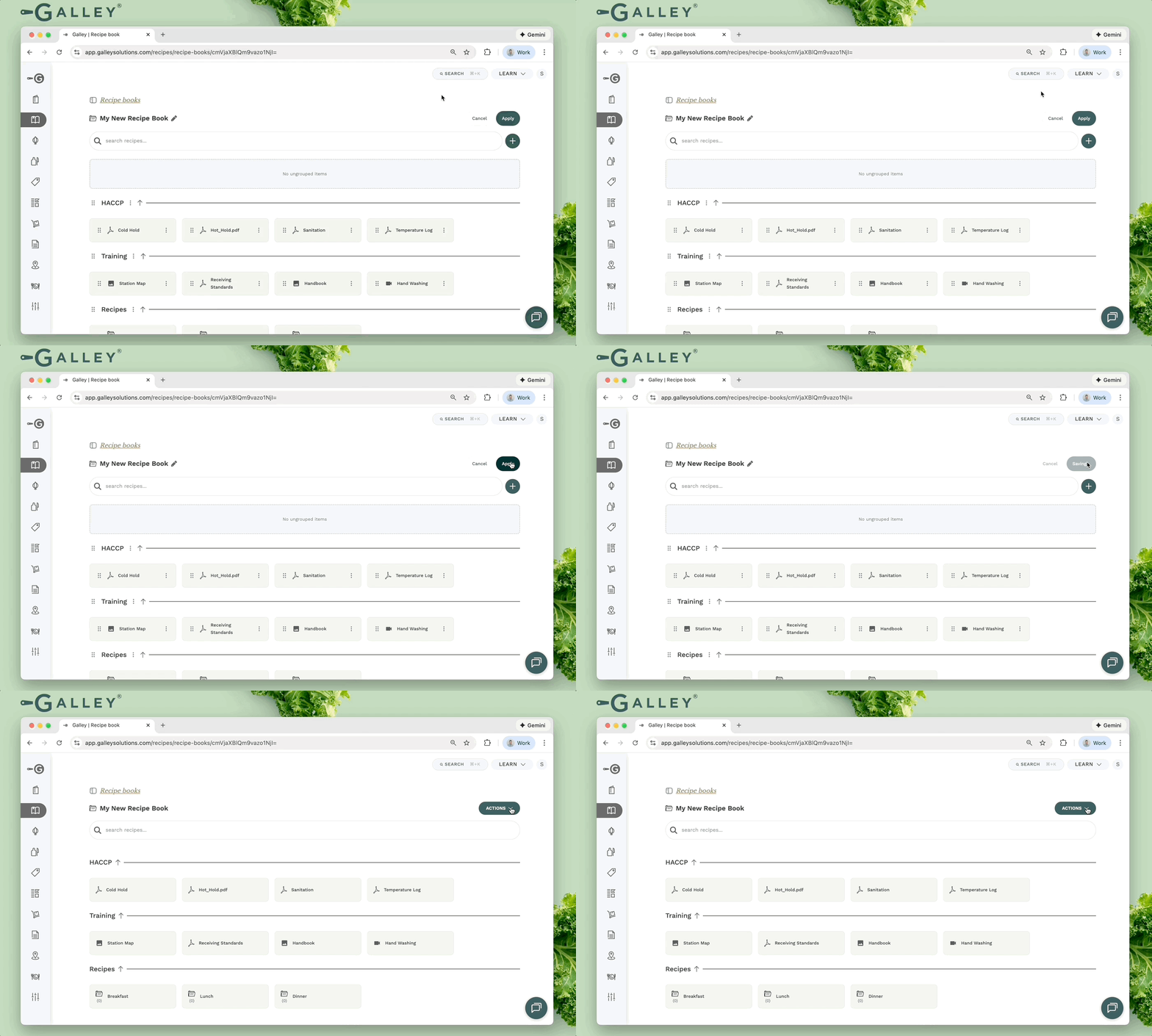
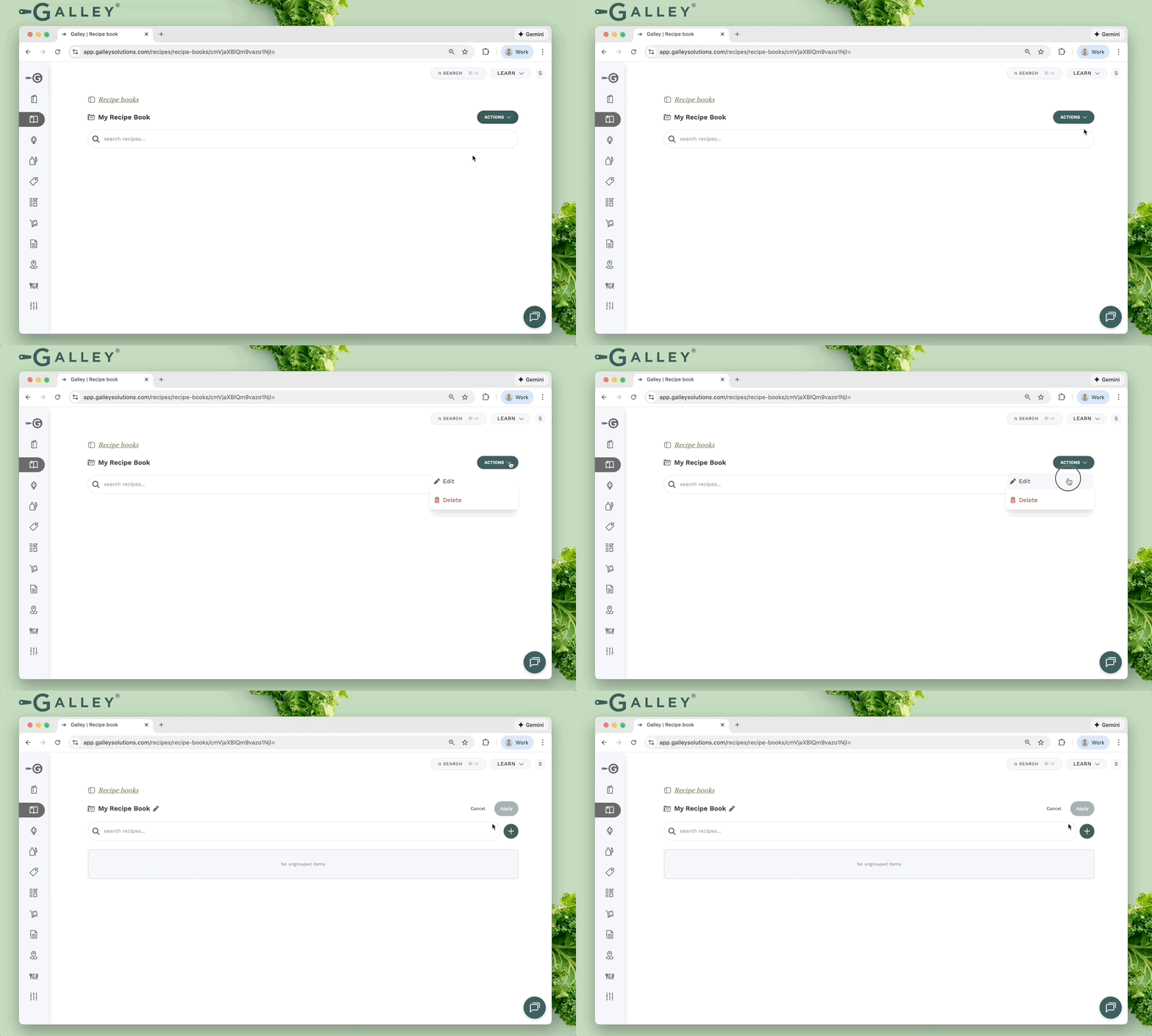
When inside of a recipe book, you can create and edit content by putting the book in Edit Mode via the Actions dropdown.
Add Content
New content (groups, folders, recipes, files) can be added to a recipe book using the + while in edit mode.
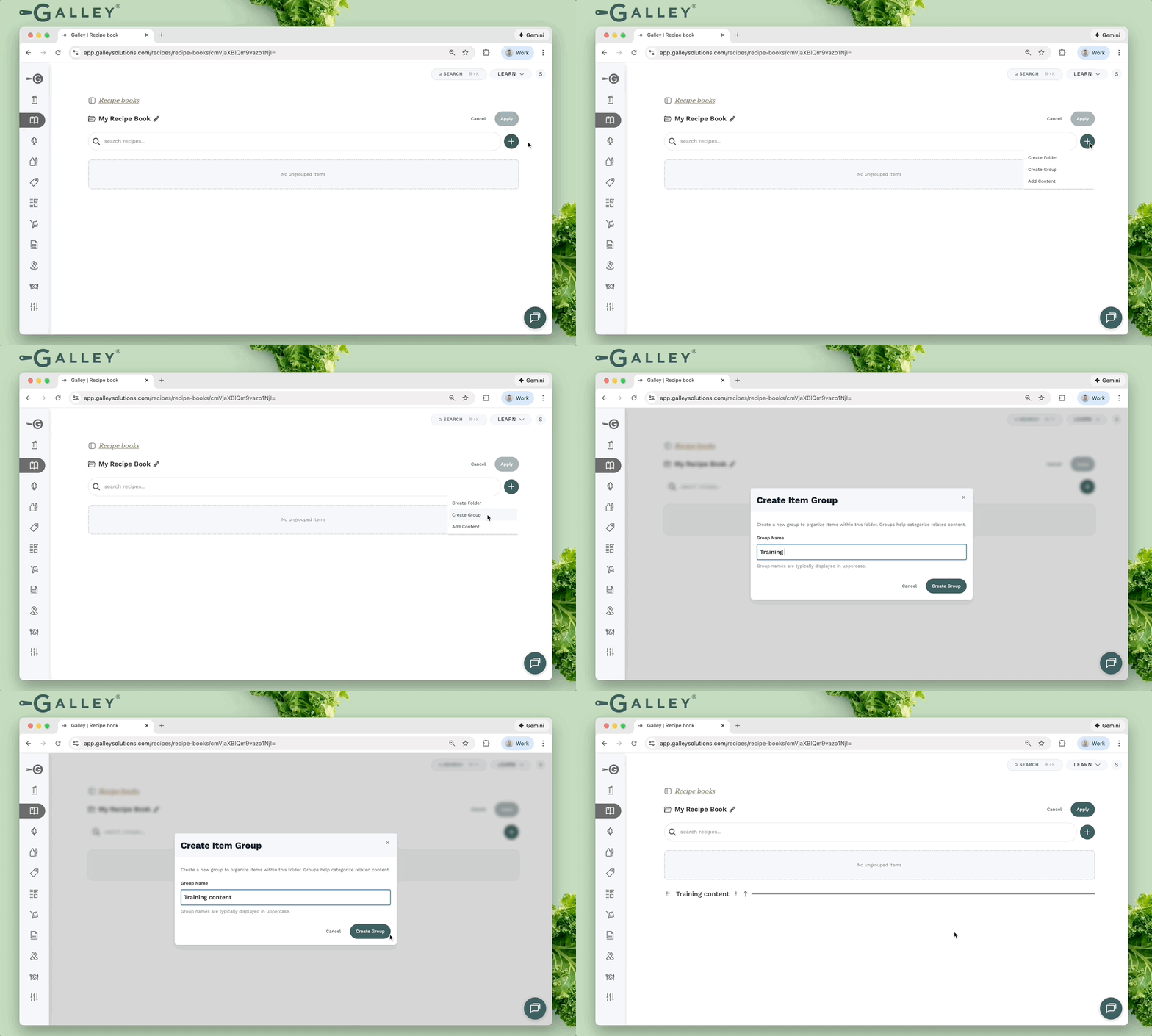
To create a new group, click Create Group and enter the group name.
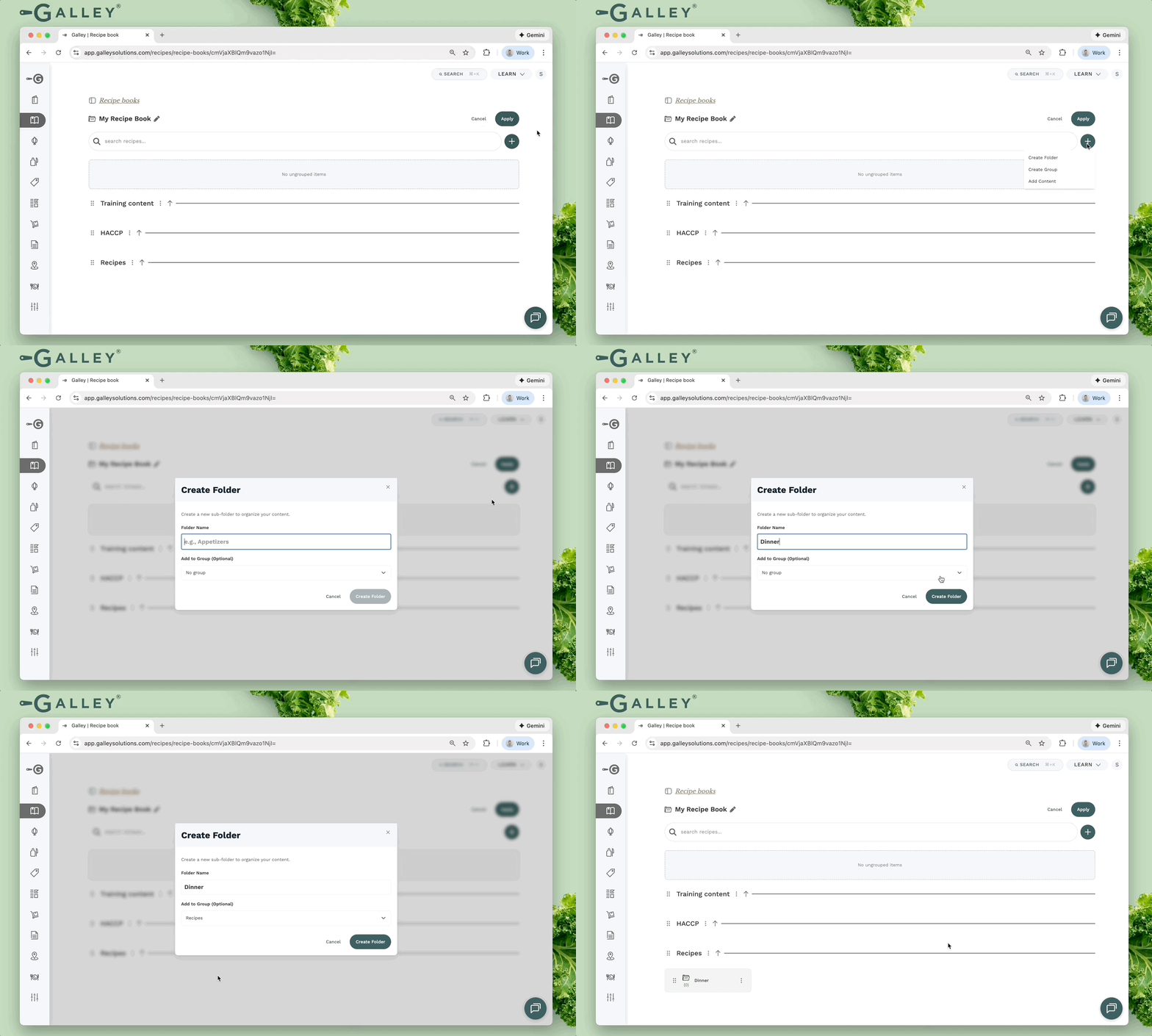
Create folders using the Create Folder button. Enter the folder name and optionally add the folder to an existing group.
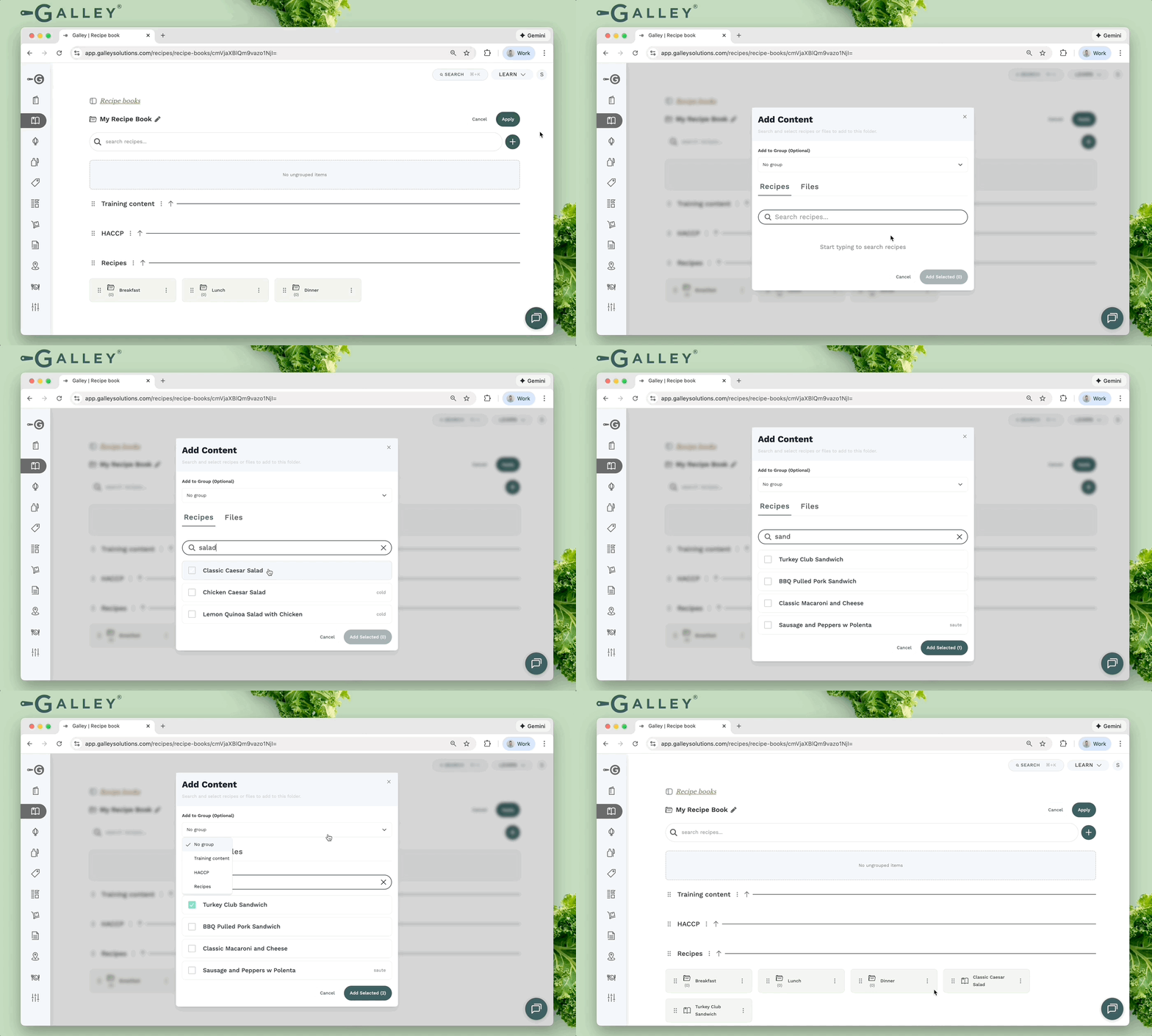
Add recipes to a recipe book via the Add Content button. Search the recipe catalog, select the recipe(s) to add, optionally select a group, and click Add Selected.
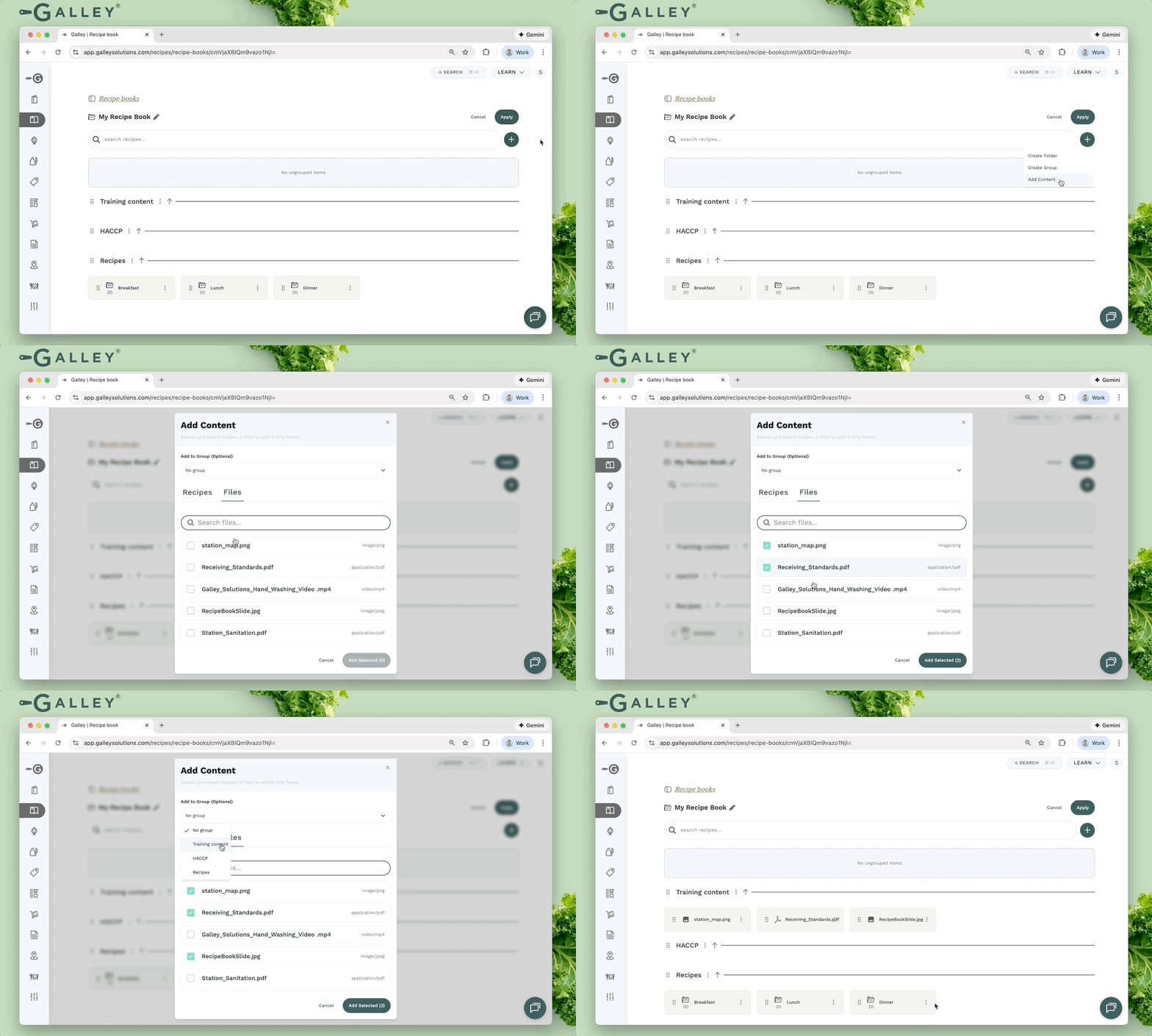
Add files to a recipe book via the Add Content button. Select the file(s) to add, optionally select a group, and click Add Selected. The available files are stored at the company level, via the Files Management tab on the Settings page.
Rename
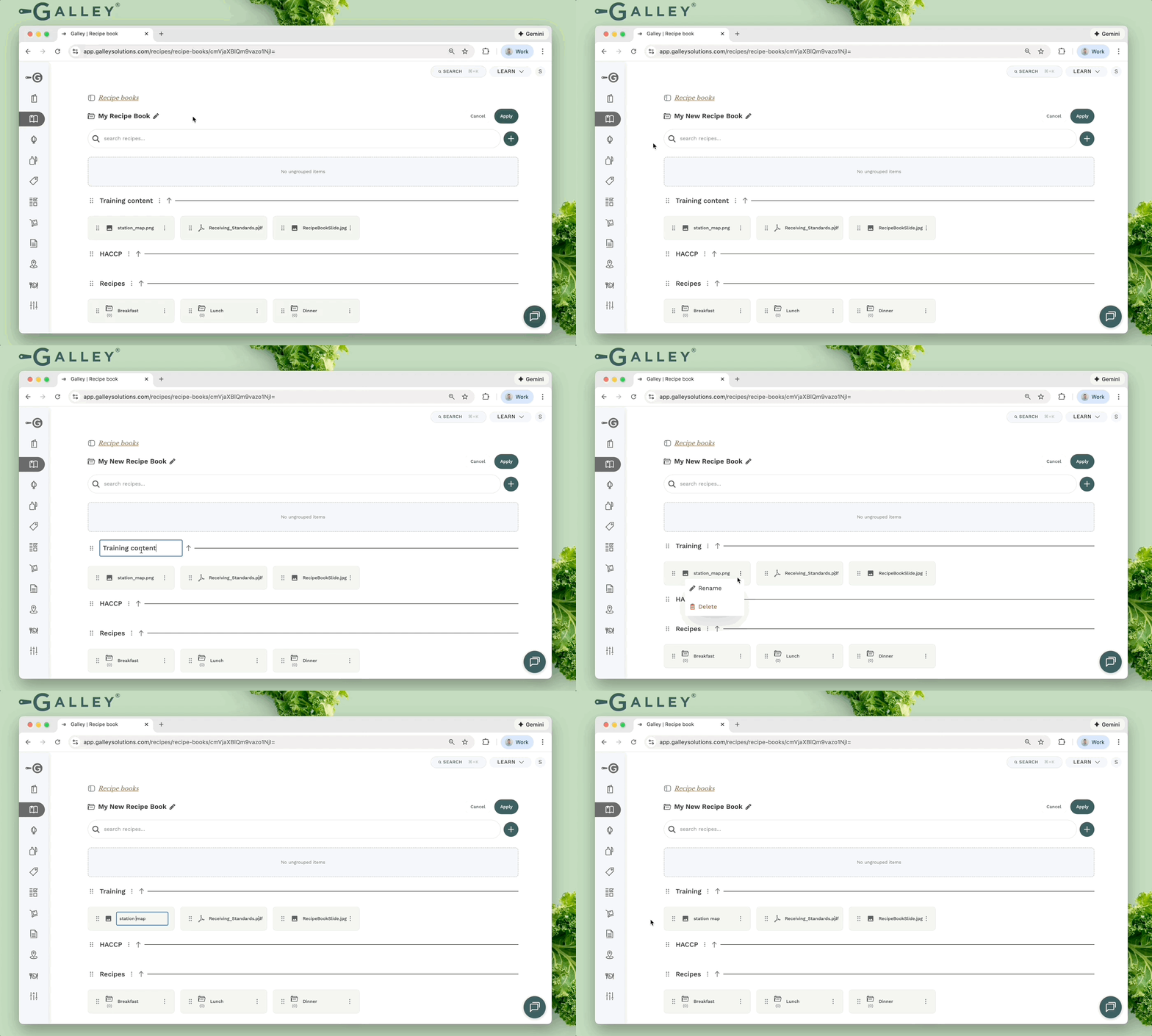
Recipe books, folders, groups, and content can all be renamed. To rename a recipe book, click the pencil icon next to the recipe book name. To rename a folder, group, or content, click the three dots icon to the right of the name, followed by Rename.
Organize
Re-organize content within a group, between groups, or groups themselves via drag & drop.

Apply Changes
When you are done making adjustments to your recipe book, click Apply to save the changes to the book and leave edit mode.
Canceling or leaving the page will discard your changes.