
Content
- What does the TPP-Galley menu import workflow do?
- What are the high level steps?
- How are TPP items and Galley recipes mapped?
- How do I export TPP events?
- How do I import TPP events into Galley?
What does the TPP-Galley menu import workflow do?
While this workflow is not a real-time, system-to-system integration between Total Party Planner and Galley, users can leverage an export/import process to connect front-of-house event planning with back-of-house production execution. With a single export, catering teams can bring events from Total Party Planner into Galley as menus and map event menu items to Galley recipes for food costing, production planning, and nutritional analysis.
Before You Begin
Contact the TPP Customer Success team to enable the Galley export feature flag on your account. Once activated, the “Export to Galley File” button will appear in your Master Production Worksheet Report.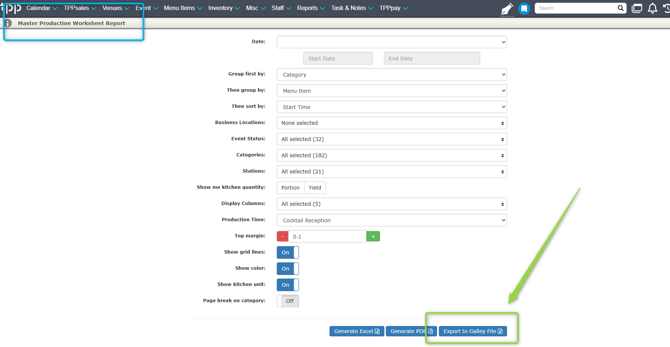
What are the high level steps?
How are TPP menu items and Galley recipes mapped?
To ensure TPP menu items populate as mapped recipes in Galley, the TPP Menu Item Name must match the Galley Recipe Name.
If a Total Party Planner menu item Name doesn't match an existing Galley recipe Name, a new recipe will be created automatically in Galley.
How do I export TPP events?
To get your event data for Galley import, you'll need to export the Galley Formatted Master Production Worksheet Report from Total Party Planner.
- Navigate to Reports
Go to Reports → Master Production Worksheet Report. - Set Your Parameters
Choose your date range, set Event Status to Confirmed, select relevant categories and stations, and choose whether to display Portion or Yield quantities. - Customize Display Options
Enable columns for Event, Category, Station, Quantity, and Menu Item Details. Turn on Grid Lines and Kitchen Unit View for clarity. Adjust top margin or page break settings as needed. Required columns:- Invoice#
- Event Title
- Event Date
- Menu Item
- Portion Amount
- Portion Unit
- Generate the Galley File
Click the “Export to Galley File” button at the bottom of the screen. TPP will generate a .CSV file formatted for direct Galley import.
Pro Tip
If you’re exporting multiple events, group your report by Events for easier reading and remove any non–menu item rows. Save your Master Production Worksheet settings in TPP as a template so you can re-export to Galley with one click for future events.
How do I import TPP events into Galley?
You will use Galley's Menu Importer to import TPP events.
- Make sure you have the event CSV report ready.
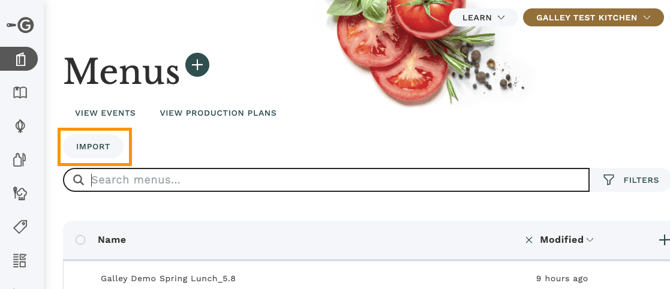
- In Galley, access the importer from Menus > Import.
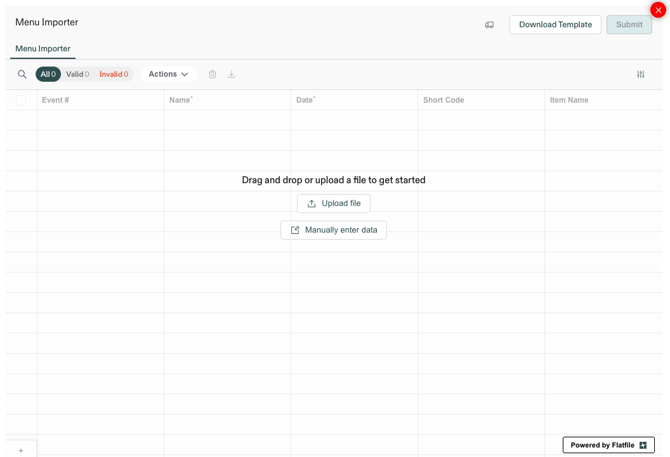
- Use the "Upload file" button or drag and drop the Galley formatted TPP export file into the importer grid.
- Map TPP fields with Galley fields, then click Continue to proceed.
TPP Fields Galley Fields Invoice # Event # Event Title Menu Name Event Date Menu Date Menu Item Menu Item Recipe Name Portion Amount Menu Item Volume Portion Unit Menu Item Unit 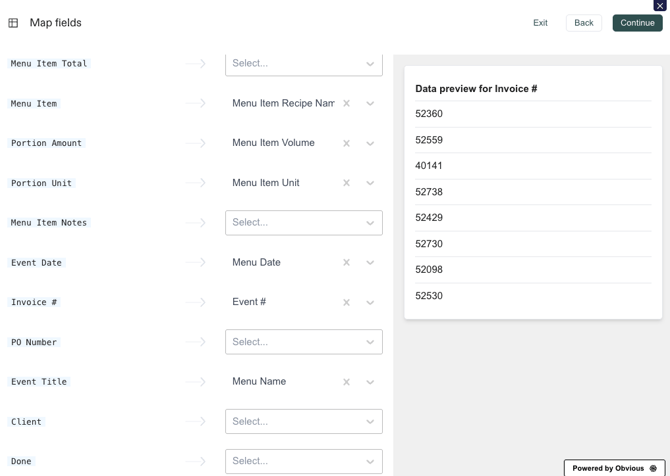
- On the validation screen, resolve Invalid records if needed.
Click Submit to complete the import.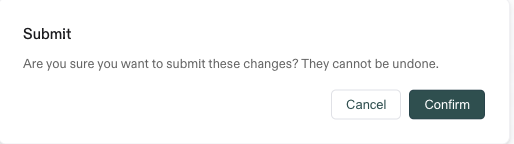
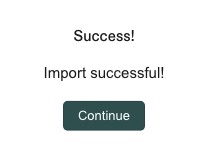
- Once the import is successful, new menu will be created in Galley based on the event data and your mapping in step 4.
Note: If a Total Party Planner menu item Name doesn't match an existing Galley recipe Name, a new recipe will be created automatically in Galley.
Need Help?
For questions about the integration or help with your first export, reach out to your Galley Solutions Sales Engineer or contact us at support@galleysolutions.com.
For TPP-specific questions about enabling the export feature, contact the TPP Customer Success team directly.