
👯 Seeing Double? Mastering Duplicated Invoices
Ever feel like the ticket printer got jammed and printed the same order twice? It happens with invoices, too.
A Duplicated Invoice occurs when you receive an invoice from the Same Vendor, to the Same Location, with the Same Invoice Number. To keep your food costs accurate and prevent "double counting" your inventory, Galley automatically flags these extras as duplicates.
Previously, Galley would pick one invoice to be the "Active" one and mark the rest as "Duplicate." But sometimes, the system picked the wrong ticket to work on.
✨ What's New: You are now the Expediter! You have full control to select which invoice should be the Active one (used for receiving and costs) and which ones should be discarded as duplicates.
🚦 How to Swap the Active Invoice
If you notice the system flagged the wrong invoice as a duplicate, here is how to switch it:
-
Find the Ticket: Locate the invoice you want to use in your list (you can filter by "Duplicate" status to find them easily).
-
Open it Up: Click into the invoice details.
-
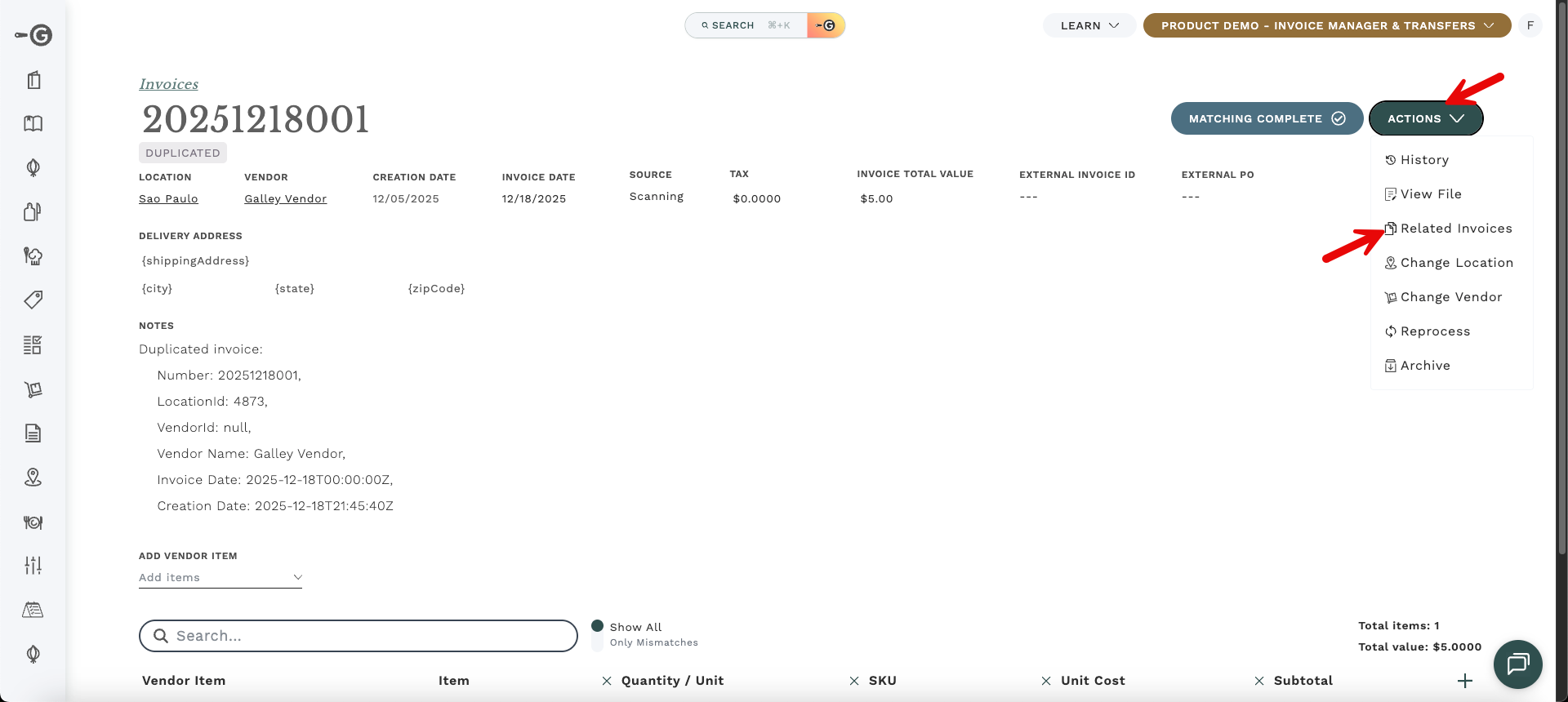
Check the Relations: Click on Actions → Related Invoices.
-
Pick the Winner: You will see a list of all invoices sharing that number. Compare the data to see which one has the correct information.
-
Make it Official: Find the correct invoice in the list and click "Make Active."
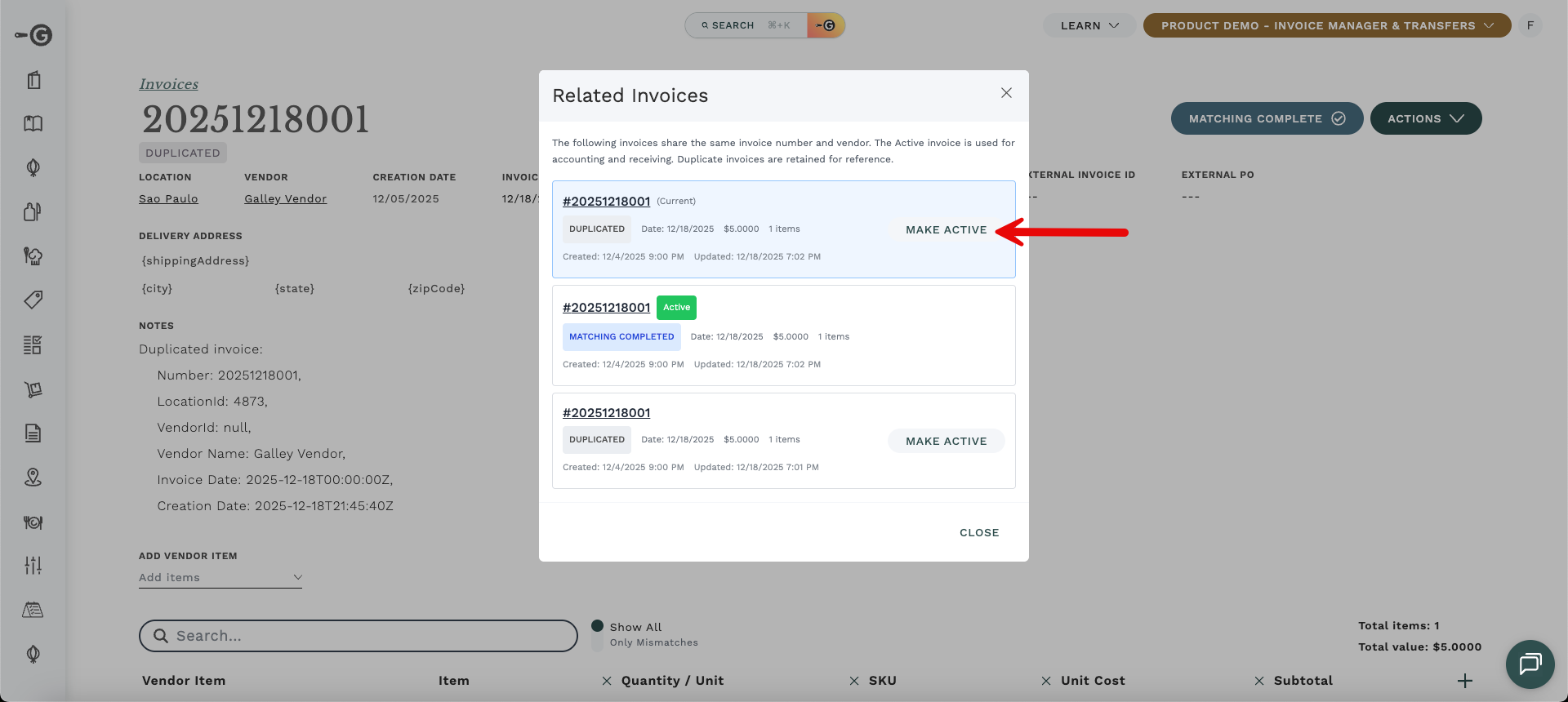
The Result: The invoice you selected is now Active and ready for mapping. The one that was previously active is immediately flagged as a duplicate and "86'd" from your cost calculations.
📝 Chef’s Notes (Important Rules)
-
Mise en place first: You cannot switch the Active status if the current Active invoice is already Approved. You must Reopen the approved invoice first, then make the switch.
-
Wrong Station? Sometimes an invoice looks like a duplicate, but it was just assigned to the wrong place. Changing the Location or Vendor of an invoice will automatically unflag it as a duplicate.
Happy Planning, The Galley Team