
What is the Advanced Recipe Book Editor?
The Advanced Recipe Book Editor is a visual tool for building and organizing your recipe books. It gives you full control over the structure of your recipe book — you can create folders and groups, drag items into the order you want, and see your changes in real time before saving.
Whether you're putting together a seasonal menu collection, organizing recipes by station, or building a training reference for your kitchen team, the editor makes it straightforward to get everything in the right place.
How to open the editor
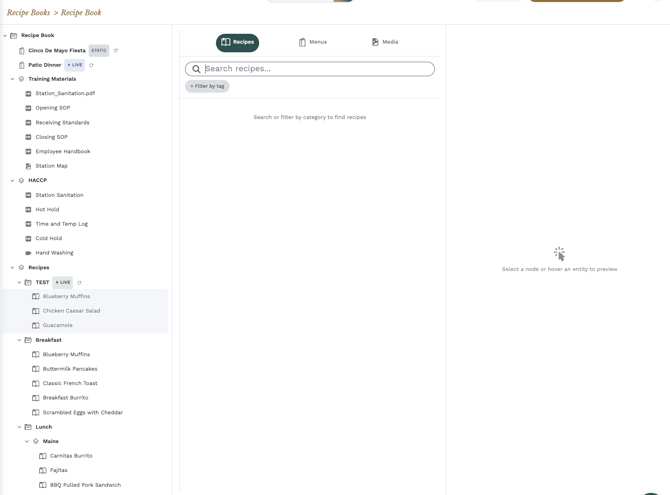
- Navigate to Recipe Books from the main menu
- Find the recipe book you want to edit and open it
- Click the green "Actions" button in the top right corner.
- Select the "Advanced Editor" button to enter the editor.
If you don't see the "Edit Recipe Book" button, your account may not have the right permissions. Reach out to your Galley administrator to request access.
The three-panel layout
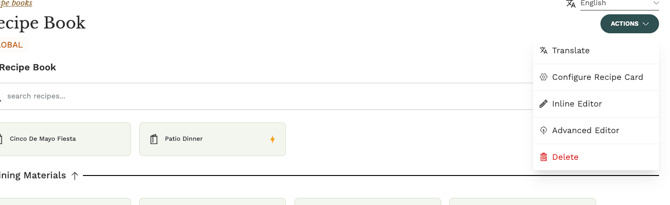
The editor is divided into three main areas that work together:
Tree Panel (Left)
This is the backbone of your recipe book. It shows the full structure as a collapsible tree — folders, groups, recipes, menus, and media are all visible here. You can drag and drop items to reorder them, nest them inside folders, or move them between groups.
Entity Browser (Center)
This is where you find content to add to your recipe book. Use the tabs at the top to browse:
- Recipes — search and filter your recipe library
- Menus — add full menus to your book
- Menu Plans — include menu plans
- Media — attach images or documents
Properties Panel (Right)
When you select an item in the tree, its details appear here. Depending on what you've selected, you can view recipe information, edit folder names, assign category tags, or configure other settings.
Adding items to your recipe book
- Use the Entity Browser (center panel) to find what you want to add
- Search by name or use filters to narrow down results
- Drag the item from the browser into the tree panel on the left
- Drop it where you want it to appear in your recipe book structure
You can also double-click an item in the Entity Browser to add it directly to the root of your tree.
Rearranging items
Drag any item in the tree to move it to a new position. You can:
- Reorder items within the same folder or group
- Move items into or out of folders
- Nest items deeper in your structure by dropping them onto a folder
Renaming items
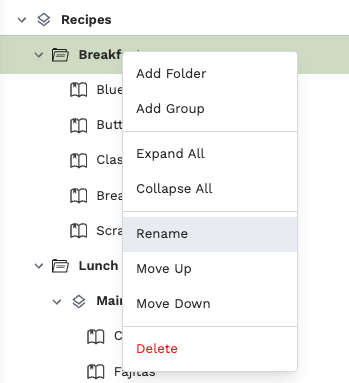
To rename a folder or group, right-click on it in the tree and select "Rename" from the context menu. Type the new name and press Enter to confirm, or press Escape to cancel.
Saving and discarding changes
The editor tracks all your changes as you work. When you're ready:
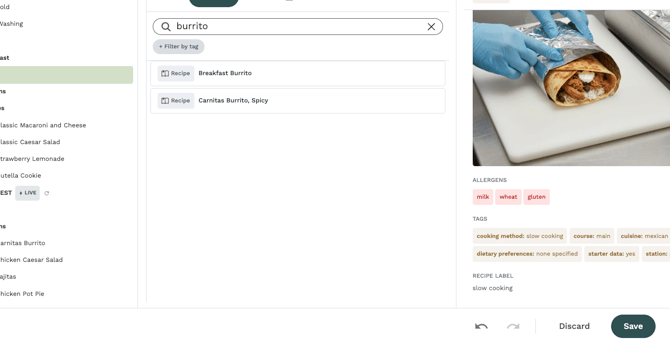
- Click "Save" in the toolbar to save all changes to the recipe book
- Click "Discard" if you want to throw away your changes and start over
The Undo and Redo buttons in the toolbar let you step backward and forward through your recent changes before saving.
Changes are not saved automatically. If you navigate away from the editor without saving, your changes will be lost. Always click "Save" when you're done editing.
Frequently Asked Questions
Can I undo a change after saving?
No. Once you click Save, the changes are committed. The Undo button only works for unsaved changes in the current editing session. If you need to revert, you'll need to manually re-edit the recipe book.
Can multiple people edit the same recipe book at the same time?
It's best to avoid simultaneous editing. If two people save changes at the same time, one person's changes may overwrite the other's.
Is there a limit to how many items I can add?
There's no hard limit, but very large recipe books with hundreds of items may load more slowly. Consider breaking very large collections into multiple recipe books or using folders to keep things organized.