
Jump to: Dietary specs · CNDB · Missing data · Units · Recipes · Menus · Fluid milk · Copy to grade · Reports · Rounding · USDA · FAQ
To analyze school meals in Galley, open a plan in Menu Planner, choose Weighted Nutrient Analysis, then pick the meal type, the age/grade group and the days (up to 7).
The sections below show where USDA's dietary specifications and the Child Nutrition Database are in Galley, how Galley marks missing data, and what each report and rounding rule does.
Dietary specifications
Where to find it: Products › Standards › Food Programs › NSLP or SBP › Dietary Specifications
NSLP is the National School Lunch Program. SBP is the School Breakfast Program.
Galley shows the weekly dietary specifications published by USDA for each age/grade group. They can't be edited.
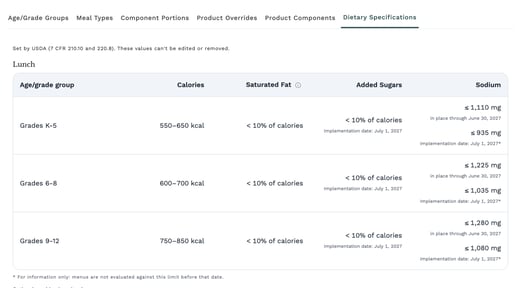
Food Programs › NSLP › Dietary Specifications: USDA's values, which can't be edited.
Child Nutrition Database
Where to find it: Ingredients › Child Nutrition Database
Galley checks every day for a new USDA Child Nutrition Database (CNDB) release and installs it automatically. The release in use is shown at the top of Ingredients › Child Nutrition Database.
CNDB foods, values and measures are read-only. You can hide a food from your company's lists and restore it later.
A food USDA removes can't be added or linked. An ingredient already linked to it reads as missing data (‡) until it is linked to a current food.
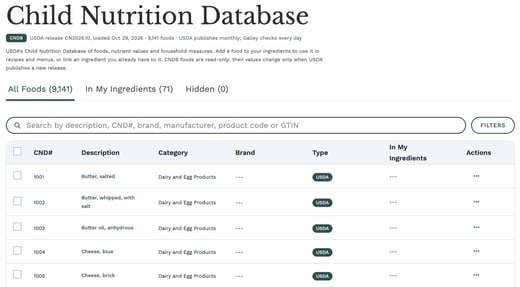
Ingredients › Child Nutrition Database: the release in use is shown under the title.
Missing nutrient data
A value USDA or the manufacturer didn't provide is marked ‡, not shown as 0. Every table, label and report that marks a value also shows the key that defines ‡. NiceLabel labels are the exception: they print a missing value as a number, which can be 0, with no ‡ and no key.
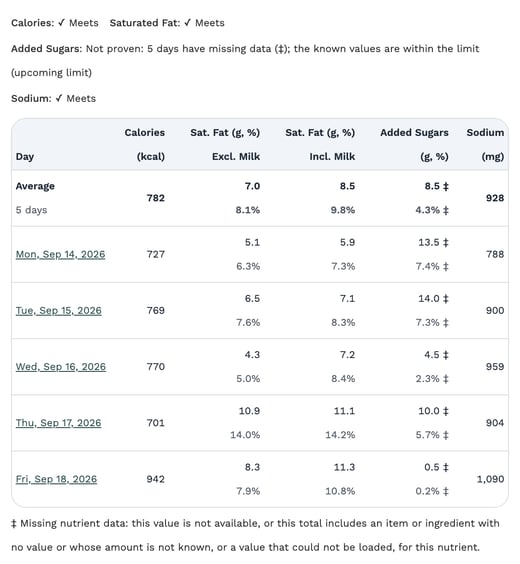
Some foods have no added sugars value, so those totals are marked ‡. The key under the table says what ‡ means.
How totals and figures are marked
A total that includes a missing value shows the sum of the known values, marked ‡ (for example, 12 g ‡ on screen). A total that includes an item whose amount is not known is also marked ‡. A nutrient with no known value shows – ‡.
A figure short of calories, saturated fat or sodium reads "Incomplete: missing nutrient data" and names each food, instead of a ✓.
Where – ‡ appears
– ‡ appears in:
- recipe nutrition tables
- the Ingredient/Food Item Nutrient Composition, Recipe Production and Recipe Nutrient Composition reports
- the menu analysis for one menu or several (on screen and printed)
- the on-screen nutrition label and the Printed label preview
- recipe nutrition exports
- recipe and menu-item labels printed from the print dialog (except NiceLabel labels)
- label documents
- collection preset nutrition totals
- the Menu Plan Nutrition reports and the Menu Nutrition report
On a food's own Nutrition tab, where values are entered, a blank field shows ‡ beside it. The Recipe Card shows no nutrient values, and finished goods show no nutrition totals at food program companies yet.
When a company starts following food program rules
When a company starts following food program rules, its existing totals are marked as each one is recalculated. Galley can recalculate all of them at once on request.
Units
Units carry one of these tags:
| Tag | What it means |
|---|---|
| From USDA (CNDB) | Measures USDA publishes, as USDA prints them. |
| Galley-added | Worked out by the software and not provided by USDA. |
| User-added | Entered by a user. |
Grams are the CNDB's base unit and carry no tag.
Where a food has several preparations, such as "cup, sliced" and "cup, whole", each has its own units, such as "tbsp, sliced".
You can enter an amount in two units of the same preparation, such as 1 qt plus or minus 3 tbsp. Units from different preparations can't be combined.
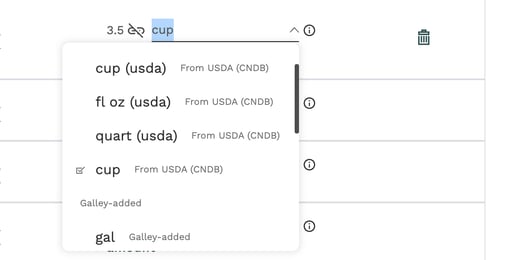
A recipe line's unit list: each unit shows where it came from.
Recipes
One recipe has two views.
| View | What it lists |
|---|---|
| Production recipe | Lists the raw ingredients and amounts. |
| Nutrient analysis recipe | Lists each ingredient as consumed. Water is not part of the analysis. |
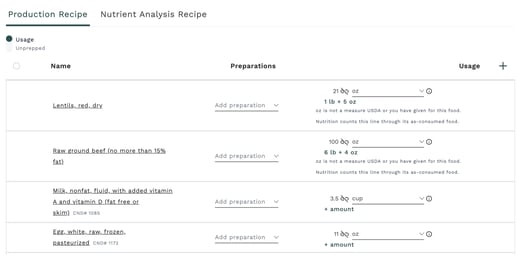
Production Recipe: the raw ingredients and amounts.
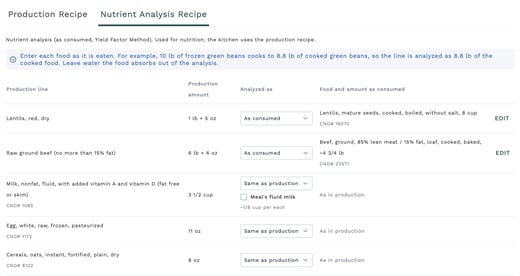
Nutrient Analysis Recipe: each line as it is consumed.
Menus and weighted analysis
Where to find it: Menu Planner › open a plan › Weighted Nutrient Analysis
- In Menu Planner, open a plan.
- Choose Weighted Nutrient Analysis (a button in the plan header, also in the Actions menu).
- Choose the meal type, the age/grade group and the days, up to 7.
One or two days show the weekly limits for reference and aren't compared with them. Three or more days, each with figures, are compared.
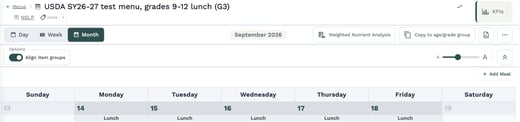
The plan header, with Weighted Nutrient Analysis.
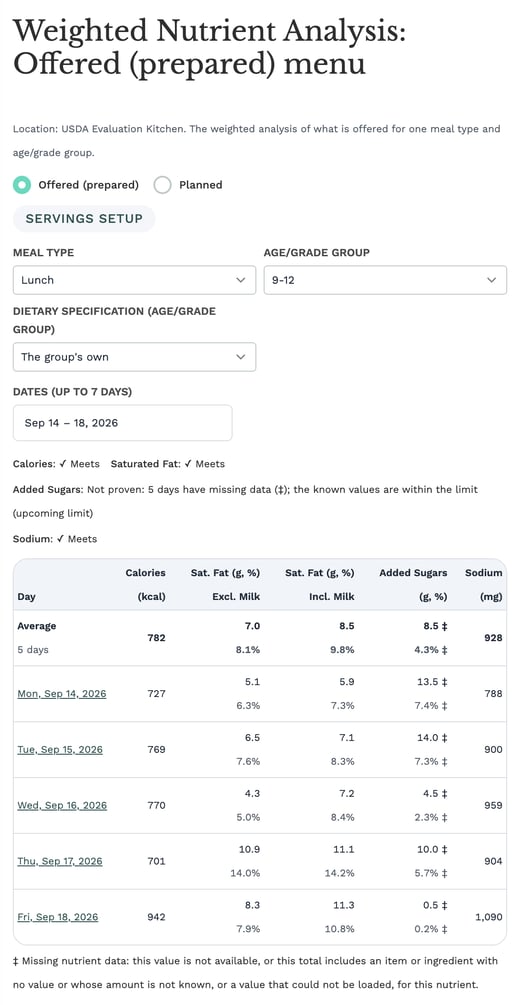
The Weighted Nutrient Analysis window: pick the meal type, the age/grade group and the days.
Fluid milk
Set each fluid milk to Milk under its Product Components, for the food program of the event it is on: breakfast and lunch are separate programs.
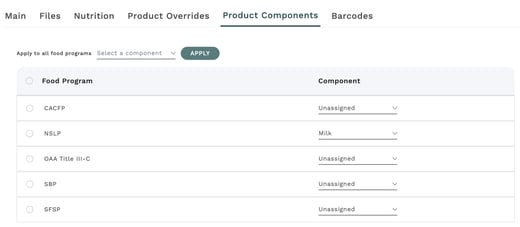
A fluid milk's Product Components, set to Milk for NSLP.
At a food program company, every local food served as its own item, and every recipe made of one food, needs a Product Component in that program. Until each one has it, the saturated fat verdict and the Saturated Fat, Excl. Fluid Milk figure are not shown, and the foods are listed so you can set them.
A CNDB food is read by its category, so only a CNDB fluid milk needs one. Set a food that credits no meal component, such as a condiment, water or coffee, to Not a meal component.
Saturated fat from milk set to Milk is left out of the figure compared with the weekly limit, and the figure including it is shown for reference. Calories, added sugars and sodium always include milk.
A Milk setting is trusted unless the food's name marks another food, such as cheese, yogurt or cream: those foods are counted and listed. A fluid milk substitute (soy, oat, rice or almond) set to Milk is counted in the saturated fat and listed as a substitute.
Milk served inside a recipe
- Milk served inside a recipe with other foods (for example a sandwich-and-milk bundle) is counted in the saturated fat unless its line is set as the meal's fluid milk, on the recipe's Nutrient analysis tab or from the meal in the analysis.
- A line can be set on the recipe served or on a recipe used directly inside it (for example a "Milk carton" recipe inside a lunch bundle); a line on a recipe used inside it is set on that recipe's tab, and a line deeper than that is not left out.
- When the bundle's (or that inner recipe's) saturated fat is entered by hand, or comes from a serving size or cooking method, the milk can't be separated and the figure without fluid milk is not computed for that day.
- A local milk must be set to Milk in the program first.
- A location variation uses the recipe's setting on the lines it inherits; a line the variation adds or replaces needs its own setting.
- A line set on a recipe that is used inside other recipes is left out wherever any of them is served.
- Recipe change requests and recipe bulk upload do not carry the setting.
- Milk used as an ingredient (a sauce, a batter, a meatloaf) is never set: USDA counts it.
- The setting changes the analysis of past weeks too.
A meal with no fluid milk
At a school lunch or breakfast, a meal with no fluid milk set to Milk holds the saturated fat verdict until the milk is set, its line is set as the meal's fluid milk, or the meal is marked No fluid milk offered.
Mark it only when the meal truly offers none (7 CFR 210.10(d)(3); for breakfast through 220.8(d)).
Copying a menu to another grade
Where to find it: Menu Planner › open a plan › Copy to age/grade group
In the plan's header, choose Copy to age/grade group.
| Case | What happens |
|---|---|
| Copying to the menu's own group | Keeps that group's feeding figures and servings. |
| Carrying counts from another group | Sets the new group's feeding figures to the headcount you enter and scales the servings, but a feeding figure or serving count the new group already had stays. |
Check the figures, servings and each portion on the new menu.
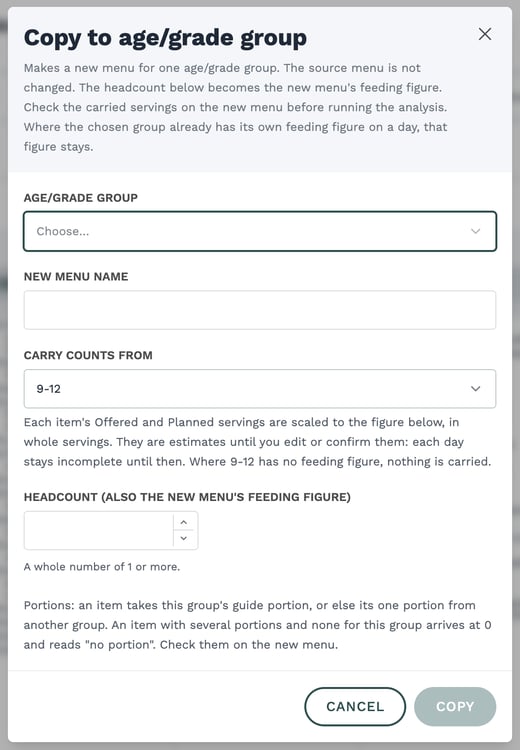
The Copy to age/grade group window.
Reports
Where to find it: Reports › Nutrient Analysis
Reports lists them under Nutrient Analysis. Where to find each one:
| Report | Where to find it |
|---|---|
| Food item report | Ingredients, select items, Export. |
| Recipe reports | The recipe's Actions menu. |
| Menu and weighted analysis reports | The plan's Weighted Nutrient Analysis window. |
| Dietary specifications report | Food Programs. |
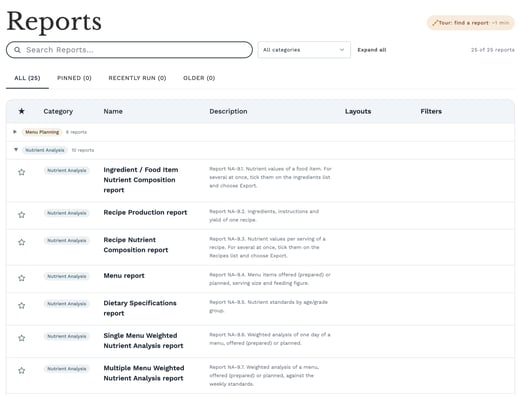
Reports, with the Nutrient Analysis group open.
Rounding
Galley keeps full precision in every calculation and rounds only what it displays.
Nutrient values are displayed to at most three decimal places.
On the nutrient composition reports and the weighted nutrient analysis, each column is displayed to one fixed precision:
| Column | Displayed to |
|---|---|
| Calories and sodium | The whole number. |
| Every gram amount (saturated fat and added sugars included) | One decimal place. |
| Percent of calories | One decimal place. |
A small amount that rounds to 0 or 0.0 is still counted at full precision in every total and percent. A missing value is marked ‡, as described under Missing nutrient data.
USDA's requirements
For the nutrition standards themselves, see USDA's Food and Nutrition Service: https://www.fns.usda.gov/school-meals/nutrition-standards
Galley's help describes how the software works. It doesn't interpret USDA policy.
Galley is not yet USDA-approved nutrient analysis software.
FAQ
Can I edit USDA's dietary specifications?
No. Galley shows the weekly dietary specifications published by USDA for each age/grade group, and they can't be edited.
How often does Galley update the Child Nutrition Database?
Galley checks every day for a new USDA Child Nutrition Database (CNDB) release and installs it automatically. The release in use is shown at the top of Ingredients › Child Nutrition Database.
What does ‡ mean?
‡ marks a value USDA or the manufacturer didn't provide. It is marked ‡, not shown as 0, and every table, label and report that marks a value also shows the key that defines ‡.
NiceLabel labels are the exception: they print a missing value as a number, which can be 0, with no ‡ and no key.
Why isn't my milk's saturated fat left out of the figure?
Saturated fat from milk set to Milk is left out of the figure compared with the weekly limit. It is still counted in these cases:
- The food's name marks another food, such as cheese, yogurt or cream: those foods are counted and listed.
- A fluid milk substitute (soy, oat, rice or almond) set to Milk is counted in the saturated fat and listed as a substitute.
- Milk served inside a recipe with other foods (for example a sandwich-and-milk bundle) is counted in the saturated fat unless its line is set as the meal's fluid milk.
- Milk used as an ingredient (a sauce, a batter, a meatloaf) is never set: USDA counts it.
Is my menu compared with the weekly limits?
It depends on the number of days. One or two days show the weekly limits for reference and aren't compared with them. Three or more days, each with figures, are compared.