
Jump to: Overview · Add the name · Where it asks · Who's listed · First choice · What prints · History · Troubleshooting · FAQ
How it works
To show who printed a label, add the {MEMBER_FULL_NAME} variable to your label template. Galley then asks "Who's printing?" before it prints, and the label carries the name that's chosen.
This uses the team members your admin adds under Settings > Team Members. Team Members has to be turned on for your company first. See How do I set up Team Members so people can share one login?
You don't need a shared login for this. Galley asks "Who's printing?" on any login at your company, as long as the label uses the team member name and the location you're signed in at has at least one active team member.
Add the team member name to a label template
The label template decides whether a name prints. In the template editor, the team member name is the variable {MEMBER_FULL_NAME}. Its description reads "Selected team member's full name, or the printing user's when no one is selected."
- Click your avatar in the top-right corner and select Settings.
- Open Printing Service, then open your printing service.
- Go to the Print Templates tab.
- Click the pencil icon (Edit Template) on the template you want to change, or create a new template.
- Click in the template where the name should print, for example after "Prep Chef:".
- Open the Insert Variable... list and choose {MEMBER_FULL_NAME}. You can type "member" in the search box to find it.
- Click Save.
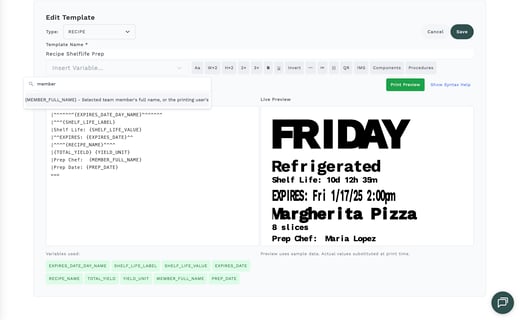
Galley puts {MEMBER_FULL_NAME} where your cursor was, and it appears under Variables used below the editor. From now on, Print Triggers and print windows that use this template ask "Who's printing?" at any location with active team members.
{MEMBER_FULL_NAME} is only offered in the Insert Variable... list while Team Members is turned on for your company.
If your labels come from NiceLabel
A NiceLabel label needs a variable named memberFullName. That variable is added to the label in NiceLabel, not in Galley. Contact Galley Support if you'd like help adding it.
Where Galley asks Who's printing?
Galley asks "Who's printing?" whenever all of these are true:
- Team Members is turned on for your company.
- The label template that will print includes {MEMBER_FULL_NAME}.
- The location you're signed in at has at least one active team member.
If any of these isn't true, there is no question, and printing works the way it always has.
When you print a label from a recipe, ingredient or menu
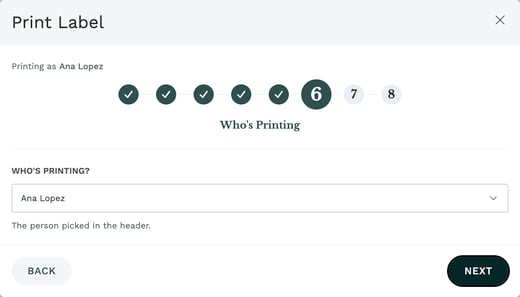
In the print label window, Who's Printing is a step after Label Quantity and before Preview. Choose a name, then click Next. The Preview shows the label with that name on it.
When you use a Print Trigger
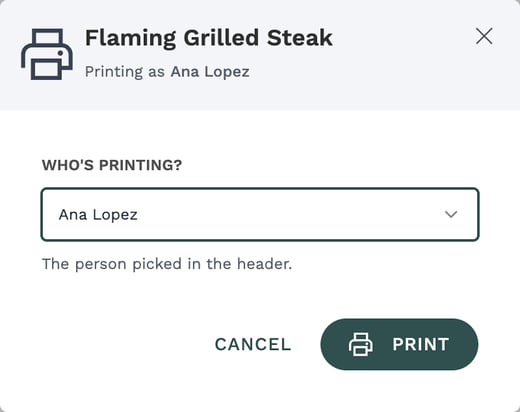
Print Triggers on recipes, ingredients and menus ask "Who's printing?" as their last question. Choose a name, then click Print.
A Print Trigger that used to print as soon as you tapped it now stops here, so you can check the name first.
Who appears in the list
- First, the name of the signed-in account, marked Signed-in account. Choose it to print the login's own name.
- Then every active team member at the location you're signed in at, A to Z.
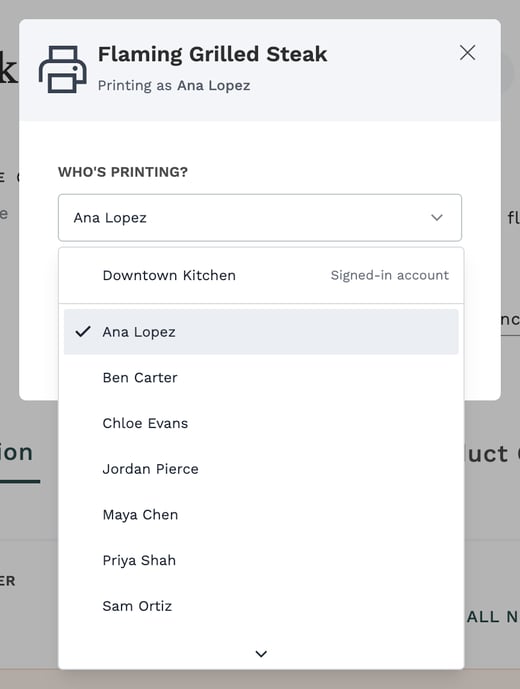
Inactive and deleted team members aren't listed. Nobody is asked for a PIN here, even if your company requires PINs, because choosing a name only says who printed this label.
When you print a menu, the list shows the team members of the location you're signed in at, which may not be the menu's location.
Which name is chosen to start
Galley fills in a name to save you a step, in this order. A line under the list tells you why that name was chosen.
| Order | Galley starts on | The line under the list says |
|---|---|---|
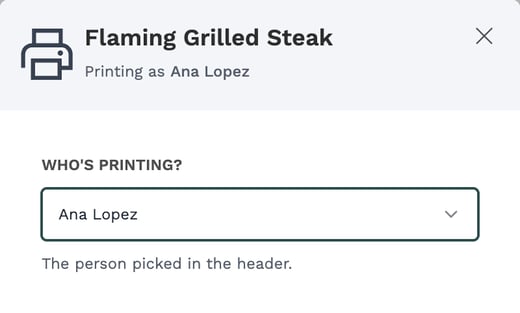
| 1 | The person picked at the top of Galley, on a shared login | The person picked in the header. |
| 2 | The only team member at the location | The only team member at (your location). |
| 3 | The last person who printed at this location on this computer or tablet | The last person who printed here on this device. |
| 4 | Nobody | Choose a name to continue. |
Galley never prints until you press Next or Print, even when a name is already filled in. Check the name, change it if you need to, and continue.
Galley remembers the last choice for each location on each computer or tablet for 90 days. It saves the choice only after a label prints. If the remembered person has since been made inactive or deleted, Galley doesn't start on them.
Choosing a name in Who's printing? changes only that print. It doesn't change who is picked at the top of Galley.
What name prints on the label
| What happened | Name on the label |
|---|---|
| You chose a team member | That team member's full name |
| You chose the signed-in account | The signed-in account's name |
| The location has no active team members, so there was no question | The signed-in account's name |
| Team Members is turned off for your company | The signed-in account's name |
Print windows also show a "Printing as" line with the name that will print, so you can check it before you print.
See who printed a label
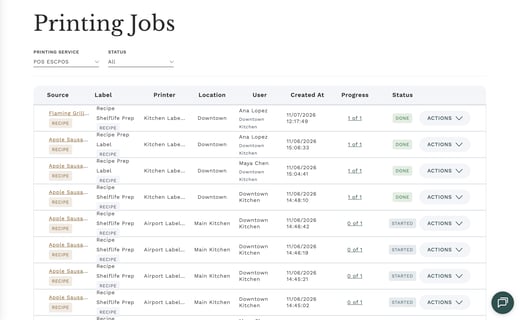
- Click your avatar in the top-right corner and select View Printing Jobs.
- Look at the User column.
When a team member printed the job, the User column shows their name, with the login they printed from underneath in smaller gray text. A job printed under the login's own name shows just the login.
Troubleshooting
Galley doesn't ask Who's printing?
Check that the label template includes {MEMBER_FULL_NAME}, and that the location you're signed in at has at least one active team member. Also check that Team Members is turned on for your company.
I see "Team members didn't load. Nothing will print until they do."
Galley couldn't load the list of names, so it won't print a label that might carry the wrong name. Click Retry. If it still doesn't load, click Cancel and try again in a moment.
The Next or Print button is grayed out
Nobody is chosen yet. Choose a name in the Who's printing? list.
The wrong name was filled in
Choose the right person in the list before you print. Galley remembers your choice for the next print at this location on this computer or tablet.
Frequently asked questions
Do we need a shared login to use Who's printing?
No. Any login at your company gets the question when the label uses the team member name and the location has active team members. On a shared login, the person picked at the top of Galley is filled in for you.
Does the person need a PIN to print under their name?
No. Who's printing? never asks for a PIN.
If I rename a team member, do old labels change?
No. Printing Jobs keeps the name each label was printed with.
Can I print the name of someone who isn't a team member?
Only the signed-in account's own name, which is always first in the list. Anyone else needs to be added as a team member at your location under Settings > Team Members.
What's the difference between {MEMBER_FULL_NAME} and {USER_FULL_NAME}?
{USER_FULL_NAME} always prints the signed-in account's name. {MEMBER_FULL_NAME} prints the person chosen in Who's printing?, and the signed-in account's name when no team member is chosen.