
What are Multiple Shelf Lives?
Recipes and ingredients often have different shelf lives depending on how they're stored. A chicken stock might last 5 days refrigerated, 90 days frozen, and only 4 hours at room temperature.
With multiple shelf lives, you can track all of these durations in one place — each with its own label and precise timing down to the day, hour, and minute. One entry is marked as the primary shelf life, which is used as the default throughout the system.
Multiple shelf lives must be enabled for your company. If you don't see the Shelf Life section on your recipe or ingredient pages, contact your Galley account manager to have it turned on.
Adding Shelf Lives to a Recipe
- Navigate to the recipe you want to update
- In the Identity section, find the Shelf Life area
- Click "+ Add Shelf Life" to add a new entry
- Enter a label (e.g., "Frozen", "Refrigerated", "Room Temperature")
- Set the duration using days, hours, and minutes
- Mark one entry as the primary shelf life by clicking the star icon
- Your changes save automatically
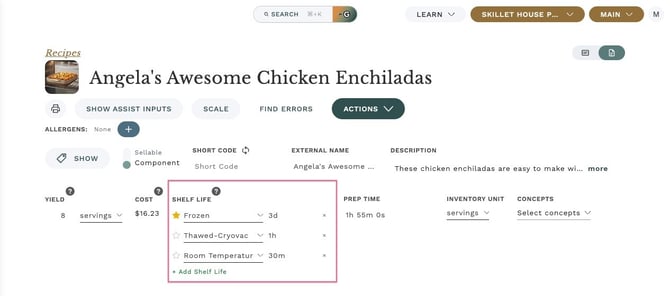
You can use any label you like — there are no restrictions. Common labels include Frozen, Refrigerated, Thawed-Cryovac, Thawed-Opened, and Room Temperature, but you can create custom labels that match your operation.
Adding Shelf Lives to an Ingredient
The process is the same as for recipes:
- Navigate to the ingredient page
- In the Identity section, find the Shelf Life area
- Click "+ Add Shelf Life" to add entries
- Enter a label and duration for each storage condition
- Mark one as primary
Understanding the Primary Shelf Life
Each recipe or ingredient must have exactly one primary shelf life, indicated by a star icon. The primary shelf life is important because:
- It's used as the default when printing labels (unless you choose a different one at print time)
- It's displayed in places that show a single shelf life value
- It maintains compatibility with any existing workflows that relied on the original single shelf life value
If you remove all shelf life entries, the system falls back to the original single shelf life value. To take full advantage of this feature, add at least one shelf life entry and mark it as primary.
Where Shelf Lives Appear in the App
Once you've added multiple shelf lives, they appear in several places throughout the app:
| Location | What You'll See |
|---|---|
| Recipe Card View | All shelf lives listed with labels and durations (e.g., "Frozen 3d, Refrigerated 5d 12h") |
| Recipe Detail View | The full shelf life editor where you can add, edit, and remove entries |
| Ingredient Detail View | Same editor as recipes |
| Recipe PDF Export | Each shelf life on its own line next to "Shelf Life" or "Shelf Lives" |
| Printing Services | Option to select which shelf life to use at print time (see the companion article on printing) |
How Durations are Displayed
Shelf life durations are shown in a compact format using days (d), hours (h), and minutes (m). Only non-zero units are shown:
- 3 days → "3d"
- 2 days and 6 hours → "2d 6h"
- 45 minutes → "45m"
- 1 day and 30 minutes → "1d 30m"
Frequently Asked Questions
Can I have more than one primary shelf life?
No. Only one shelf life can be marked as primary at a time. Clicking the star on a different entry will move the primary designation to that one.
What happens to my existing shelf life data?
Your existing shelf life value is preserved. When you add your first shelf life entry, it will appear alongside the original value. The original value continues to work until you set up entries and mark one as primary.
Is there a limit to how many shelf lives I can add?
There's no hard limit. Add as many as make sense for your operation — most items have 2-4 entries covering different storage conditions.
Do menu items inherit shelf lives from their recipe?
Yes. Menu items automatically use the shelf lives from their associated recipe.