
What are Webhooks?
Webhooks let you receive automatic notifications whenever something changes in your Galley account. Instead of checking Galley manually or polling the API for updates, webhooks send data directly to your system the moment an event occurs — like a recipe being updated or a menu plan being approved.
This is useful if you want to:
- Keep an external system in sync with your Galley data
- Trigger workflows automatically when recipes or menu plans change
- Build custom integrations without constantly querying the API
Once configured, Galley sends an HTTP POST request to a URL you specify every time a matching event happens. Your system receives the event data, verifies it's authentic, and processes it however you need.
Setting Up Your First Webhook
You can create and manage webhooks from the Settings page in Galley.
- Navigate to Account Settings in the upper right avatar icon
- Select the Webhooks section
- Click Create Webhook
- Enter a destination URL where you want to receive events (must use HTTPS)
- Add an optional description to help you remember what this webhook is for
- Choose which event types you want to subscribe to
- Click Save
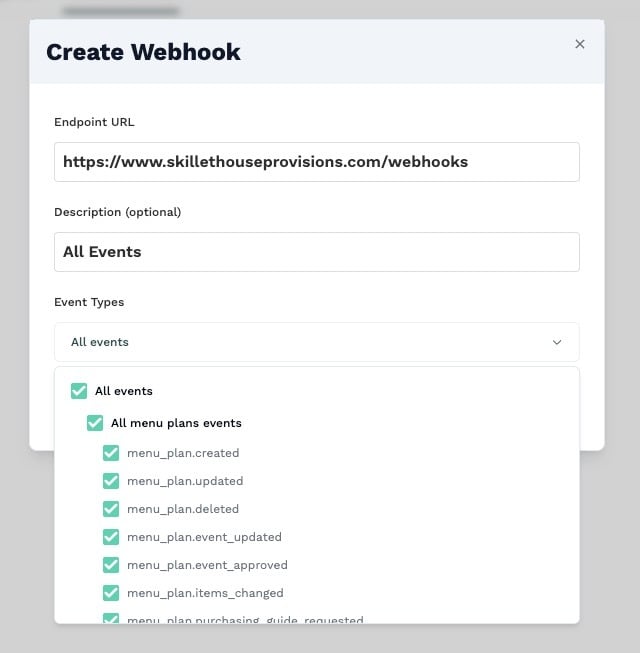
Your destination URL must use HTTPS. Galley will verify that the URL is reachable before saving your webhook configuration.
To view the Webhooks page, you must be an account admin and have the Edit Webhooks permission.
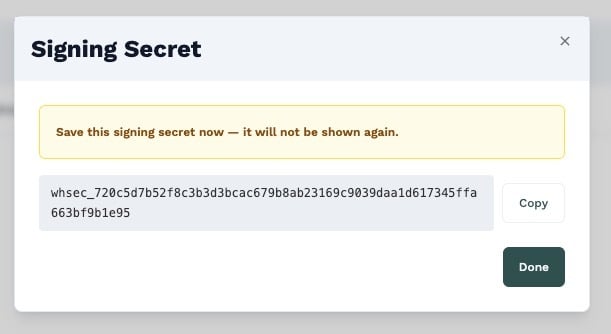
After saving, Galley will generate a signing secret for your webhook. This secret is only displayed once — copy it and store it securely. You'll need it to verify that incoming webhook requests are genuinely from Galley.
The signing secret is only shown at creation time. If you lose it, you'll need to rotate it from the webhook settings, which will invalidate the old secret immediately.
Choosing Which Events to Subscribe To
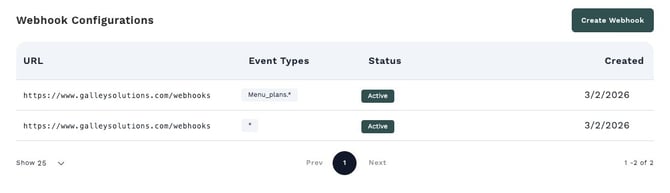
When creating or editing a webhook, you choose which events should trigger a notification. Galley supports three ways to subscribe:
| Subscription Style | Example | What It Does |
|---|---|---|
| Specific events | `recipe.updated` | Only notifies you for that exact event |
| Category wildcard | `recipes.*` | Notifies you for all recipe-related events |
| Global wildcard | `*` | Notifies you for every event in Galley |
You can mix and match — for example, subscribe to all recipe events with "recipes.*" and also add "menu_plan.event_approved" if you only care about approved menu plans.
Start with specific events you need rather than subscribing to everything. You can always add more event types later. This keeps your integration simpler and reduces unnecessary traffic.
Supported Event Types
Below is a complete list of events you can subscribe to. Events are grouped by category.
Recipe Events
Recipe events fire when recipes or their items are created, changed, or removed.
| Event Type | Description |
|---|---|
| `recipe.created` | A new recipe was created |
| `recipe.updated` | An existing recipe was modified |
| `recipe.deleted` | A recipe was deleted |
| `recipe.item_changed` | An ingredient or item within a recipe was added, updated, or removed |
Use the wildcard "recipes.*" to subscribe to all recipe events at once.
Menu Plan Events
Menu plan events fire when menu plans, their events, or their items change.
| Event Type | Description |
|---|---|
| `menu_plan.created` | A new menu plan was created |
| `menu_plan.updated` | An existing menu plan was modified |
| `menu_plan.deleted` | A menu plan was deleted |
| `menu_plan.event_updated` | An event within a menu plan was changed (e.g., date or meal period updated) |
| `menu_plan.event_approved` | A menu plan event was approved |
| `menu_plan.items_changed` | Recipe assignments within a menu plan event were added, updated, or removed |
| `menu_plan.purchasing_guide_requested` | A purchasing guide was requested for a menu plan |
|
`menu_plan.event_item.product.updated.current_approved` |
The underlying data of a product (such as the cost or nutritional values of the recipe) was updated. This is only fired for event items on approved events scheduled for the current day. |
Use the wildcard "menu_plans.*" to subscribe to all menu plan events at once.
More event categories will be added over time. Check back here or visit the event type selector in your webhook settings to see the latest available events.
Understanding Webhook Payloads
When an event occurs, Galley sends an HTTP POST request to your webhook URL. The request body is a JSON object with a standard structure.
Standard Payload Format
{
  "id": "evt_a1b2c3d4-e5f6-7890-abcd-ef1234567890",
  "type": "recipe.updated",
  "apiVersion": "2026-02-01",
  "createdAt": "2026-02-06T15:30:00Z",
  "companyId": "Q29tcGFueToxMjM=",
  "data": {
    "recipeId": "UmVjaXBlOjQ1Ng==",
    "name": "Caesar Salad",
    "action": "updated",
    "actor": {
      "id": "VXNlcjo0NTY=",
      "type": "user"
    }
  }
}
| Field | Description |
|---|---|
| `id` | A unique identifier for this event. Use it to detect duplicates. |
| `type` | The event type (e.g., `recipe.updated`, `menu_plan.created`) |
| `apiVersion` | The API version used to generate the payload |
| `createdAt` | When the event occurred (ISO 8601 format) |
| `companyId` | Your company's encoded ID |
| `data` | Event-specific details — varies by event type |
Menu Plan Payloads
Menu plan events include "before" and "after" snapshots so you can see exactly what changed:
{
  "id": "evt_...",
  "type": "menu_plan.updated",
  "apiVersion": "2026-02-01",
  "createdAt": "2026-02-06T15:30:00Z",
  "companyId": "Q29tcGFueToxMjM=",
  "data": {
    "menuPlanId": "TWVudVBsYW46MTIz",
    "operation": "update",
    "before": { "name": "Week 1 Menu", "startDate": "2026-02-03" },
    "after": { "name": "Week 1 Menu (Revised)", "startDate": "2026-02-03" }
  }
}
Verifying Webhook Signatures
Every webhook request from Galley includes a signature header so you can verify it's authentic and hasn't been tampered with. We strongly recommend verifying signatures in your webhook handler.
Galley signs payloads using HMAC-SHA256 — the same approach used by Stripe and GitHub. The signature is included in the X-Galley-Webhook-Signature header.
Signature Header Format
X-Galley-Webhook-Signature: t=1706198400,v1=5257a869e7ecebeda32affa62cdca3fa51cad7e77a0e56ff536d0ce8e108d8bd
| Header | Description |
|---|---|
| `X-Galley-Webhook-Signature` | Contains a timestamp and HMAC signature |
| `X-Galley-Webhook-Id` | Unique event ID (same as the `id` in the payload) |
| `X-Galley-Webhook-Timestamp` | Unix timestamp of when the event was sent |
How to Verify
- Extract the timestamp (t) and signature (v1) from the X-Galley-Webhook-Signature header
- Construct the signed payload string by concatenating the timestamp, a period, and the raw request body: {timestamp}.{body}
- Compute an HMAC-SHA256 hash using your webhook's signing secret as the key
- Compare your computed signature with the v1 value from the header (use constant-time comparison)
- Optionally, reject requests where the timestamp is more than 5 minutes old to prevent replay attacks
Always use constant-time string comparison when checking signatures. Standard string comparison can be vulnerable to timing attacks.
Managing Your Webhooks
Editing a Webhook
- Go to Settings > Webhooks
- Click on the webhook you want to edit
- Update the URL, description, event types, or active status
- Click Save
Pausing a Webhook
If you need to temporarily stop receiving events — for example, during maintenance — you can deactivate a webhook without deleting it. Toggle the Active switch off in the webhook settings. Toggle it back on when you're ready to resume.
Rotating a Signing Secret
If your signing secret is compromised, you can rotate it immediately:
- Go to Settings > Webhooks and select the webhook
- Click Rotate Secret
- Copy the new secret — it's only shown once
- Update your webhook handler with the new secret
Rotating a secret invalidates the old one immediately. Make sure your handler is updated promptly to avoid failed signature verification on incoming events.
Testing a Webhook
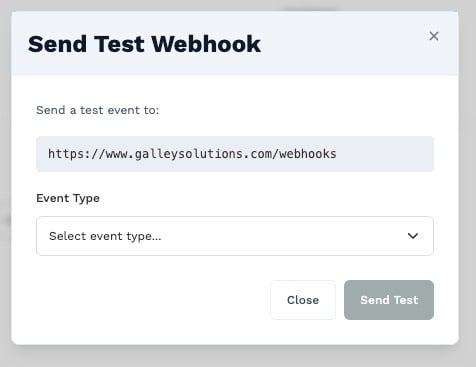
You can send a test event to verify your endpoint is working correctly:
- Go to Settings > Webhooks and select the webhook
- Click Test Webhook
- Choose an event type to simulate
- Galley will send a test payload to your URL and show the result
Deleting a Webhook
If you no longer need a webhook, you can delete it from the webhook settings. Deleted webhooks stop receiving events immediately. Delivery logs for deleted webhooks are retained for your records.
Delivery and Retries
Galley considers a webhook delivery successful when your endpoint returns an HTTP 2xx status code within 30 seconds.
If a delivery fails — due to a timeout, network error, or non-2xx response — Galley will automatically retry with increasing delays:
| Attempt | Delay |
|---|---|
| 1st | Immediate |
| 2nd | 30 seconds |
| 3rd | 2 minutes |
| 4th | 15 minutes |
| 5th | 1 hour |
After 5 failed attempts, the delivery is marked as failed. You can manually retry any failed delivery from the delivery log.
Design your webhook handler to respond quickly — ideally within a few seconds. If you need to do heavy processing, accept the webhook with a 200 response first, then process the data asynchronously.
Viewing Delivery Logs
Each webhook has a delivery log that shows all attempted deliveries, including:
- Event type and timestamp
- HTTP status code returned by your endpoint
- Whether the delivery succeeded or failed
- Number of retry attempts
Use the delivery log to diagnose issues with your webhook integration.
[SCREENSHOT NEEDED]: The delivery log view showing a list of recent webhook deliveries with status indicators
Rate Limits
Galley enforces a rate limit of 100 webhook deliveries per minute per account. This protects both your systems and ours during high-volume periods.
If the rate limit is reached, deliveries are queued and sent as capacity becomes available — no events are lost.
If you consistently hit the rate limit, contact Galley support to discuss increasing your limit.
Troubleshooting
I'm not receiving any webhook events
- Confirm your webhook is set to Active in Settings > Webhooks
- Verify your URL is correct and publicly reachable over HTTPS
- Check that you've subscribed to the right event types
- Use the Test Webhook button to send a test event and check the result
- Review the delivery log for any failed attempts
Deliveries are failing with connection errors
- Make sure your endpoint is publicly accessible (not behind a firewall or VPN)
- Verify your server is accepting HTTPS connections on the correct port
- Check that your endpoint responds within 30 seconds
Signature verification is failing
- Confirm you're using the correct signing secret for this webhook
- Make sure you're using the raw request body (not a parsed/re-serialized version)
- Verify you're constructing the signed payload as: {timestamp}.{raw_body}
- If you recently rotated your secret, ensure your handler is using the new one
I'm seeing duplicate events
- Duplicates can occur during retries if your endpoint was slow to respond but did process the event. Use the event "id" field to deduplicate — if you've already processed an event with that ID, skip it.
Frequently Asked Questions
Can I create multiple webhooks?
Yes. You can create multiple webhooks with different URLs and different event subscriptions. For example, you might send recipe events to one system and menu plan events to another.
What happens if my endpoint is down?
Galley will retry the delivery up to 5 times with increasing delays (up to 1 hour). If all retries fail, the delivery is marked as failed in your delivery log. You can manually retry it later once your endpoint is back up.
Are webhook events delivered in order?
Events are delivered as close to real-time as possible, but strict ordering is not guaranteed. If order matters for your use case, use the "createdAt" timestamp in the payload to sort events on your end.
Can I filter events by specific recipes or menu plans?
Currently, event subscriptions are by event type — not by individual record. Your webhook handler should inspect the payload data and filter as needed on your side.
Is there a way to test webhooks without a live server?
Yes — you can use services like webhook.site or RequestBin to create a temporary public URL that captures incoming requests. Enter that URL when creating your webhook, then use the Test Webhook button to see the payload.
How do I know if new event types are added?
New event types will appear in the event type selector when you create or edit a webhook. We'll also update this article and announce new events in our release notes.
How do I verify Galley webhook signatures using the secret?
- Extract the
X-Galley-Webhook-Signatureheader and the raw request body - Parse the header — split on
,to pull out thet= (timestamp)andv1= (signature)values - (Optional, recommended) Check that the timestamp is within 5 minutes of now. Protects against replay attacks
- Recompute the signature:
HMAC-SHA256(your_secret, "{timestamp}.{raw_body}"),hex-encode it - Compare your computed signature to the v1 value using constant-time comparison (not
==) - Accept if they match, reject otherwise