
Jump to: Overview · Select events · Set the headcount · Not changed · Other weeks · Undo · Clear · Menu cycles · FAQ
Overview
In a menu plan or menu cycle's Week view, select the events you want, then type the headcount once: every selected event in that week gets the same number. It is the quickest way to set forecast headcounts when several meals expect the same count, such as every patient tray service on a weekday.
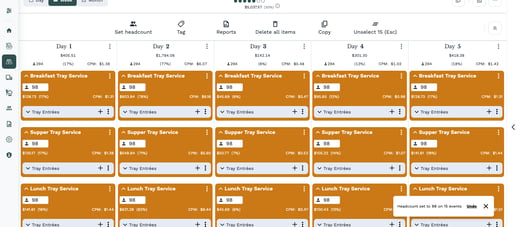
You can type the number into any selected event card, or use Set headcount in the selection bar. Galley tells you how many events it updated, names any it left alone, and gives you 10 seconds to undo.
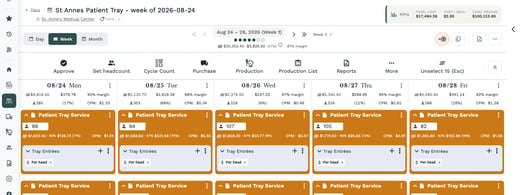
You need permission to edit headcount on the menu plan or menu cycle, and the Headcount field must be shown on the event cards. If you don't see the headcount on your cards, turn it on in View Options (the eye icon above the week).
Select the events
- Open a menu plan or menu cycle and choose Week.
- Click an event card to select it. Selected cards turn orange. Click a card again to unselect it.
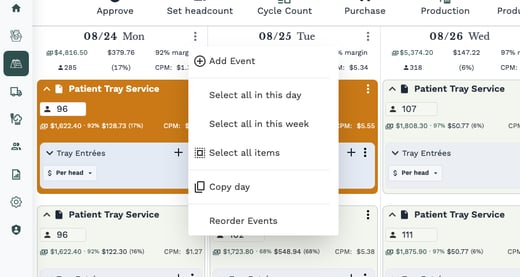
- To select many at once, click the three dots next to a day's date and choose Select all in this day or Select all in this week.
Select all in this week picks only the days you are showing. If Days is set to 5, the weekend events are not selected, so the weekend headcounts stay as they are.
Your selection stays when you move to another week, so you can build a selection across several weeks. See "Events in other weeks" below for how Galley handles them.
Set the headcount
You have two ways to set it. Both follow the same rules.
Type into a selected card
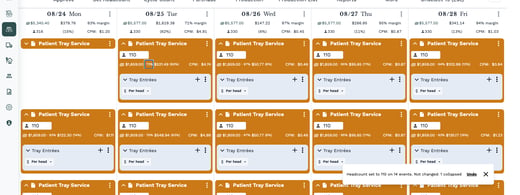
- With two or more events selected, click the headcount field on any selected card. Its tooltip reads "Sets headcount for the selected events in this week".
- Type the number, for example 110, then press Tab or click away.
- Every selected event in the week on screen updates to that number.
Use Set headcount in the selection bar
- Select the events.
- In the selection bar above the week, click Set headcount.
- Type the headcount and click Set.
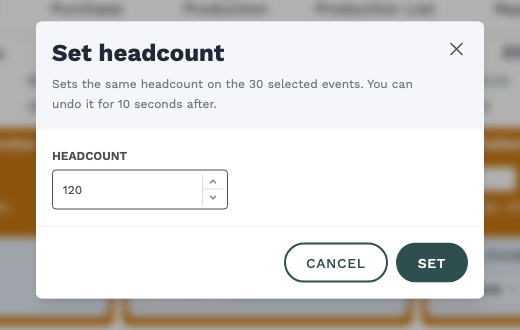
The headcount must be a whole number of 0 or more, like 120. Galley won't accept decimals or negative numbers, and tells you why.
When you're done, a message confirms how many events were updated, for example "Headcount set to 120 on 15 events".
If your company uses USDA terms, the field and the button read Production headcount and Set production headcount. They work the same way.
Events that are not changed
Some selected events are left as they are, so a bulk change never touches something it shouldn't. The result message lists them after "Not changed:", for example "Not changed: 2 approved, 1 collapsed".
| In the message | Why it is left alone |
|---|---|
| approved | The event is approved. Changing it would send it back to Draft, so Galley leaves it. Unapprove it first if the headcount must change. |
| collapsed | The event's card is collapsed, so you can't see its number. Expand the card to include it. |
| on a hidden day | The event is on a day of this week that isn't shown (for example the weekend with Days set to 5). |
| not editable | The event's headcount comes from its dining groups (food program events). Set it from the dining groups instead. |
| in Week 2 (or another week) | The event is in a week you aren't looking at, and you chose to change only this week. |
| still saving | A headcount save on that event was still in progress. Try again in a moment. |
On a menu plan where every selected event is approved, Set headcount in the selection bar is greyed out and reads "Can't edit Approved events".
Events in other weeks
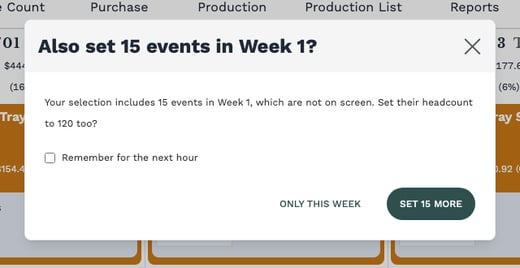
If your selection includes events in weeks that aren't on screen, Galley asks before changing them, for example "Also set 15 events in Week 1?".
- Set 15 more: those events get the same headcount too.
- Only this week: only the week on screen changes. The message names the rest, for example "Not changed: 15 in Week 1".
- Remember for the next hour: tick it before you answer, and Galley uses the same answer, without asking, for the next hour.
Undo a change
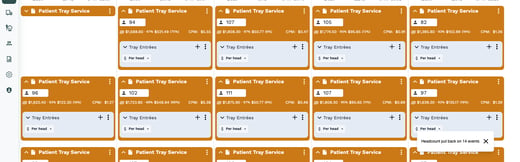
The result message has an Undo link for 10 seconds. Click it to put back the headcount each event had before, event by event (not one shared number). It also covers events in other weeks that you chose to change.
Clear the selection
Click Unselect in the selection bar (it shows how many events are selected, for example Unselect 15 (Esc)), or press Esc on your keyboard. Clicking elsewhere on the page or moving to another week keeps your selection.
Menu cycles
Menu cycles work the same way: select events in a cycle week, then type into a selected card or use Set headcount in the selection bar. The same rules for collapsed cards, hidden days, other weeks and Undo apply. Cycle events have no approval, so nothing is skipped for being approved.
Frequently asked questions
I don't see Set headcount in the selection bar. Why?
It appears when the headcount is shown on the event cards and you can edit headcount on that plan or cycle. Turn on Headcount in View Options, or ask your admin about your permissions. On a plan that is locked for editing, the action is not offered.
I typed a number and only one event changed. Why?
Bulk setting applies only when the card you type into is selected and at least one other event is selected. If the card isn't selected, only that event is updated, as before.
Can I set headcount on several events in Day view or the Headcount view?
Not yet. Day view, the Headcount view and per-dining-group headcounts still set one event at a time. Use the Week view to set many at once.
I set the wrong number. How do I fix it?
Click Undo in the message within 10 seconds. After that, select the same events and set the right number.