
Jump to: Overview · Build a selection · Bulk actions · Good to know · FAQ
How your selection works
Tick the box at the left of each item you want, then search again and keep ticking. Everything you tick is collected in a list above the search (for example "3 cycles collected"), and a new search doesn't clear it.
This works in the Cycles, Plans and Events tabs of the Menu Planner. It lets you run one bulk action on items that don't share a name, such as cycles from different sites.
This needs Menu Cycles on your account. If you don't see the collected list above the search, contact Galley Support.
Build a selection across searches
- Go to Menu Planner and open Cycles, Plans or Events.
- Search for the first group of items.
- Tick the box at the left of each item you want. The list above the search shows what you have collected.
- Search for something else and tick more items. The items you ticked earlier stay in the list.
- To remove one item, select the × next to it in the list. To start over, choose Clear all.
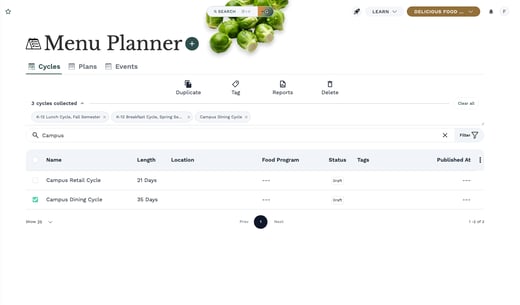
Clicking an item's name still opens it. Use the box at the left of the row to select it.
You can open one of the items and come back: your list is still there.
Run one action on your selection
When the list holds everything you need, choose an action from the bar above the list, such as Duplicate, Tag, Reports or Delete. The action covers every item in the list, not only the ones in your current search.
Check the list before you choose Delete. It may include items from earlier searches that are no longer on screen.
Good to know
- Each tab keeps its own list. Items collected in Cycles don't appear in Plans or Events.
- Your selection clears when you fully reload the page.
- On Events, you can also use "Select all N matching" to select every event that matches your search, beyond the ones loaded on the page. This option is only on Events.
Frequently asked questions
Why did my selection disappear?
The selection clears on a full page reload. Opening an item and coming back, or running a new search, keeps it.
I clicked an item and it opened instead of being selected. What happened?
Clicking an item's name opens it. Use the box at the left of the row to add it to your list.
Can I select every matching plan or cycle at once?
"Select all N matching" is only available on Events. On Cycles and Plans, tick the items you need, searching as many times as you like.