
Jump to: Overview · Turn it on · Follow a copy · When it's empty · FAQ
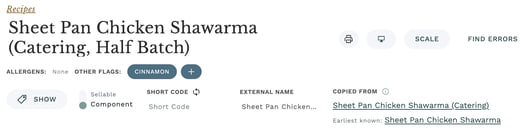
When a recipe was made with Copy, its recipe page can show a Copied From field that links to the recipe it was copied from. If that recipe was itself a copy, a second line, Earliest known, links to the earliest recipe in the chain.
This helps when your team keeps several versions of the same dish, such as a catering version, a half batch or a seasonal take. Anyone can trace a copy back to where it started in one click instead of asking around.
What the Copied From field shows
The field sits in the recipe header, after Description and just above Yield. It has up to two lines:
- The recipe this one was copied from, as a link.
- Earliest known: the earliest recipe in the chain, shown only when the source recipe was itself a copy.
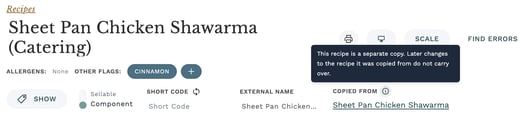
A copy is a separate recipe. Later changes to the recipe it was copied from do not carry over to the copy. Hover the info icon next to Copied From to see this reminder.
Turn on Copied From for your company
Copied From is off by default. A company admin turns it on once, and it then shows on every copied recipe for everyone in the company.
- Open Settings.
- In the Recipe settings, find Copied From.
- Click the circle next to Copied From so it shows a check mark.
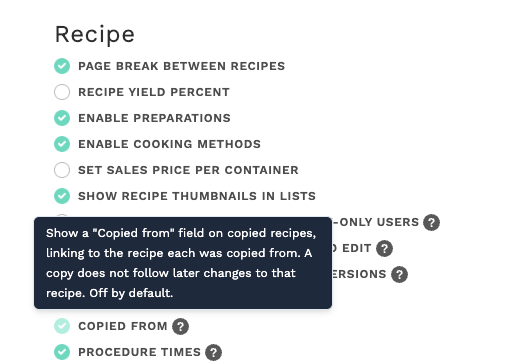
Copied From is in beta. If you don't see it in your Recipe settings, contact your Customer Success Manager to turn it on for your company.
To turn the field off again, clear the same check mark. Each recipe keeps its link, so turning it back on later shows the field again.
Follow a copy back to its source
- Open a recipe that was made with Copy (Actions, then Copy, on the recipe page).
- In the recipe header, find Copied From.
- Click the recipe name to open the recipe it was copied from.
- If you see Earliest known, click that name to jump straight to the earliest recipe in the chain.
Very long chains are followed a few steps at a time. If a chain is longer than the page can show at once, Earliest known shows the furthest recipe it could load, and that recipe's own Copied From field continues the chain.
When the field is empty or shows no link
| What you see | Why |
|---|---|
| No Copied From field at all | The recipe was not made with Copy, Copied From is turned off for your company, or the copy was made before Galley started recording the link. |
| "A recipe that has since been deleted" | The recipe it was copied from was deleted. |
| "A recipe that was deleted or is not available at your locations" | The source recipe was deleted, or it is only available at locations you don't have access to. |
Copied From is read-only. You can't edit or remove the link, and it never changes the copy itself.
Frequently asked questions
If I change the original recipe, does the copy change too?
No. A copy is a separate recipe from the moment it is made. Copied From only shows where it came from.
Why do some older copies show no Copied From field?
Galley only started recording the link when a recipe is copied in early 2026. Copies made before then have no link to show.
Can I see all the copies made from a recipe?
Not yet. Copied From works in one direction: from a copy back to its source.
Is this the same as recipe variations?
No. Variations are a separate feature with their own link to a parent recipe. Copied From only covers recipes made with Copy.