
Jump to: Overview · Expand · Deeper levels · Allergens · Amounts and costs · Procedure · Can't scale · FAQ
What sub-recipe expansion shows you
On any recipe, click the arrow next to a component marked RECIPE and that sub-recipe opens right underneath it, in the same Components table. You see its ingredients, their allergens, the amount and cost this recipe uses, and the sub-recipe's own procedure, without opening another page.
This helps when you need to answer "what is actually in this dish?" For example, when a guest asks about an allergen, when a dietitian checks a plate against a diet order, or when you want to know which part of a dish drives its cost.
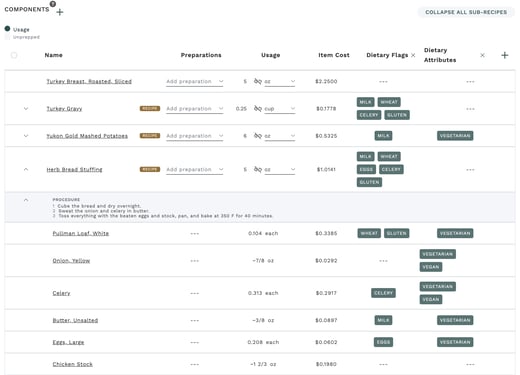
The expanded lines are read-only. To change a sub-recipe, open it on its own page (click its name). Nothing changes about how you build recipes.
Expand a sub-recipe in the Components table
- Go to Recipes and open a recipe that uses at least one sub-recipe.
- On the Main tab, scroll to Components.
- Find a line marked RECIPE and click the arrow at the left of its name.
- The sub-recipe's ingredients appear underneath, indented one step. Click the arrow again to close it.
Expand or collapse everything at once
Click Expand all sub-recipes, above the right side of the Components table, to open every sub-recipe in the recipe at every level. The button then reads Collapse all sub-recipes; click it to close them all again.
Expand all is the quickest way to review a whole dish, for example before a menu goes to the dietitian or before a large event.
Open sub-recipes inside sub-recipes
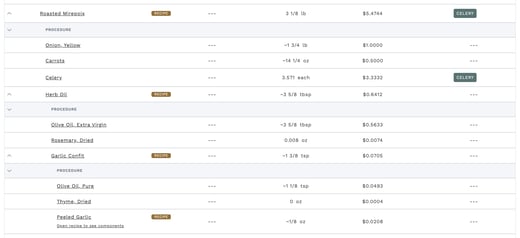
A sub-recipe often uses other sub-recipes: a gravy uses a stock, the stock uses a roasted mirepoix, and so on. Each of those has its own arrow, so you can keep opening the tree. Every level steps in a little further, while the Usage, Item Cost and other columns stay lined up under their headers.
You can open up to five levels below the recipe's own components. When a sub-recipe at the fifth level has components of its own, it shows an "Open recipe to see components" link instead of an arrow. Click it to open that sub-recipe's page.
See allergens and dietary attributes on every line
The columns you show on the Components table follow the ingredients down. Dietary Flags (allergens), Dietary Attributes and any category columns you have added appear on the expanded lines too.
This means the ingredient that carries an allergen shows it, not only the sub-recipe above it. In the stuffing example, the bread shows wheat and gluten, the butter shows milk and the eggs show eggs.
To add or remove a column, click the + at the right end of the Components table header. Your choice is remembered on this computer.
Read amounts and costs scaled to this recipe
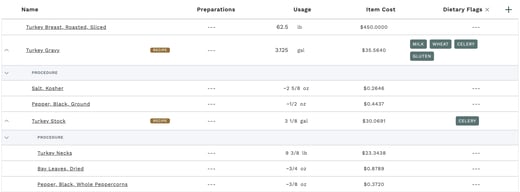
The amount and Item Cost on each expanded line are this recipe's share, not the sub-recipe's full batch. If a plate uses a quarter cup of gravy, the lines under the gravy show how much stock, roux and seasoning that quarter cup holds, and what it costs.
When you scale the recipe (Scale, at the top of the recipe), the expanded lines scale with it. For example, scale a plate to 200 and every line underneath shows the amount and cost for 200 plates.
The Unprepped view does not show amounts for expanded lines; they show "---". Switch back to Usage to see them.
Read a sub-recipe's procedure
Each expanded sub-recipe that has a procedure shows a PROCEDURE line right under it, folded away. Click its arrow to read the steps, and click again to fold them. What goes in and how it is made sit together, without leaving the recipe.
When a line says "Can't scale"
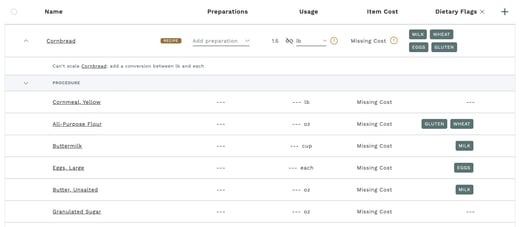
Galley works out each expanded amount from the unit the recipe uses the sub-recipe in and the sub-recipe's yield unit. If those two units can't be converted, Galley shows a line such as "Can't scale Cornbread: add a conversion between lb and each", and the amounts and costs under it show "---" rather than a guess.
How to fix it
- Click the sub-recipe's name in the "Can't scale" line to open it.
- On its Main tab, open Custom Units & Conversions.
- Add a conversion between the two units the line names. For example, 1 each (one pan of cornbread) = 3 lb.
- Go back to the recipe and expand the sub-recipe again. The amounts and costs fill in.
The same conversion also fixes the sub-recipe's cost on the recipe, so it is worth adding even if you rarely expand the line.
Frequently asked questions
Can I edit an ingredient from the expanded lines?
No. Expanded lines are read-only. Click the sub-recipe's name to open its page and edit it there. Changes show up in every recipe that uses it.
Why does a line show "Missing Cost"?
One or more ingredients under that line has no cost, or a unit that can't be converted to its cost unit. Open the sub-recipe and use Find Errors to see which one.
Why doesn't a sub-recipe have an arrow?
The arrow only shows on sub-recipes that have components. At the fifth level, you see the "Open recipe to see components" link instead.
Do I need to turn anything on?
Most companies get sub-recipe expansion automatically. If your company's admin controls when new features roll out, an admin turns it on in Settings. Once it is on, no other setting or permission is needed: anyone who can view a recipe can expand its sub-recipes.