
Jump to: Overview · Scale on the card · Amounts and units · Count yields · After you apply · Recipe details · Troubleshooting · FAQ
What scaling by component does
Scaling by component starts from what you have, not from the yield you want. In Scale, choose By component, pick one line of the recipe, and enter the amount you have on hand. Galley scales the recipe so that line uses exactly your amount, and the yield and every other line follow.
It saves working the math out by hand when you are using up a case of produce, a batch of sauce already made, or a fixed delivery. For example, a muffin recipe that makes 12 with 2 cups of blueberries scales to 48 muffins when you have 2 1/2 lb of blueberries.
The Scale panel has two options, each with an information icon that explains it:
- By yield: "Know how much you need to make? Enter the yield you want, and every line scales to match."
- By component: "Have a set amount of one ingredient? Pick it and enter how much you have, and the whole recipe scales to match."
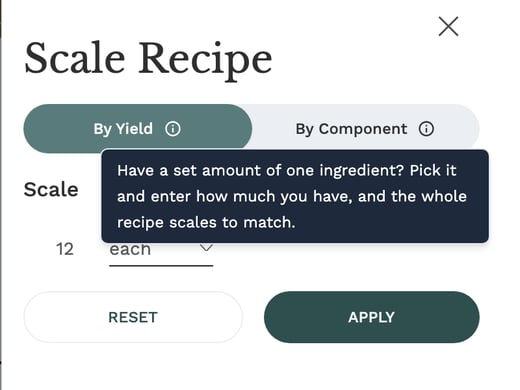
Scale by component is on the recipe card (including recipes opened from a Recipe Book) and on the recipe details page. There is nothing to set up.
Scale a recipe on the recipe card
- Open the recipe and switch to the recipe card view.
- Click Scale. The Scale Recipe panel opens.
- Click By Component.
- In Component to scale by, choose the line you have a set amount of. Each line shows how much the recipe calls for on the right.
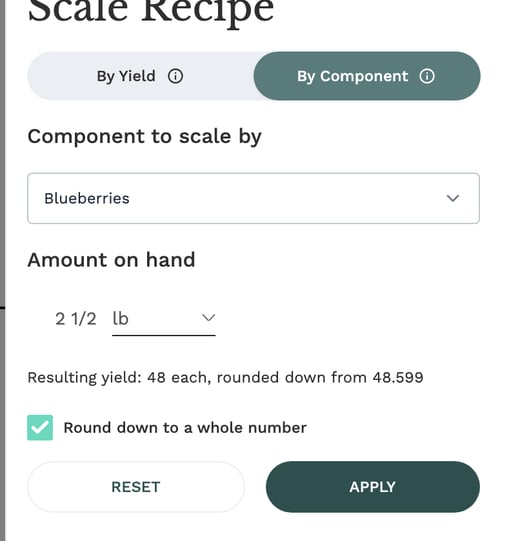
- In Amount on hand, enter how much you have and choose its unit.
- Check the Resulting yield under the amount.
- Click Apply, or press Enter.
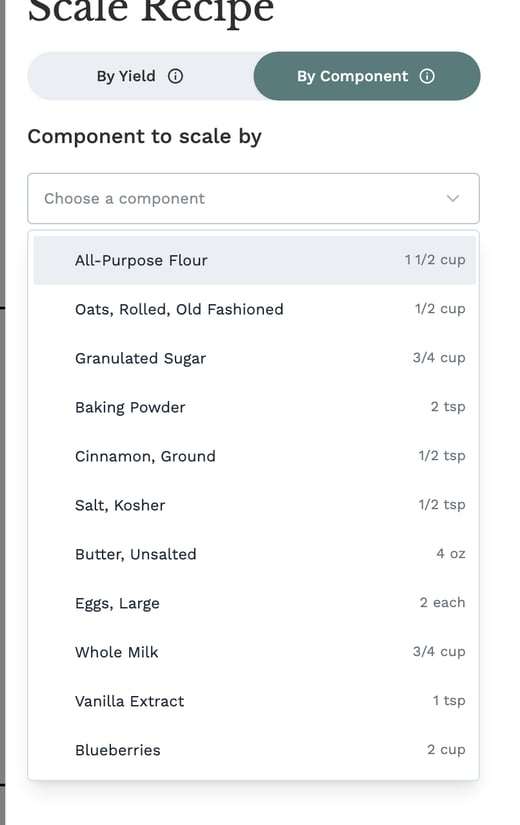
Pressing Escape, clicking the X or clicking outside the panel closes it without changing the scale. Reset in the panel clears the scale and goes back to the recipe as written.
When the same ingredient appears on two lines, the list adds the group name so you can tell them apart, for example "Flour (Topping)".
Entering the amount on hand
Type the amount the way you would write it on a prep list. Whole numbers, decimals and fractions such as 1 1/2 or 3/4 all work.
The amount does not have to be in the line's own unit. The unit list puts Compatible units first: the units Galley can convert to that line's unit. For an ingredient, Galley uses the ingredient's own conversions (for example 1 cup of blueberries = 140 g), then the recipe's custom units and conversions. That is how you can enter 2 1/2 lb for a line measured in cups.
| You enter | The line uses | Works when |
|---|---|---|
| 6 cup | cup | Always (same unit) |
| 1 1/2 qt | cup | Always (both are volumes) |
| 2 1/2 lb | cup | The ingredient or recipe has a conversion between a volume and a weight |
| 2 case | lb | The ingredient has a case conversion |
Units Galley cannot convert are listed under Incompatible units. If you pick one, Galley tells you which conversion is missing (see "When a unit can't convert" below).
Whole-number yields for counts
When the recipe's yield is a count (each, servings, portions, or your own unit such as muffin), you cannot make a fraction of a muffin. Galley rounds the yield down to a whole number by default and shows what it rounded from, for example "Resulting yield: 48 each, rounded down from 48.599". Every line is scaled to the whole yield, so the line you scaled by uses slightly less than you have.
To keep the exact yield, clear the Round down to a whole number box. Yields measured by weight or volume are never rounded.
The scaled recipe card
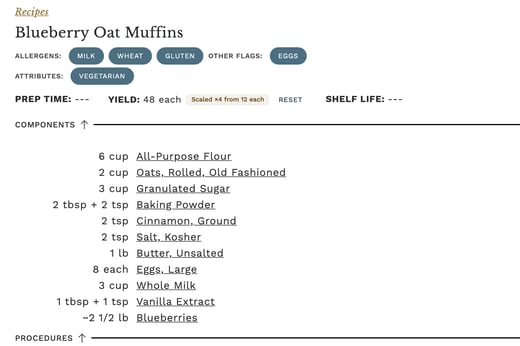
After you apply the scale, the card shows the new yield, a marker with what it was scaled from (for example "Scaled ×4 from 12 each"), and every line at its scaled quantity. The line you scaled by shows in the unit you entered, so blueberries read about 2 1/2 lb.
Click Reset next to the marker to go back to the recipe as written. Scaling the card only changes what you see. It does not change the saved recipe.
Scale and overwrite on the recipe details page
- Open the recipe details page and click Scale.
- Click By Component, choose the line and enter the amount on hand.
- The recipe scales as you type, after a short pause, and the Scale box shows the resulting yield. The quantities on the page update to match.
- Use View PDF to print the scaled recipe. Exit closes the panel and goes back to the recipe as written.
If this is the batch size you will make from now on, click Overwrite Recipe. It saves the scaled yield and every scaled quantity to the recipe itself.
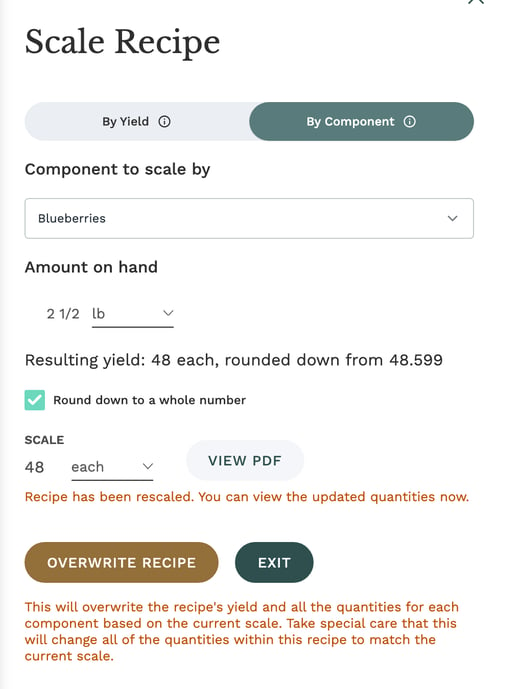
Overwrite Recipe permanently changes the recipe's yield and every quantity, for everyone who uses the recipe. Use it only when you want the new size to be the recipe's standard. While a recipe is scaled, Find errors is unavailable: reset the scale first.
When a unit can't convert
If Galley cannot convert the amount you entered to the line's unit, it explains what is missing instead of guessing, and Apply stays unavailable. For example: "Oats, Rolled, Old Fashioned is measured in cups and has no cup to lb conversion. Add one on the ingredient, or enter the amount in cups."
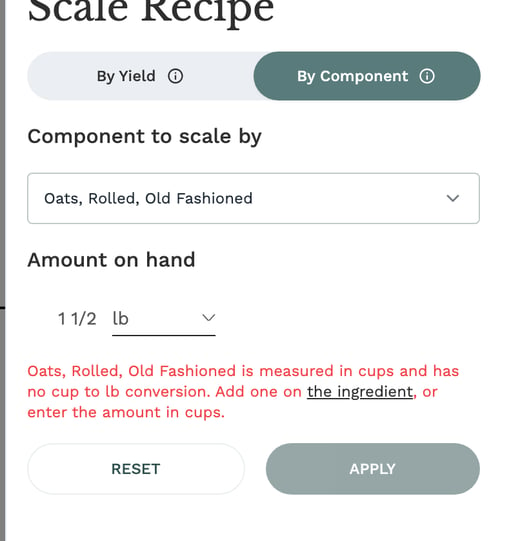
To fix it, either:
- Enter the amount in the line's own unit, or in a unit listed under Compatible units.
- Click the ingredient link in the message (it opens in a new tab, so your entry is kept) and add the conversion under the ingredient's units and conversions. For a sub-recipe line, the link opens the sub-recipe.
An amount of 0 is not accepted: Galley shows "Enter an amount above 0."
Frequently asked questions
Can I scale by an ingredient inside a sub-recipe?
Not yet. The list shows the recipe's own lines, so pick the sub-recipe line (for example the sauce or the dough) and enter how much of it you have.
Can I scale by two components at once?
No. You scale by one line at a time. If the same ingredient is on two lines, they are not added together: pick the line you have a set amount of.
Does scaling change my saved recipe?
No. Scaling on the card or the details page changes what you see and print. Only Overwrite Recipe on the details page saves the new yield and quantities.
What happens if I switch back to By yield?
The component and amount are cleared and the panel goes back to scaling by yield.
Why is a line missing from the list?
A line without an amount (for example "to taste") cannot drive the scale, so it is not listed.