
What are vendor item mappings?
A vendor item mapping connects one of your ingredients to a product you buy from a vendor, such as a specific case of tomatoes from your produce supplier. Galley uses this connection to cost your recipes and to build orders.
The Vendor Item Mappings page lets you generate match suggestions for your ingredients and review them in one place, instead of linking vendor items to ingredients one at a time.
Mappings are set per location. The same ingredient can be linked to different vendor items at different locations, depending on which vendors serve each one.
How to open Vendor Item Mappings
- Go to Ingredients in the main navigation.
- Click Vendor Item Mappings at the top of the Ingredients page.

Don't see the Vendor Item Mappings button? You need permission to edit vendors, and the feature must be turned on for your account. Contact your account admin or Galley support.
Run vendor item mapping
- Click Run Vendor Item Mapping at the top of the page.
- Choose the locations you want suggestions for. Use Select All to pick every location, or search for specific ones.
- Click Run Mapping.
If you only have access to one location, mapping starts right away without the location picker.
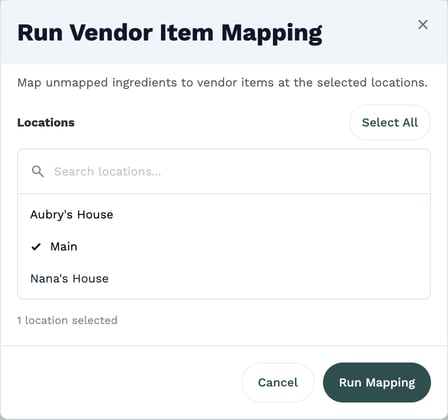
A banner shows the job's progress while Galley looks for matches. You can keep using the page while it runs. When the banner says the job completed, new suggestions appear on the Pending Review tab.
Run mapping again after you add a new vendor or load a new price file. That way new products get matched to your ingredients.
Understanding the page layout
Next to the Run button, Galley shows the location or locations you're reviewing. If several locations are in scope, use the Viewing location dropdown to switch between them.
Use the search bar to find a specific ingredient or product. The All, Ingredients, and Vendor items buttons next to the search bar control which names it searches.
A progress bar shows how many ingredients are mapped out of the total. The status tabs below it work like this:
| Tab | What it shows |
|---|---|
| All | Every ingredient, whatever its mapping status |
| Pending Review | Ingredients with suggested vendor items waiting for your decision |
| Mapped | Ingredients already linked to a vendor item at this location |
| Unmapped | Ingredients with no vendor item and no pending suggestion |
| Rejected | Suggestions you rejected |
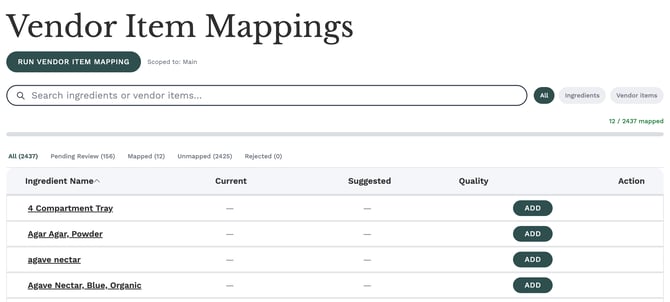
Table columns
| Column | What it means |
|---|---|
| Ingredient Name | Your ingredient. Click it to open the ingredient in a new tab. |
| Current | The vendor item currently linked at this location. If more than one is linked, click "+N more" to see the rest. |
| Suggested | The vendor item Galley is suggesting, with the vendor name, SKU, and purchasing unit. Click the name to open the vendor item. |
| Quality | How confident the match is: High, Medium, or Low |
| Action | The buttons available for that row |
An ingredient can have more than one suggested vendor item. Extra suggestions appear as indented rows under the ingredient's first row.
Accept, change, or reject a suggestion
On the Pending Review tab, each suggestion has three buttons:
- Accept: Links the suggested vendor item to your ingredient at the location you're reviewing. The row moves to the Mapped tab.
- Change: Opens a search window so you can choose a different vendor item.
- Reject: Declines the suggestion and moves it to the Rejected tab.
Primary vendor items
When an ingredient has more than one vendor item, the primary vendor item is the one Galley uses for costing. Accepted suggestions are added after the ingredient's existing vendor items, so they don't replace your current primary item.
If an ingredient has no vendor items yet, the suggestion shows "Becomes the primary vendor item." When an ingredient already has one, use Accept as primary to make the suggestion its new primary item instead. You can also reorder vendor items anytime on the ingredient page.
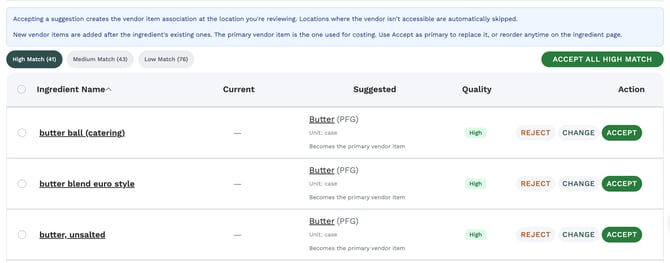
Filtering by match quality
Use the High Match, Medium Match, and Low Match filters above the table to review one confidence level at a time. Starting with High Match is usually the fastest way to make progress.
Accepting or rejecting in bulk
- On the Pending Review tab, check the boxes next to the suggestions you want.
- Click Accept or Reject above the table. The button shows how many you selected.
- In the confirmation window, decide whether to check "Also accept this mapping at its other locations."
| Option | What happens |
|---|---|
| Box unchecked (default) | The mapping is created only at the location you're reviewing |
| Box checked | The same ingredient and vendor item are also accepted wherever they're still pending at your other locations |
- Click to confirm.
For ingredients with no vendor items yet, the best-ranked accepted match becomes the primary vendor item.
Accept All works the same way, but applies to every pending suggestion in the current quality filter at the location you're reviewing. Large batches run in the background, and a banner shows their progress.
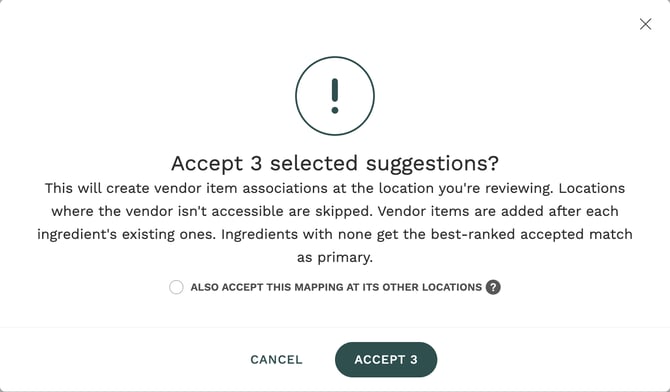
If you run several locations with the same vendors, check "Also accept this mapping at its other locations." You'll review each mapping once instead of repeating it for every location.
Accept All covers every pending suggestion in the current filter, not just the rows on your screen. Spot-check the list before accepting a large batch, especially under Medium Match or Low Match.
Understanding warning badges
"Changed since matched"
This badge means the vendor renamed the product after Galley suggested it. For example, a product that was "Tomato Roma 25 lb" when it was matched might now be "Tomato Roma 20 lb." Hover over the badge to see the old name.
You have two options:
- Click Refresh on the row to generate a new suggestion based on the current product name. To refresh every changed suggestion at once, click Refresh all changed at the top of the page.
- Click Accept anyway. Galley will ask you to confirm the product is still the right match for the ingredient.
Vendor doesn't service this location
A warning icon beside a suggestion means that vendor doesn't serve the location you're viewing. If you accept it, the mapping is skipped at that location but still applies at locations where the vendor is available.
You may also see a note like "Will skip 2 of 5 scoped locations." That tells you how many locations will be skipped because the vendor isn't available there.
Add or reassign a vendor item yourself
- Add: On unmapped ingredients, click Add to search for and pick a vendor item.
- Reassign: On mapped ingredients, click Reassign to change the linked vendor item.
The search window opens pre-filled with your ingredient's name and shows vendor items available at your selected location.
Troubleshooting
| What you see | What to do |
|---|---|
| "No mapping suggestions for this location yet." | Mapping hasn't been run for this location. Click the button in the message or use Run Vendor Item Mapping. |
| The Run button says "Job Running..." and is grayed out | A mapping job is already in progress. Wait for the banner to show it completed. |
| A suggested product looks wrong | Click Change to choose the right vendor item, or Reject it. |
| An accepted mapping doesn't show at another location | The vendor may not serve that location, or you accepted without the "other locations" option. Switch the Viewing location and check the Pending Review tab there. |
| An error appears when accepting | Refresh the page and try again. If it keeps happening, contact Galley support. |
Frequently asked questions
Does accepting a mapping change my recipe costs?
Yes. Once an ingredient is linked to a vendor item, Galley can cost it using that vendor item's price. Recipes that use the ingredient will reflect the updated cost.
Can an ingredient have more than one vendor item?
Yes. An ingredient can be linked to several vendor items at a location, for example when you buy it from two vendors. The Current column shows the first, and "+N more" shows the rest. The primary vendor item is the one used for costing, and you can reorder them on the ingredient page.
Do I need to run mapping more than once?
Run it again whenever your vendor catalog changes, such as when you add a new vendor or products are added or renamed. Existing mappings aren't removed when you run mapping again.
How is this different from USDA Ingredient Mappings?
Vendor Item Mappings link ingredients to the products you buy, which drives costing and ordering. USDA Ingredient Mappings link ingredients to standard nutritional references. See "How do I review and manage USDA ingredient mappings?" for details.