
What are USDA ingredient mappings?
Every ingredient in Galley can be linked to a USDA ingredient. The USDA ingredient is a standard reference item that provides nutritional information and, when available, density for converting between weight and volume.
The USDA Ingredient Mappings page shows all of your ingredients in one place. Galley suggests a USDA match for each ingredient, and you decide whether to accept it, change it, or reject it. This saves you from opening each ingredient individually.
Mapping suggestions are generated for your account by the Galley team. If the page shows no suggestions yet, reach out to your Customer Success Manager to have mapping run for your ingredients.
How to open USDA Ingredient Mappings
- Go to Ingredients in the main navigation.
- Click USDA Ingredient Mappings at the top of the Ingredients page.
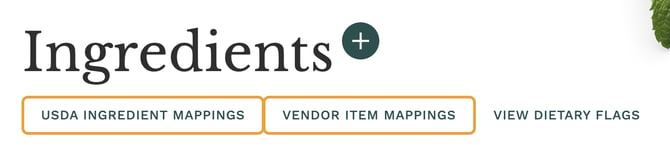
Don't see the USDA Ingredient Mappings button? The feature may not be turned on for your account yet, or your role may not allow editing ingredients. Contact your account admin or Galley support.
Understanding the page layout
At the top of the page, a progress bar shows how many of your ingredients are mapped out of the total (for example, "412 / 530 mapped"). Below that, tabs let you filter the list by status.
| Tab | What it shows |
|---|---|
| All | Every ingredient, whatever its mapping status |
| Pending Review | Ingredients with a suggested USDA match waiting for your decision |
| Mapped | Ingredients that already have a USDA ingredient |
| Unmapped | Ingredients with no USDA ingredient and no pending suggestion |
| Rejected | Suggestions you rejected, kept so you can assign a better match later |
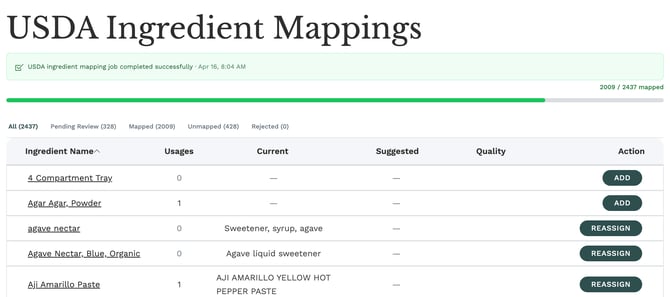
Table columns
| Column | What it means |
|---|---|
| Ingredient Name | Your ingredient. Click it to open the ingredient in a new tab. |
| Usages | How many recipes use this ingredient. Higher numbers have a bigger impact on your nutrition data. |
| Current | The USDA ingredient currently linked, if any |
| Suggested | The USDA match Galley is suggesting. A "Density" check mark means it includes density data for unit conversions. |
| Quality | How confident the match is: High, Medium, or No Match |
| Action | The buttons available for that row |
Sort by Usages to review your most-used ingredients first. Fixing those has the biggest effect on recipe nutrition.
Accept, change, or reject a suggestion
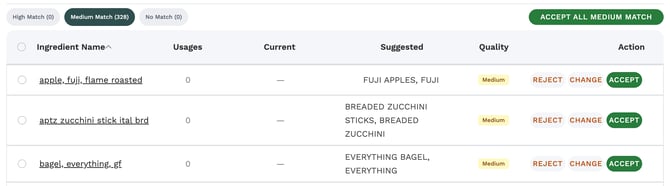
Open the Pending Review tab to work through suggestions. Each row has three buttons:
- Accept: Links the suggested USDA ingredient to your ingredient.
- Change: Opens a search window so you can pick a different USDA ingredient.
- Reject: Declines the suggestion. The ingredient moves to the Rejected tab.
Filtering by match quality
On the Pending Review tab, use the High Match, Medium Match, and No Match filters to focus on one confidence level at a time. The count next to each filter shows how many suggestions are in it.
A good workflow is to start with High Match, spot-check a few rows, and accept them in bulk. Then spend your time on Medium Match and No Match, where suggestions need a closer look.
Accepting or rejecting in bulk
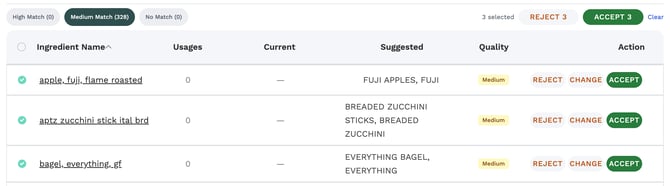
- On the Pending Review tab, check the boxes next to the rows you want.
- Click Accept or Reject at the top of the table. The button shows how many rows you selected (for example, "Accept 12").
- Confirm in the dialog.
To accept everything in the current filter at once, click Accept All (or Accept All High Match, when a quality filter is active) and confirm. When it finishes, a message tells you how many were accepted, and how many were skipped because they had already been reviewed.
Accept All applies to every pending suggestion in the current filter, not just the rows on your screen. Review a sample before accepting a large batch, especially outside the High Match filter.
Add or update a USDA ingredient yourself
You can also set a USDA ingredient directly, without waiting for a suggestion:
- Add: On unmapped ingredients, click Add to search for and choose a USDA ingredient.
- Reassign: On mapped ingredients, click Reassign to replace the current USDA ingredient.
- Assign: On rejected ingredients, click Assign to pick a better match.
- Skip: If a pending ingredient has no suggestion, click Skip to remove it from Pending Review.
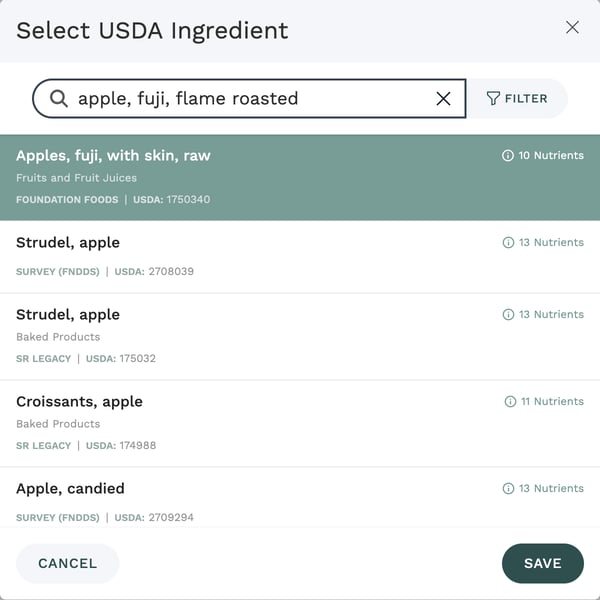
The search window opens pre-filled with your ingredient's name. Adjust the search terms if the results aren't quite right, then select the USDA ingredient you want and click Save. Click Cancel to close the window without making a change.
Troubleshooting
| What you see | What to do |
|---|---|
| "No ingredients found for this filter." | That tab or quality filter is empty. Try the All tab. |
| Pending Review is empty but many ingredients are unmapped | Suggestions haven't been generated yet. Ask your Customer Success Manager, or use Add to map ingredients yourself. |
| A banner says the mapping job is running | Galley is generating new suggestions. Keep working, or check back when the banner shows the job completed. |
| "Failed to accept mapping" or a similar error | Refresh the page and try again. If it keeps happening, contact Galley support. |
Frequently asked questions
Does accepting a mapping change my recipes?
Accepting a mapping links a USDA ingredient to your ingredient. Recipes that use the ingredient will reflect its updated nutritional information. Recipe quantities and names don't change.
Can I undo a mapping I accepted by mistake?
Yes. Find the ingredient on the Mapped tab and click Reassign to choose a different USDA ingredient.
What does "No Match" mean?
Galley couldn't find a confident USDA match for that ingredient. This is common for branded, house-made, or very specific items. Use Change or Add to search for the closest USDA ingredient yourself.
How is this different from Vendor Item Mappings?
USDA Ingredient Mappings link your ingredients to standard nutritional references. Vendor Item Mappings link your ingredients to the products you buy from vendors, which drives costing and ordering. See "How do I review and manage vendor item mappings?" for details.