
Printing with Multiple Shelf Lives
When a recipe has multiple shelf lives (like "Frozen 3d" and "Refrigerated 5d"), you can control which one is used when printing labels. The selected shelf life determines the expiration date, best-by date, and all other date calculations on the printed label.
You configure this behavior on each print trigger, so different triggers can use different shelf lives for the same recipe.
Setting Up a Print Trigger with Shelf Life
- Go to Printing Services and select your printing service
- Click the Print Triggers tab
- Create a new trigger or edit an existing one
- Select a print template that uses expiration date variables (like {EXPIRES_DATE} or {SHELF_LIFE_LABEL})
- The Shelf Life dropdown will appear below the Quantity setting
- Choose one of three options:
| Option | What It Does |
|---|---|
| Primary | Always uses the recipe's primary shelf life (the one with the star). This is the default. |
| Ask User | Prompts the person printing to choose which shelf life to use from a list. |
| Specified Label | Always uses a specific shelf life identified by its label name (e.g., always use "Frozen"). |
- Click Save
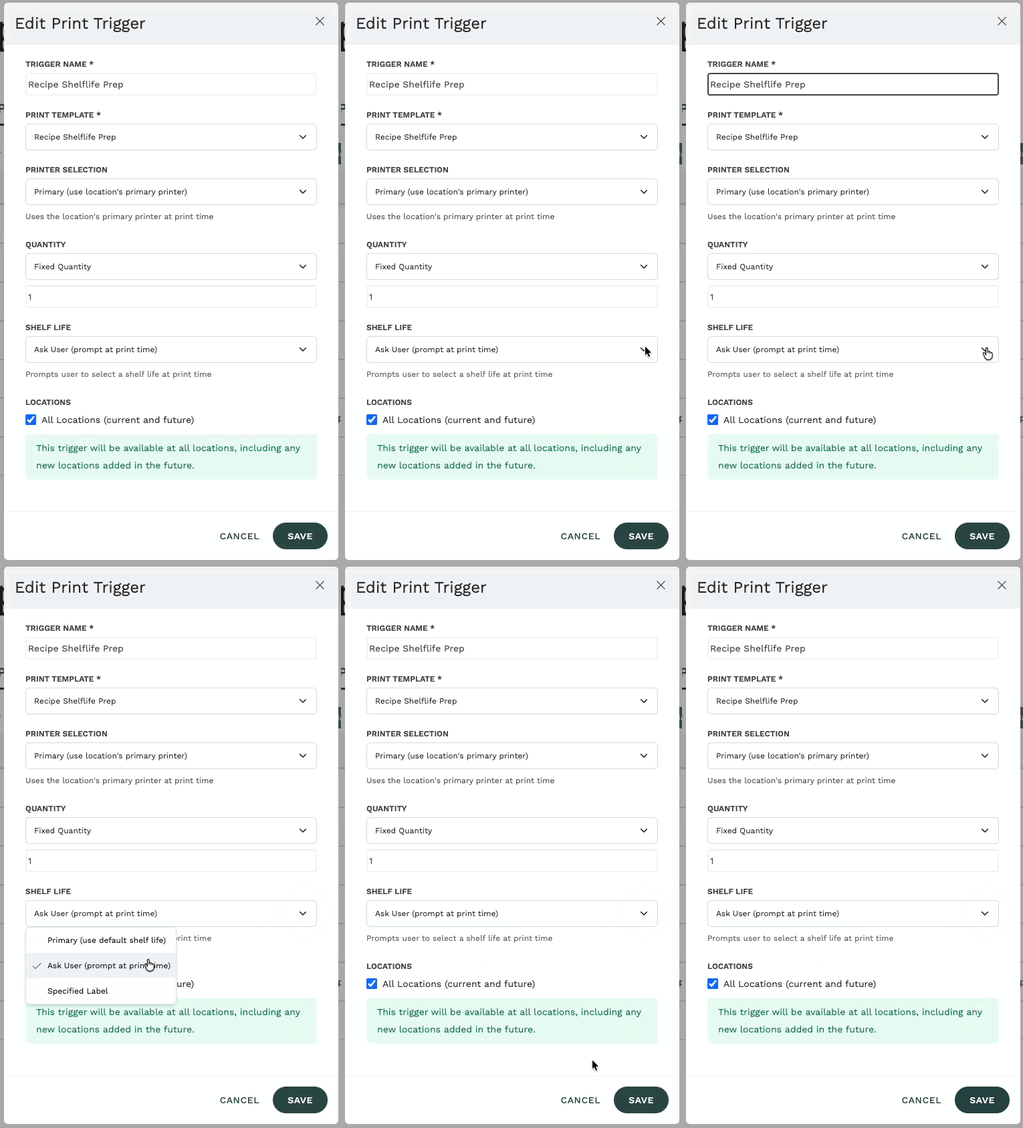
The Shelf Life dropdown only appears when your selected template uses expiration-related variables like {EXPIRES_DATE}, {BEST_BY}, {SHELF_LIFE_DAYS}, or {SHELF_LIFE_LABEL}. If you don't see it, check that your template includes one of these variables.
Choosing a Shelf Life at Print Time
When a trigger is set to "Ask User", the person printing will see a shelf life picker after clicking the print button:
- Click the print trigger button on the recipe
- The shelf life picker appears showing all available shelf lives
- Each option shows the label name and duration (e.g., "Frozen — 3 days")
- The primary shelf life is pre-selected and marked with "(Primary)"
- Select the one you want and click Next
- The label prints with the correct expiration date based on your choice
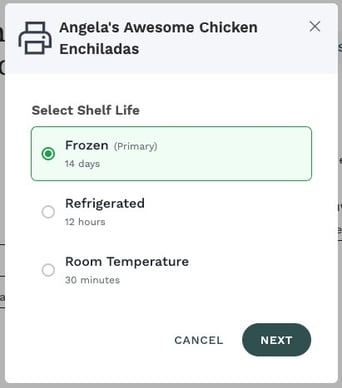
If the recipe only has one shelf life entry, the picker will still appear when the trigger is set to "Ask User" — this lets the printer confirm which shelf life is being used.
Shelf Life Template Variables
When designing POS label templates, you can use these variables related to shelf life:
| Variable | Description | Example Output |
|---|---|---|
| {SHELF_LIFE_LABEL} | The name of the selected shelf life | "Frozen" |
| {SHELF_LIFE_DAYS} | Duration in days (numeric) | "3" |
| {EXPIRES_DATE} | Full expiration date and time | "Mon 3/30/26 2:00pm" |
| {EXPIRES_DATE_SHORT} | Short expiration date | "3/30/26" |
| {EXPIRES_DATE_LONG} | Long expiration date | "March 30, 2026" |
| {BEST_BY} | Best-by date | "03/30/2026" |
| {EXPIRES_DATE_DAY_NAME} | Day of week for expiration | "MONDAY" |
The {SHELF_LIFE_LABEL} variable is especially useful for labels that serve multiple storage scenarios. For example, a label template like:
{SHELF_LIFE_LABEL}
EXPIRES: {EXPIRES_DATE}
{RECIPE_NAME}
Would print as:
Frozen
EXPIRES: Mon 3/30/26 2:00pm
Chicken Stock
Shelf Life in the Print Label Wizard
The full Print Label wizard (accessed from Actions > Print Label on a recipe page) also supports shelf life selection:
- Click Actions > Print Label on a recipe
- Select your printing service and label template
- On the Label Data step (step 3), you'll see the Produced Date picker and a shelf life picker below it
- Select which shelf life to use
- Continue through the remaining steps — the preview will show the correct expiration date and shelf life label
- Click Print
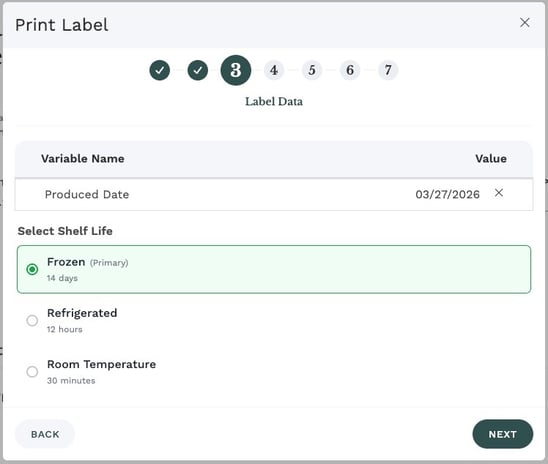
Checking Shelf Life on Printed Jobs
After printing, you can verify which shelf life was used:
- Go to Printing Jobs in the sidebar
- Find your print job in the list
- Click the menu icon and select "View Label"
- The label preview shows the shelf life label and the calculated expiration date based on the shelf life that was selected at print time
Frequently Asked Questions
What happens if I use "Specified Label" but the recipe doesn't have that shelf life?
If the specified label doesn't match any of the recipe's shelf lives, the system falls back to the primary shelf life. This can happen if the label name was changed on the recipe after the trigger was configured.
Can I use different triggers for different shelf lives on the same recipe?
Yes! This is a common setup. For example, you might have:
- A "Prep Label - Frozen" trigger set to Specified Label "Frozen"
- A "Prep Label - Refrigerated" trigger set to Specified Label "Refrigerated"
- A "Prep Label - Custom" trigger set to Ask User
Each trigger prints with its own shelf life configuration.
Do I need to update my existing templates?
Existing templates continue to work without changes. The {EXPIRES_DATE} and {BEST_BY} variables will use the primary shelf life by default, just like before. To show which shelf life was selected, add the {SHELF_LIFE_LABEL} variable to your template.
Does this work with NiceLabel too?
Yes. The shelf life override works with both POS thermal printing and NiceLabel cloud printing. The same trigger configuration and shelf life selection apply to both.
What if the recipe has no shelf lives set up?
If the recipe has no shelf life entries, the Shelf Life picker won't appear during printing, and the trigger's shelf life setting is ignored. The label prints using the recipe's original shelf life value (if any), or leaves the expiration fields blank.