
Jump to: Overview · Pick your name · Location · PIN · Switch · Change PIN · Timeout · Forgot PIN · Log out · Troubleshooting · FAQ
How picking your name works
On a shared login, you pick your name on the Select a team member screen, and you switch to someone else by tapping the name at the top of the screen. It works the same on any computer or tablet.
Your admin sets this up for you. They add your name under Settings > Team Members and mark the login your team shares. For setup steps, see How do I set up Team Members so people can share one login?
Once you've picked your name, Galley uses it for your work:
- Print windows show "Printing as" with your name, and labels that include the team member name print it.
- A line check shows "Submitting as" with your name by the Submit button, and Galley saves your name with it.
Picking your name doesn't change what you can see or do in Galley. The shared login's access stays the same for everyone. Your name only records who is working.
Pick your name
When nobody is picked yet, Galley shows the Select a team member screen. It covers the page until someone picks a name.
- Find your name. The names are listed A to Z, or you can type a few letters in Search names... to narrow the list.
- Tap or click your name.
- If Galley asks for a PIN, enter it (see Enter your PIN below).
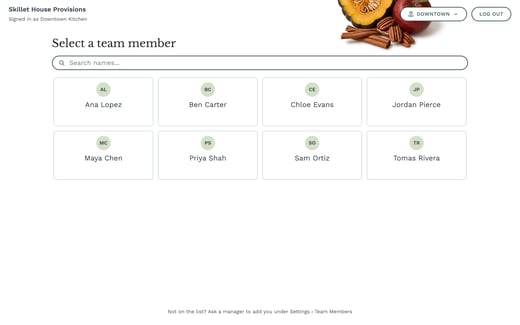
That's it. The screen closes and you're back on the page you were on. Your initials and name now show at the top of Galley.
The top of the screen also shows your company name, which login you're on ("Signed in as" the shared login's name), the location button, and Log out.
If your name isn't there, the bottom of the screen says "Not on the list? Ask a manager to add you under Settings › Team Members". Ask a manager to add you, and check that the right location is showing.
Choose your location
The location button at the top of the Select a team member screen shows where you're working. Each location has its own list of names.
- Tap the location button.
- In Locations, tap your location. You can type in Search locations... to find it. The location you're on is marked Current.
- Galley shows that location's names. Pick yours.
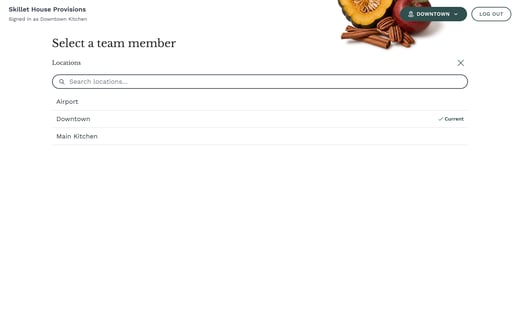
If the shared login only has one location, the location button can't be opened.
Each location keeps its own picked person. If you change the location while you're working and nobody is picked there yet, Galley asks you to pick your name for that location.
Enter your PIN
Galley asks for a PIN only when your company requires one. When you tap your name, you'll see "Hi" with your first name and "Enter your PIN".
- Tap the numbers on screen, or type them on a keyboard.
- After the 4th digit, Galley checks your PIN and picks your name.
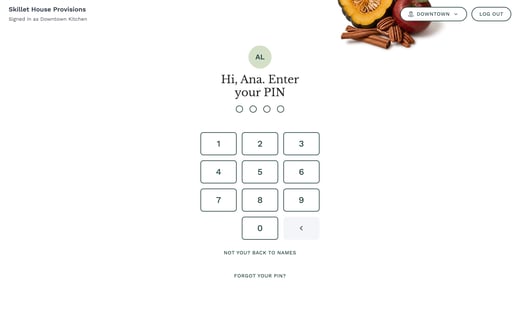
If the PIN is wrong, you'll see "That PIN doesn't match." and how many tries are left. Tapped the wrong name? Tap Not you? Back to names.
After 5 wrong PINs in a row, your name is locked and can't be picked. A manager has to reset your PIN under Settings > Team Members.
Choosing your own PIN the first time
Your manager may give you a temporary PIN. The first time you use it, Galley asks you to choose your own.
- Enter the PIN your manager gave you.
- On Choose your new PIN, enter 4 digits only you know. It has to be different from the temporary PIN.
- On Enter it again, enter the same 4 digits.
Galley picks your name and shows "New PIN saved. Use it next time you pick your name." The Choose your new PIN screen says a manager reset your PIN. That's expected the first time too.
Switch to another team member
When someone else takes over the shared login, they switch to their own name. Whatever is on the screen stays as it is.
- Tap the name at the top of the screen. It shows the initials and name of the person who's picked now.
- In Select a team member, tap your name. The person picked now is marked Current.
- If Galley asks for a PIN, enter yours.

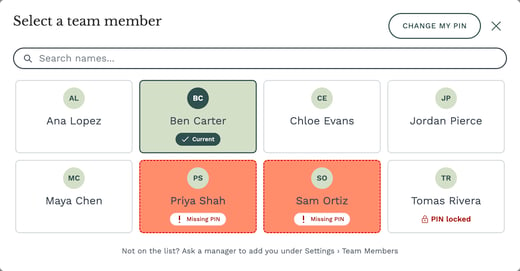
Tapping the person marked Current closes the window without changing anything. So does the close button, or tapping outside the window.
Change your PIN
You can change your own PIN whenever your company requires PINs and you have one.
- Tap your name at the top of the screen.
- Tap Change my PIN.
- Enter your current PIN, then a new PIN, then the new PIN again.
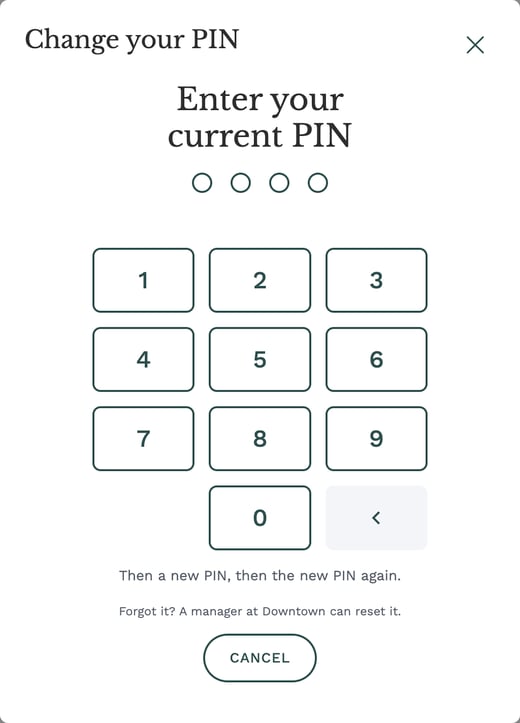
Galley confirms with "PIN changed." A wrong current PIN counts toward the 5 tries that lock your name. If you've forgotten your current PIN, ask a manager to reset it.
When the shared login goes back to the names
If nobody uses Galley for a while, the shared login goes back to the Select a team member screen. You'll see "No activity for a while. Pick your name to keep going." Just pick your name again.
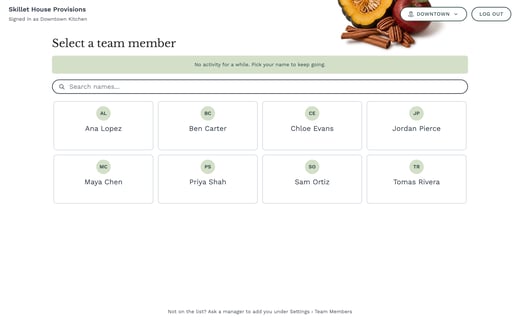
Your admin chooses how many minutes this takes. The page you were on stays underneath, so you can carry on where you left off. This also happens if Galley is opened after the time has passed, for example at the start of the next shift.
If you forget your PIN
- Tap your name, then tap Forgot your PIN?
- Galley shows Forgot your PIN? with who can help.
- Ask a manager at your location to reset it under Settings › Team Members.
Your manager gives you a temporary PIN. The next time you pick your name, you'll choose your own. Nobody, including your manager, can look up your old PIN.
If your name shows PIN locked, the same fix applies: a manager resets your PIN, and your name is unlocked.
Log out of the shared login
Most of the time you don't need to log out. Switch to the next person instead. If the shared login itself needs to sign out, use Log out on the Select a team member screen.
- On the Select a team member screen, tap Log out.
- Galley asks you to confirm, for example "Log out of Downtown Kitchen?", and reminds you that signing back in needs the Galley sign-in for this login.
- Tap Log out to sign out, or Cancel to stay.
Only log out if you know the shared login's email and password, or someone nearby does. Logging out also clears the names picked on this computer or tablet.
Troubleshooting
My name isn't on the list
Check the location button first. Your name only shows at the location where you were added. If it's the right location, ask a manager to add you.
My name shows Missing PIN
Your company requires a PIN and you don't have one yet. Tap your name to see "Ask your location admin to set up your PIN." A manager sets your PIN, and then you can pick your name.
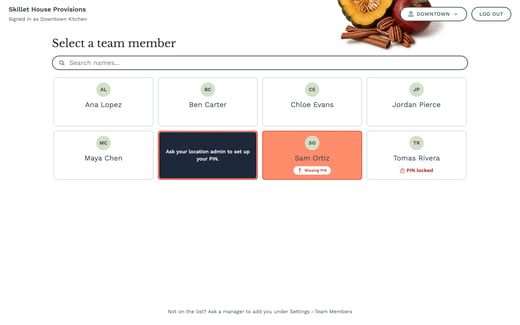
My name shows PIN locked
There were 5 wrong PINs in a row. A manager at your location can reset it under Settings › Team Members. Until then, this name can't be picked.
I see "Couldn't load the names."
Galley couldn't load the list of names. Check the internet connection, then tap Retry. If you need to keep working, tap Continue without a name. Your work then isn't credited to you. The button at the top of the screen reads Pick your name, in capitals. Tap it to open the list of names, and pick your name as soon as the names load.
I see "Couldn't check your PIN." or "PIN checks are unavailable. Try again later."
Galley couldn't check your PIN right now. Tap Retry if it's offered, or try again in a moment. Nothing is picked until your PIN is checked.
Frequently asked questions
Do I need my own Galley login?
No. You only need your name on the team list. The shared login does the signing in.
Does this work on a desktop computer?
It works on any computer or tablet signed in with a shared login.
Does Galley remember my name if I close the browser?
Yes, on that computer or tablet, until someone switches, the shared login logs out, or the inactivity timeout runs out. Each computer or tablet keeps its own picked person.
Why didn't Galley ask for my PIN?
Your company doesn't require PINs right now. Everyone picks their name with one tap. Any PIN you have stays saved in case your company turns PINs on later.
I don't see Change my PIN
Change my PIN only shows when your company requires PINs and you already have one. If you don't have a PIN yet, ask a manager to set one.