Jump to: Overview · Access · Stages · Rollout · Preview · Turn on · Audience · Feedback · Notifications · History · Troubleshooting · FAQ
What Feature Control does
Galley is always building. Feature Control is where you, as a company admin, decide how that steady stream of new work reaches your team.
From one place you can do three things:
- Control the timing of new releases, so a feature doesn't appear for your team until you're ready for it.
- Preview features that are still in development and turn them on for the people who want to try them.
- Send feedback on the features you're testing, so the Galley team can finish them with your input.
Whether you want new features to arrive automatically or prefer to test and roll them out on your own schedule, Feature Control puts that choice in your hands.
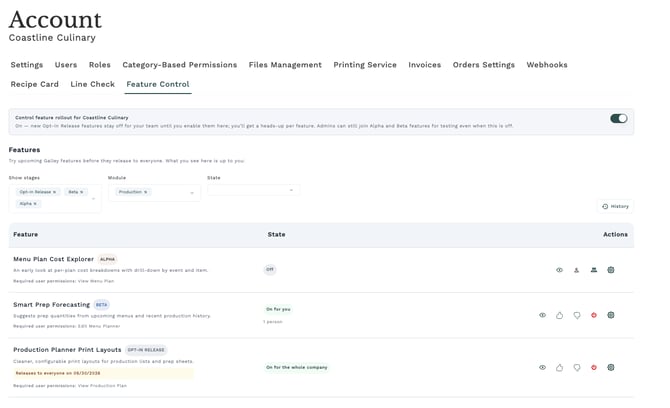
The Feature Control tab in Settings, showing the feature list with stage badges, state pills, and row actions.
Who can use Feature Control
Feature Control is available to company admins. Admins manage features on behalf of the company — including enabling features for individual teammates, specific roles, or everyone.
To open it:
- Click your account or company name to open Settings.
- Open the Feature Control tab.
If you don't see the Feature Control tab, your account may not have admin access, or the feature may not yet be available for your company. Reach out to your Galley contact if you'd like access.
What your team sees
Feature Control is an admin tool. Team members who aren't admins don't see the Feature Control tab, and they don't manage rollout, stages, or audience.
They still benefit from it. When you turn a feature on for them, it appears in their account the next time they load Galley. And when a new feature is released, everyone gets a short announcement in their notifications, so your whole team stays in the loop with nothing to manage.
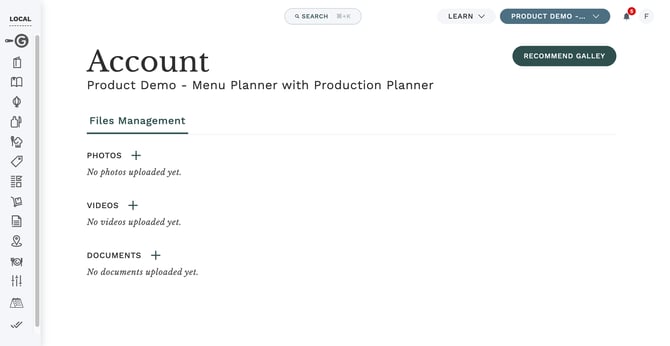
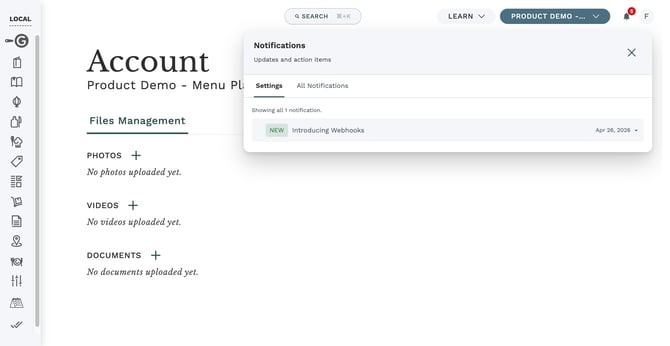
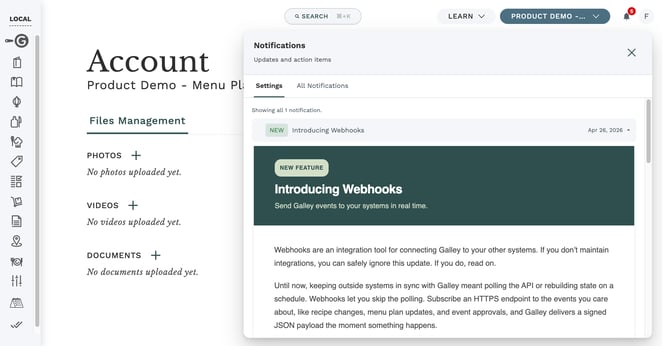
A team member's view, with no Feature Control tab in Settings, alongside a new-feature announcement in their notifications.
Understanding feature stages
Every feature in the list carries a stage badge that tells you how finished it is. Knowing the stage helps you decide whether to try it and who to turn it on for.
| Stage | What it means | What to expect |
|---|---|---|
| Opt-In Release | Finished and release-ready. These are the features rolling out to all Galley customers. | Stable. Turn it on with no extra steps. |
| Beta | Nearly finished, but still being refined. | Expect occasional bugs and small changes before the final release. Enabling it means you agree to share feedback. |
| Alpha | Early and experimental — highly unfinished and unverified. | Expect rough edges, missing pieces, and changes between visits. A feature may be reworked or removed without notice. |
Alpha features are meant for the adventurous. Because they can change or disappear without warning, turn them on only where a little instability is acceptable.
Choosing how new features reach your team
By default, new Galley features arrive automatically as they become generally available. That's the simplest path — there's nothing to manage, and your team always has the latest.
If you'd rather have time to test a feature, write internal documentation, or train your team before they see it, you can take control of the timing instead.
Turning on rollout control
On the Feature Control tab, find the "Control feature rollout for [your company]" setting and switch it on.
When it's on, new opt-in features stay off for your team until you enable them yourself. You'll get a heads-up for each new feature, along with the date it would otherwise turn on automatically. When it's off, features roll out to everyone on your team automatically.
Rollout control is the setting to use if your team benefits from lead time — for example, to prepare training materials or update internal processes before a change goes live.
Release deadlines
When rollout control is on, an opt-in feature may show a note like "Releases to everyone on [date]." That's the date the feature turns on automatically for your whole team if you haven't already enabled it. Use the time before that date to test and prepare — or enable it early whenever you're ready.

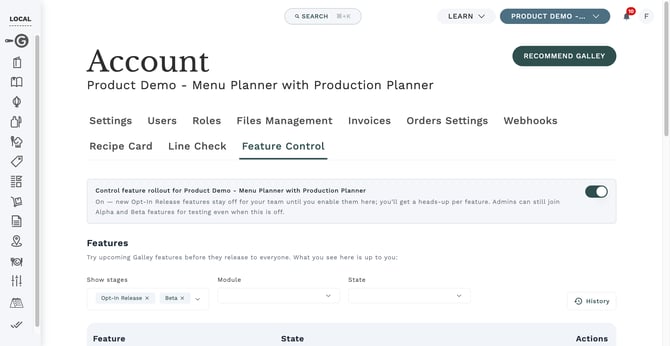 The "Control feature rollout" toggle with a feature row showing a "Releases to everyone on [date]" note.
Showing pre-release features
By default, the list focuses on released features. To preview what's still in development, use the "Show stages" control at the top right and add the stages you want to see — Beta and Alpha.
- Open the "Show stages" menu.
- Select Beta to reveal beta features.
- Select Alpha to also reveal alpha features.
Alpha features are only available after Beta is shown, and revealing them asks you to confirm that you understand they're highly experimental. This is a one-time confirmation that simply unlocks the alpha list — it doesn't turn anything on.
Your stage selections are remembered, so the list shows what you care about each time you return. Hiding a stage never turns off a feature you've already enabled — it only controls what appears in the list.
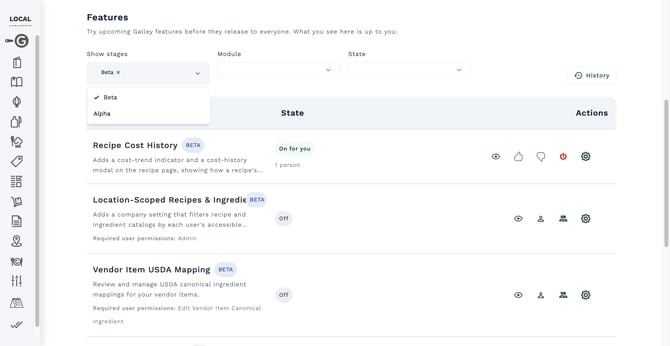 The "Show stages" multi-select menu open, with Opt-In Release, Beta, and Alpha options.
Turning a feature on
Each feature row has actions on the right. You have three ways to turn a feature on, depending on who should get it:
- Enable for me — turns the feature on for your own account only. Great for testing it yourself first.
- Enable for company — turns the feature on for everyone at your company.
- Manage access — opens a window where you choose specific people and/or roles (covered in the next section).
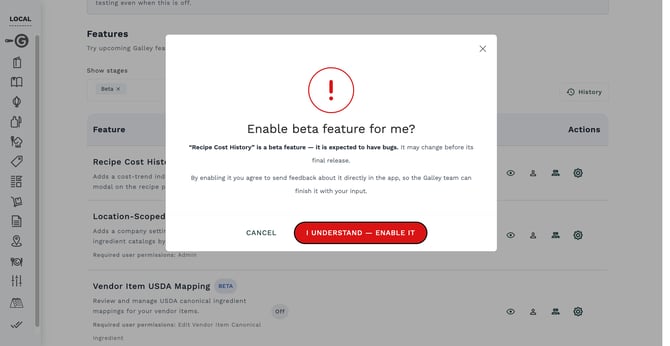
For Beta and Alpha features, you'll see a short confirmation before the feature turns on:
- Beta asks you to acknowledge that the feature may have bugs and that you agree to share feedback.
- Alpha asks you to type "I understand" each time, since these features are the most experimental.
Some features list what they need before they'll work. Requirements appear on the row, and in the confirmation window, as two labeled lines: "Required user permissions: ..." and "Required settings: ..." A feature may depend on a specific permission or company setting to do anything. If those aren't in place, the feature won't be active even after you enable it.
Once a feature is on, the State column tells you exactly how it's enabled — for example "On for you," "On for the whole company," "On for 2 roles," or "On (automatic)." To turn a feature off, use the power (off) action on its row.
 The row actions for an un-enabled feature: Enable for me, Enable for company, and Manage access.
Viewing a feature's release notes
Every feature row has an eye icon that opens a quick summary of the feature. Click it to see the feature's name, description, any requirements, its release date if one applies, and the release notes published for it.
When a feature has a single release note, it opens expanded so you can read it right away. When there are several, they start collapsed, so you click any one to expand it, the same way the notification drawer works.
The feature's own actions, Enable for me, Manage access, and feedback, are also in the footer of this window, so you can act on the feature without leaving it.
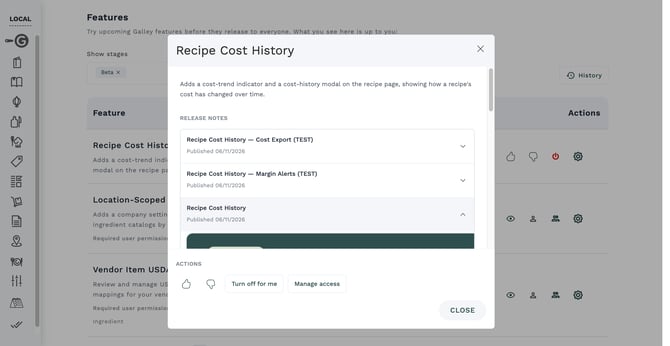 The release notes window opened from a feature's eye icon, showing the feature summary and its release notes.
Choosing who gets a feature
When you want more than "just me" or "everyone," use Manage access. It opens a window where you choose exactly who at your company gets the feature.
- Click Manage access on the feature's row.
- Under "Who gets it," choose Everyone at [your company] or Specific people or roles.
- If you chose Specific people or roles, search and select the people and/or roles who should get the feature.
- Click Save access.
Selecting a role turns the feature on for everyone who has that role — a quick way to enroll a whole team, like all your chefs or all your managers, without picking names one by one.
Changes you make for other people take effect the next time each person loads Galley. Anyone who already has the app open won't see the feature turn on or off until they refresh the page. Enabling a feature for yourself applies right away.
One thing to know: if a teammate turned a feature on for themselves, they keep it regardless of what you set in Manage access. Manage access controls the audience you grant — it doesn't remove someone's own choice to test a feature.
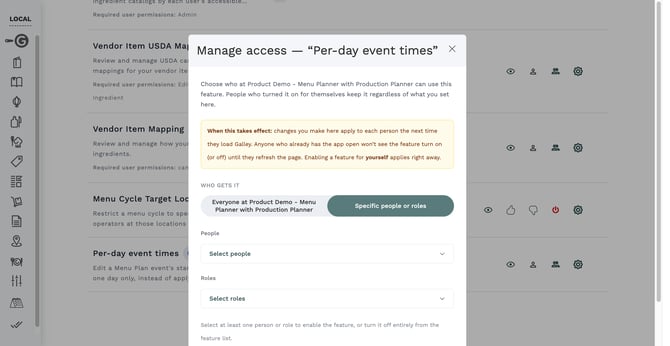 The Manage access window showing the "Everyone" / "Specific people or roles" selector with the People and Roles pickers.
Sharing feedback
Feedback is how alpha and beta features become great. Anyone with a feature enabled can send feedback on it directly from Galley.
On a feature that's on for you, you'll see thumbs-up and thumbs-down buttons:
- Thumbs up — share what's working.
- Thumbs down — share what to improve.
Click either one to open a short feedback form, write a note, and send it. Your feedback goes straight to the Galley team building the feature, so they can shape it to fit how your team actually works.
Specific, concrete feedback helps the most. Instead of "this is confusing," tell us what you were trying to do and where it tripped you up — that's the kind of detail that changes the product.
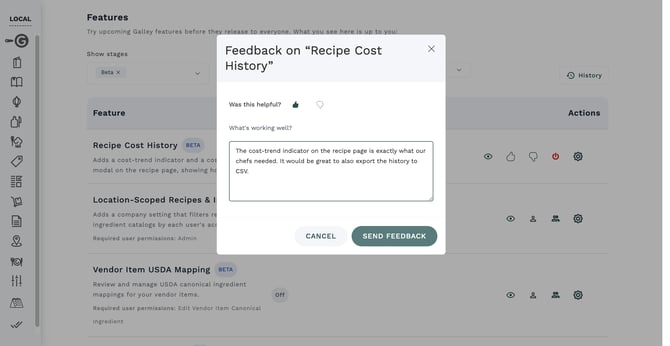 A feature row showing the thumbs-up and thumbs-down feedback buttons, with the feedback form open.
Staying notified about new features
You don't have to keep checking the Feature Control tab to know what's new. When a feature becomes available to your company, it shows up in your notifications.
From a feature notification, you can act without leaving what you're doing:
- Enable for me — turn it on for yourself.
- Manage for team — jump to Feature Control to enable it for others.
- Give feedback — share your thoughts on a feature you already have.
This is especially useful when rollout control is on: each new opt-in feature gives you a heads-up, so you can plan its rollout before its release date.
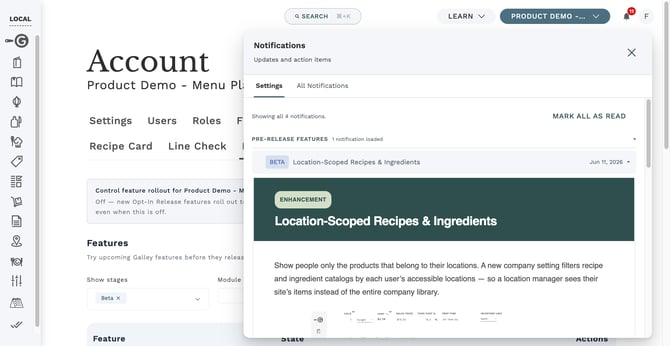
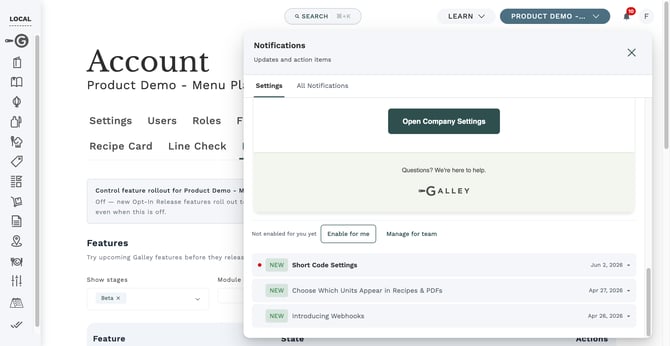 The notification drawer showing a new-feature notification with Enable for me and Manage for team actions.
Reviewing what changed
Feature Control keeps a record of changes, so you can see who turned what on or off and when. Click History at the top of the feature list to open the activity view.
This is handy for understanding how a feature ended up enabled for your team, or for confirming a change you made earlier.
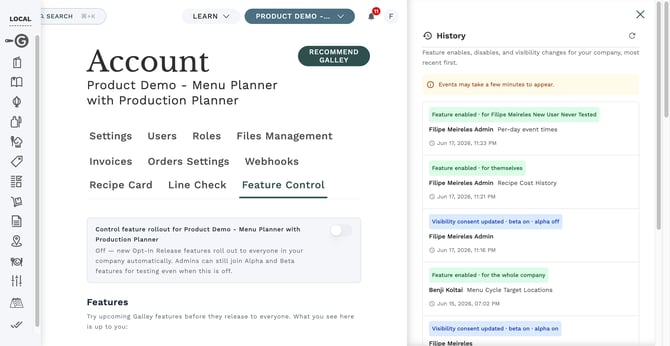 The History panel showing a list of feature-control changes with who made each change and when.
Troubleshooting
A feature I enabled isn't showing up
First, refresh the page. Changes you make for other people apply the next time they load Galley. If it still doesn't appear, check the feature's requirements on its row, the "Required user permissions" and "Required settings" lines: it may depend on a permission or company setting that isn't in place yet. Once the requirement is met, the feature becomes active.
A teammate still has a feature after I turned it off
If a teammate enabled the feature for themselves, they keep it regardless of the company audience you set. Ask them to turn it off from their own Feature Control tab, or have them remove it there.
I can't find an alpha feature
Alpha features only appear after you've shown Beta and then chosen to show Alpha in the "Show stages" control. If you haven't unlocked Alpha yet, you'll be asked to confirm you understand they're experimental before they appear.
I don't see the Feature Control tab at all
Feature Control is available to company admins. If you don't see the tab, your account may not have admin access, or the feature may not be enabled for your company yet. Contact your Galley representative for help.
Frequently asked questions
Do I have to use Feature Control?
No. If you leave rollout control off, new features arrive automatically as they're released — there's nothing you need to do. Feature Control is there for when you want more say over timing or want to preview what's coming.
What's the difference between Beta and Alpha?
Beta features are nearly finished and may have occasional bugs or small changes before release. Alpha features are much earlier and experimental — they can change significantly or be removed without notice. Both let you send feedback that shapes the final product.
Will turning on a pre-release feature affect my whole team?
Only if you choose to. "Enable for me" affects just your account. "Enable for company" affects everyone, and "Manage access" lets you pick specific people or roles. You're always in control of the audience.
What happens on a feature's release date?
If rollout control is on and you haven't enabled a feature, it turns on automatically for your whole team on the date shown. You can always enable it earlier, or use the lead time to prepare.
Can people I didn't enroll still use a feature?
Yes — anyone can turn an available feature on for themselves from their own Feature Control tab. Whatever audience you set, individual teammates keep features they chose to enable.
Is my feedback anonymous?
Your feedback goes directly to the Galley product team along with the feature it's about, so they can follow up and act on it. Share as much detail as you're comfortable with — it all helps us build a better product for you.