
What is Log Produced Menus?
When you're working from a Production List, you can now log the quantities you actually produced — all at once, without leaving the page.
The Log Produced Menus feature lets you select one or more menus from your Production List and record the Qty Produced for each menu item. By default, the system assumes you produced the full planned quantity. You can adjust individual items if needed before saving.
This feature updates the Volume Sold field on each menu item. If your company has inventory tracking enabled, logging produced quantities will also trigger inventory transactions to deplete raw materials accordingly.
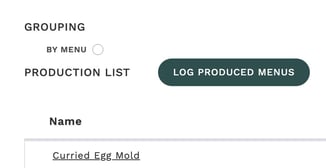
Logging produced quantities step by step
- Navigate to the Production List page with the menus you want to log, by selecting them from the Menu Catalog and clicking the Production icon at the bottom toolbar.
- Click the Log Produced Menus button next to the "Production List" heading.
- In the modal that opens, select the menus you want to log by checking the boxes next to each menu name. You can also use Select All at the top.
- Optionally, click on a menu row to expand it and see each menu item with its Qty to Produce and editable Qty Produced.
- Adjust any Qty Produced values as needed. The default is the planned quantity, rounded down to a whole number.
- Click Log Produced to save all changes.
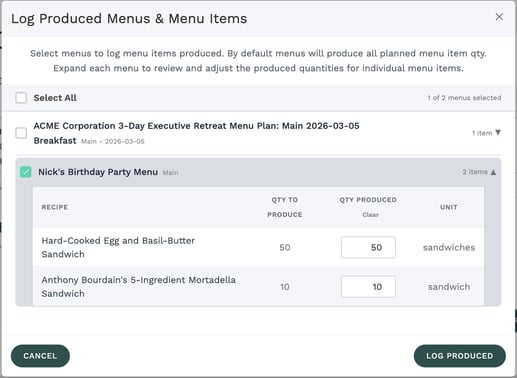
You don't need to expand every menu. If you produced exactly what was planned, just select the menus and click Log Produced — the system will use the planned quantities automatically.
Expanding a menu to review items
Click on any menu row to expand it and see a table of all its menu items. The table shows four columns:
| Column | Description |
|---|---|
| Recipe | The name of the recipe for this menu item |
| Qty to Produce | The originally planned quantity from the menu |
| Qty Produced | The quantity you are logging as produced (editable) |
| Unit | The unit of measure for this item |
The Qty Produced field is pre-filled with the planned quantity, rounded down to a whole number. You can type a different value if the actual production differed from the plan.
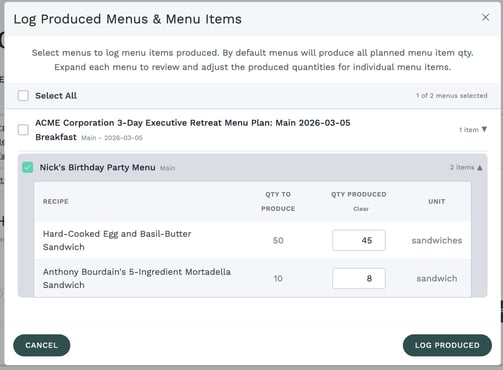
Clearing quantities
If you need to start fresh on a menu's quantities, click the Clear link in the Qty Produced column header. This empties all Qty Produced fields for that menu, letting you enter values from scratch.
Saving your changes
When you're satisfied with the selected menus and quantities, click Log Produced at the bottom of the modal. The system will update the Volume Sold for each menu item in the selected menus.
You'll see a confirmation message telling you how many items were updated. If any items fail to update, the message will indicate how many succeeded and how many failed.
Canceling with unsaved changes
If you've edited any quantities and then click Cancel or the X button, a confirmation dialog will ask whether you want to discard your changes or keep editing. No data is saved until you click Log Produced.
Once you click Log Produced, the Volume Sold values are saved immediately. If you need to change them later, you can open the modal again and enter new values — the system will overwrite the previous quantities.
FAQ
I don't see the Log Produced Menus button. What's wrong?
The button requires two things: the feature must be enabled for your company, and your user role must have the "Edit Menu Item Volume Sold" permission. Contact your administrator if you believe you should have access.
What happens to inventory when I log produced quantities?
If your company has inventory tracking enabled, updating Volume Sold triggers an inventory transaction that depletes the raw materials used in each recipe based on the quantities you entered.
Can I log produced quantities more than once for the same menus?
Yes. Each time you log produced quantities, the new values replace the previous ones. The system treats each entry as the total produced — it does not add to the previous amount.
Why are the Qty Produced values rounded down?
The default Qty Produced is the planned quantity rounded down to the nearest whole number. This provides a conservative starting point. You can always type in a different value, including decimals, if your actual production was different.
Can I log produced quantities for just some items in a menu?
Yes. Expand the menu, adjust the Qty Produced for the items you want, and use the Clear button to empty the quantities for items you don't want to log. Only items with a Qty Produced value will be updated when you click Log Produced.