
What are sub-locations?
Sub-locations let you count the same item in more than one storage area — for example, a walk-in cooler and a dry storage shelf — and keep the on-hand value for each area stored separately. Counting an item in one sub-location will not overwrite the value in another.
Cycle counting across multiple sub-locations brings this benefit into a single workflow. You no longer need to create a separate cycle count for each storage area. Instead, you can pick the sub-locations you want to count, switch between them with tabs, and submit one cycle count that covers all of them.
If you do not see sub-locations in your account and would like access to this feature, reach out to your Galley Customer Success Manager.
Creating the cycle count
- From the Cycle Counts page, click + Create new cycle count.
- Select the location you want to count.
- In the sub-locations picker, select one or more sub-locations to include.
- Click Create.
Your new cycle count opens with a tab for each sub-location you selected. Items belonging to each sub-location are grouped under their own tab.
Navigating sub-location tabs
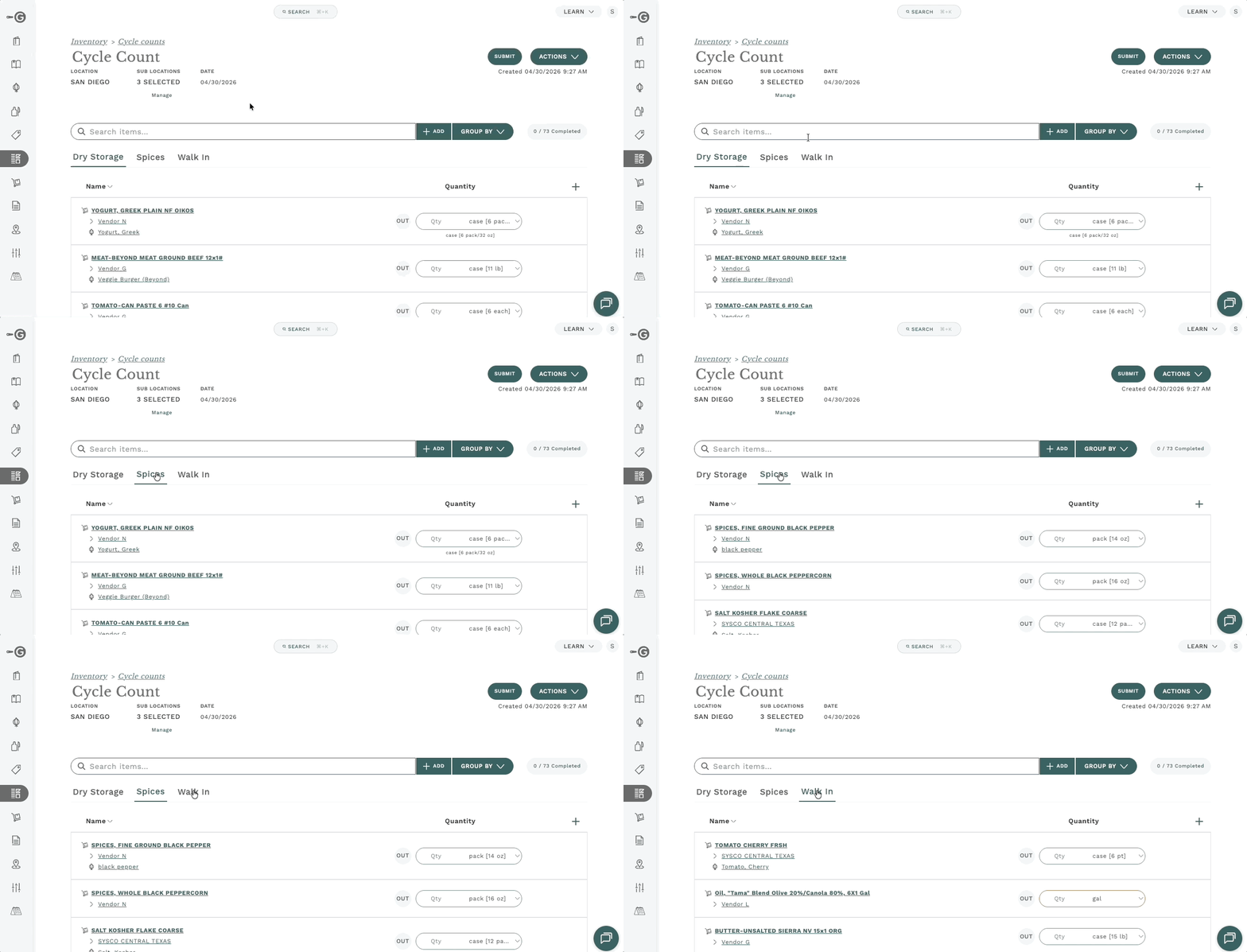
Each sub-location appears as a tab at the top of the cycle count. Click a tab to switch to that sub-location. The item list below updates to show only the items in the selected sub-location.
Adding or removing sub-locations after creation
You can change which sub-locations are included in a cycle count at any time.
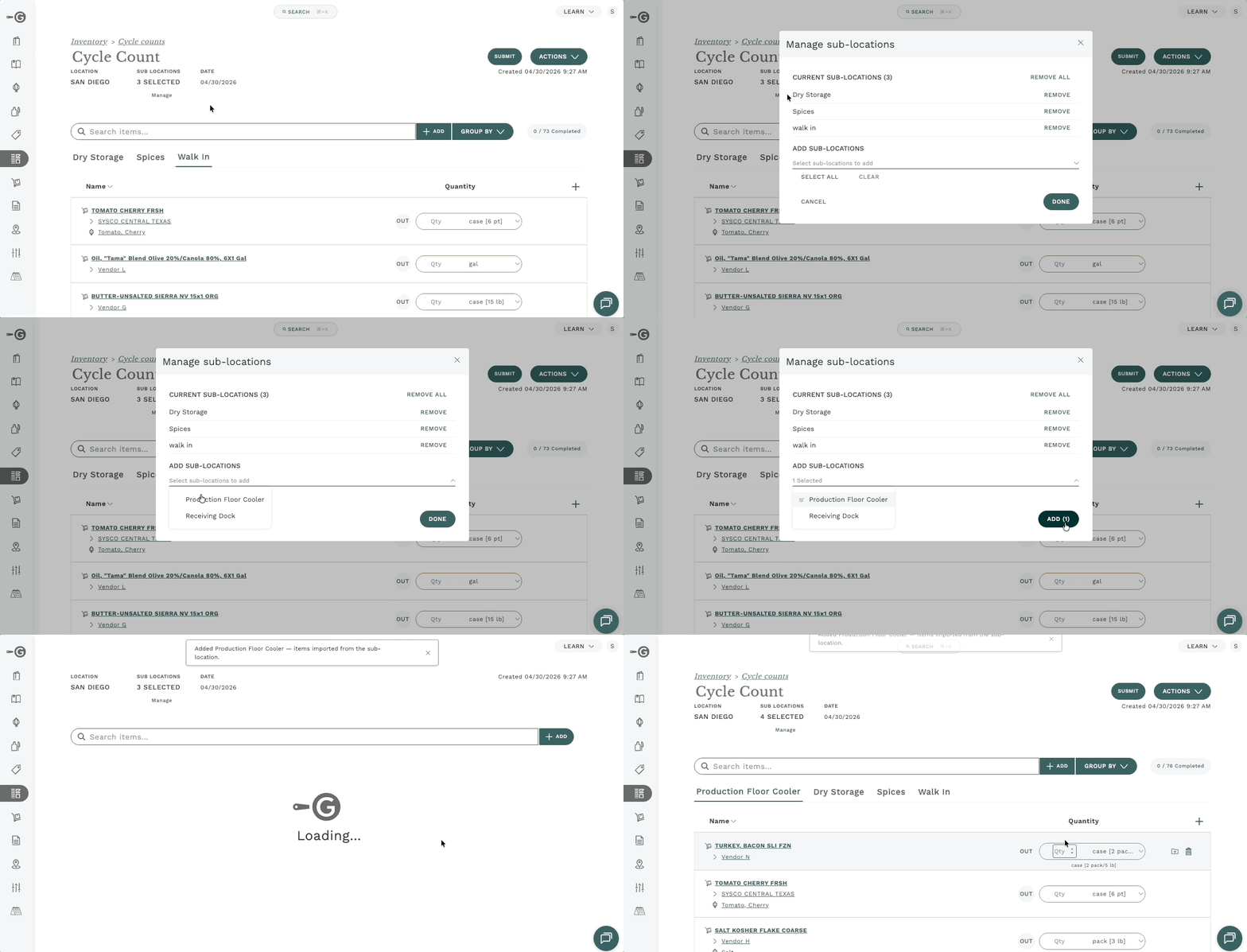
- In the sub-locations section of the header, click Manage.
- Add a sub-location to pull in all items from that area, or remove a sub-location to take its items out of the cycle count.
- Save your changes.
Removing a sub-location removes every item in that sub-location from the cycle count. Any counts you have already entered for those items will be lost.
Adding items
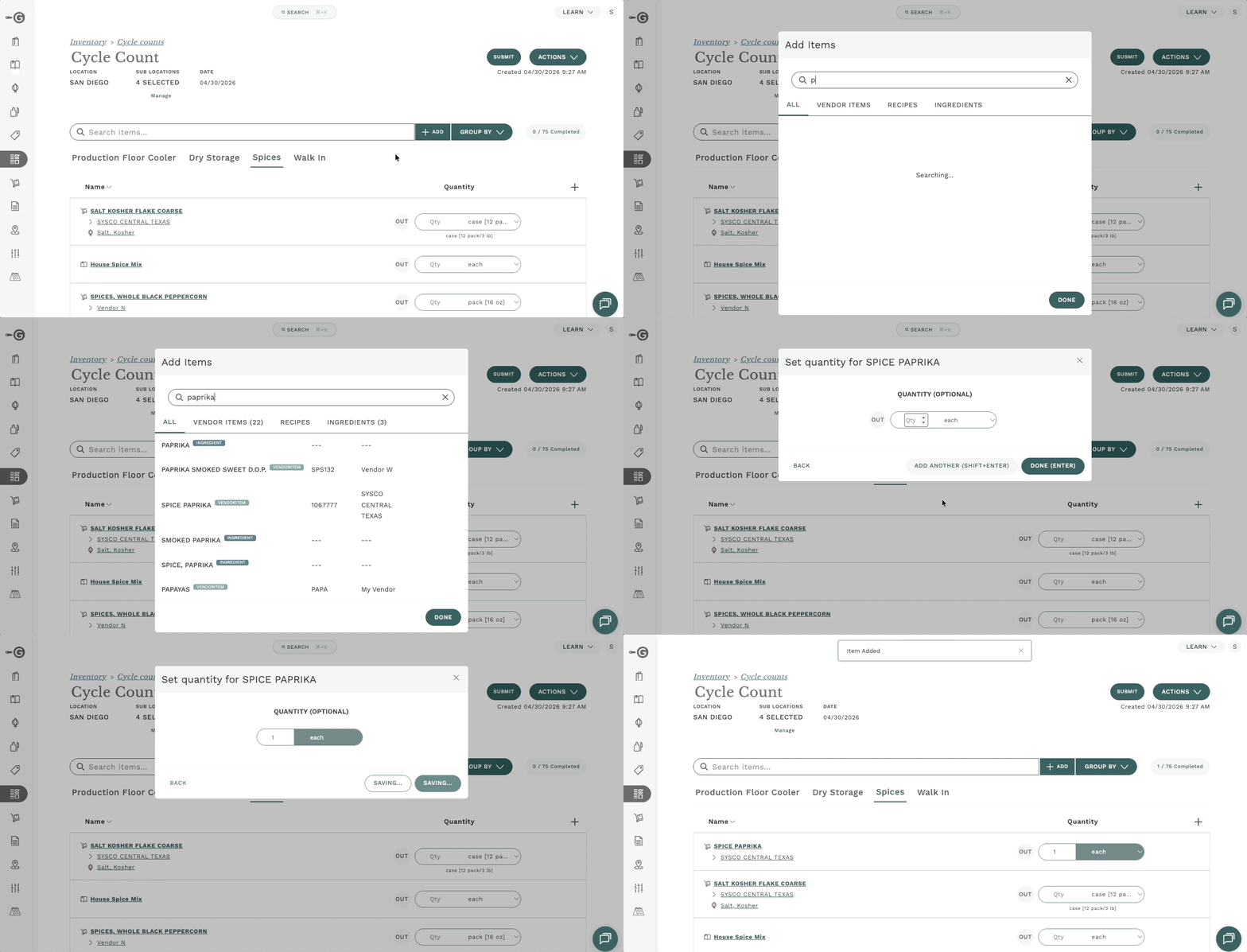
When you add an item to a multi-sub-location cycle count, it is added to the sub-location tab you currently have open. To add the same item to a different sub-location, switch to that tab first and then add it.
Moving an item to a different sub-location
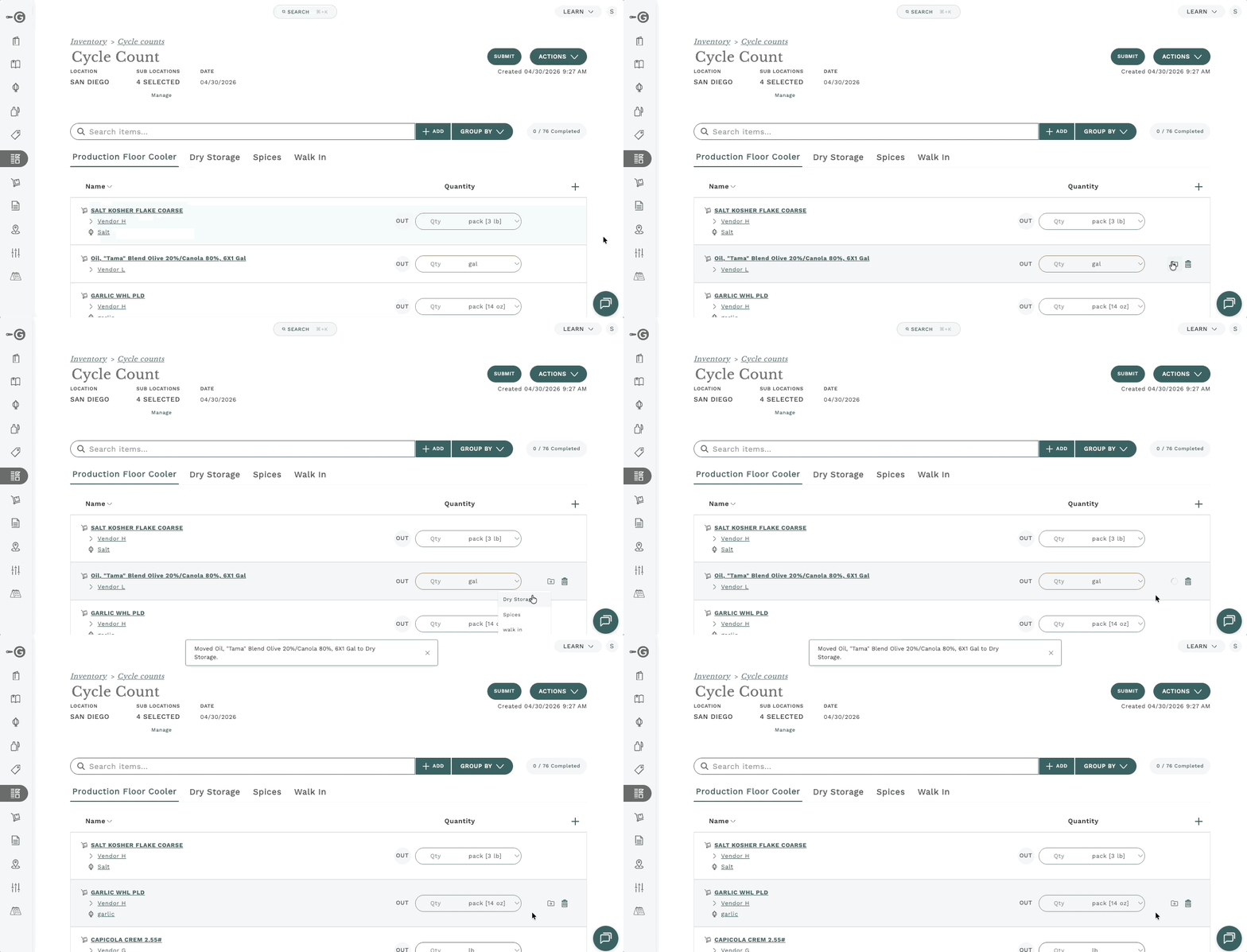
Each item row has a move icon next to the delete button on the right side of the row. Click it to move the item to a different sub-location in the cycle count.
What happens next depends on your permissions.
If you have the Edit Sub Location permission
The item moves to the new sub-location in the cycle count, and its permanent sub-location is also updated. The item now lives in the new sub-location going forward.
If you do not have the Edit Sub Location permission
The item moves to the new sub-location only within this cycle count. Its permanent sub-location is unchanged, so future cycle counts and inventory views will still show the item in its original sub-location.
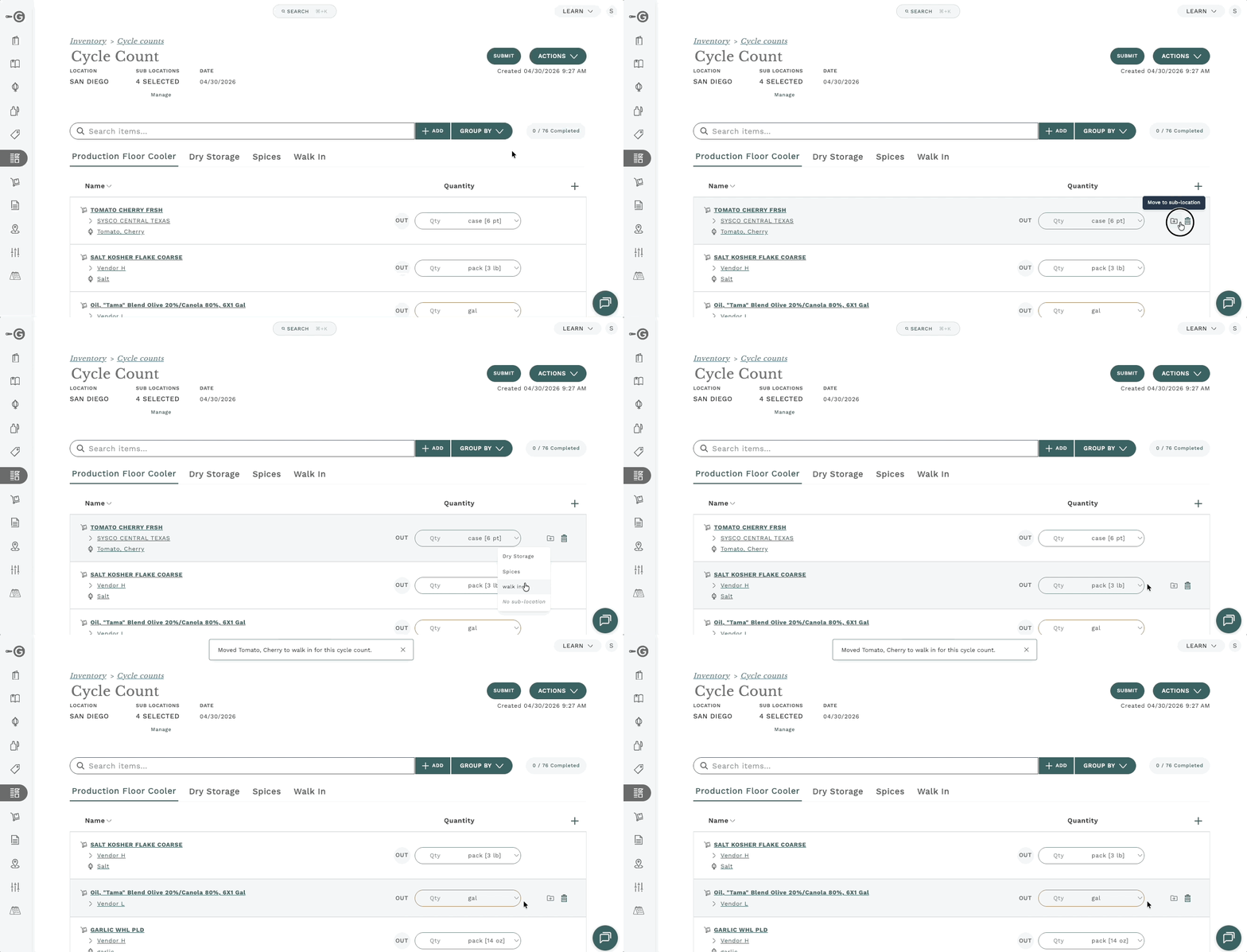
The success message you see after moving an item tells you which kind of move was applied. Without the edit sub location position, the success message specifies for this cycle count.
Adding a second layer of grouping
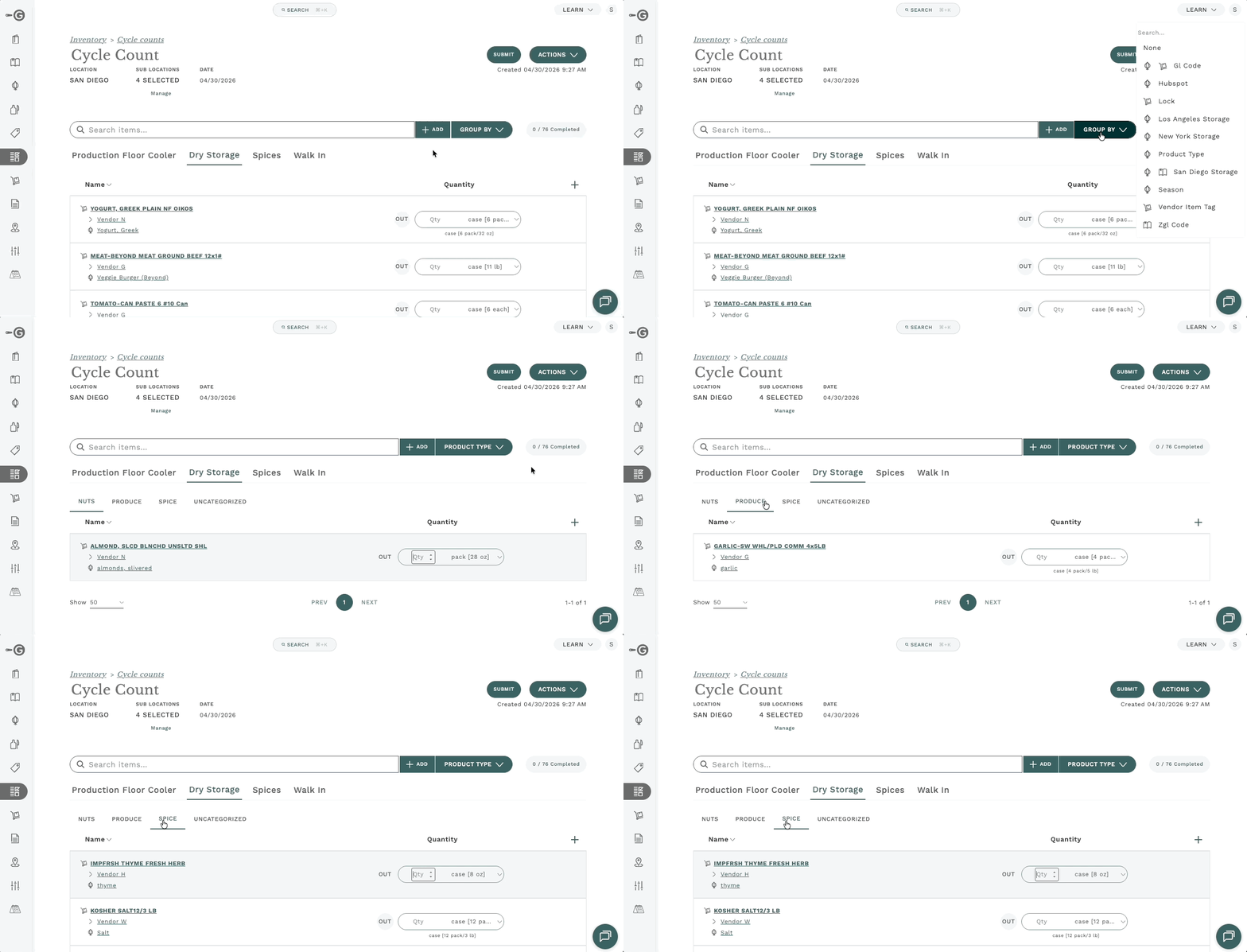
You can still group items by category even when your cycle count is already grouped by sub-location. When you do, a second row of tabs appears so you can switch between categories within the selected sub-location.
Use both layers together to focus on one slice of the count at a time — for example, the dry goods category within the dry storage sub-location.
Creating sub-location cycle counts from menus
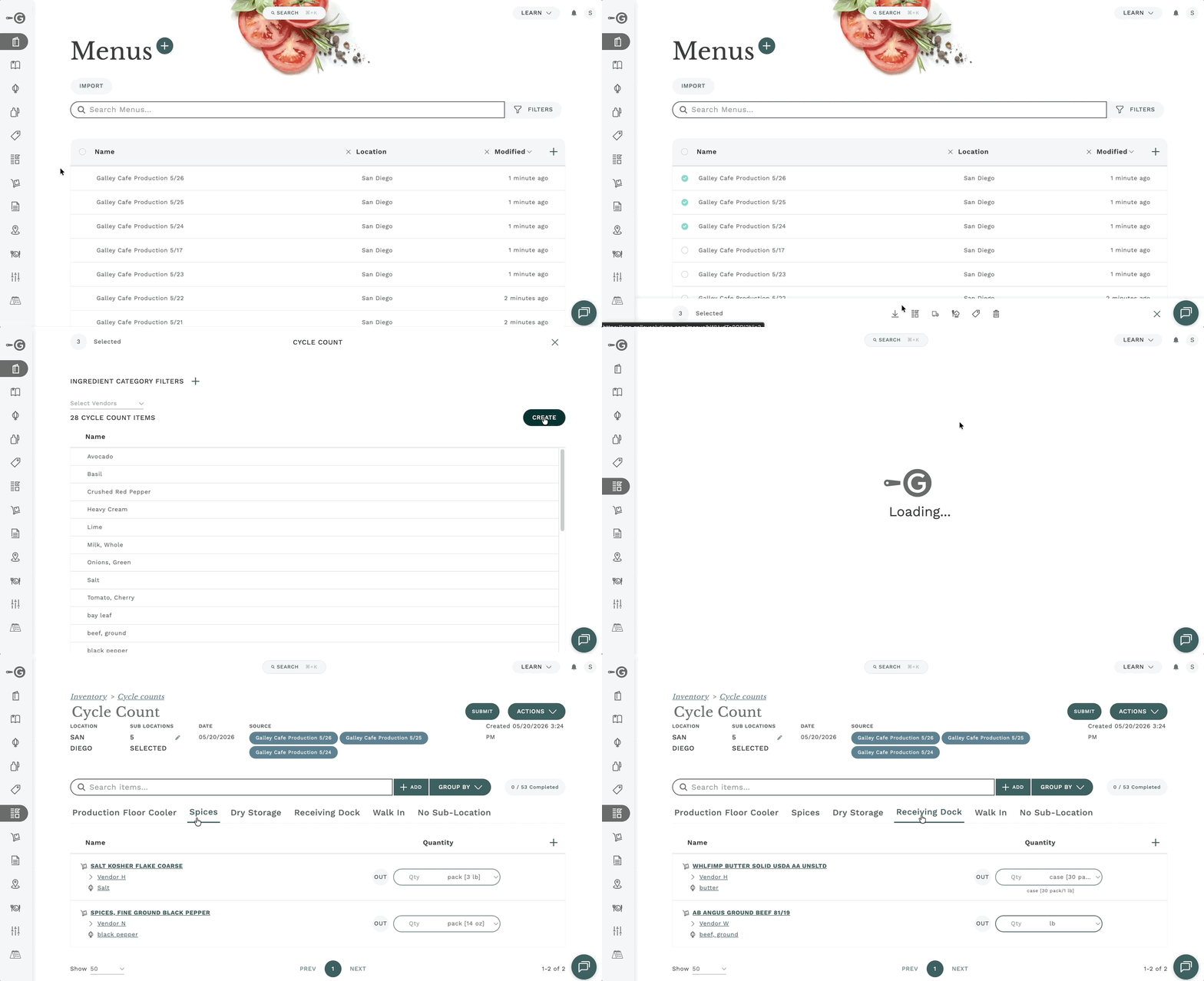
Vendor items will be automatically bucketed into their coresponding sub locations when creating a cycle count from a menu. If a given vendor item can be found in multiple sub locations, it will have one item for each sub location.
Sub-locations in the offline report
When you export an offline cycle count report for a multi-sub-location cycle count, items are grouped by sub-location in the report. This makes it easier to walk the floor and count one storage area at a time before entering values back into Galley.