
What are Recipe Card Settings?
Recipe Card Settings let you control exactly what information appears on every Recipe Card across your organization. You can show or hide sections like allergens, HACCP rules, prep time, procedures, and more — and you can rearrange the order of content sections to match your team's workflow.
These settings apply company-wide, so any changes you make are reflected for everyone on your team. There's no need to configure each user individually.
Recipe Card Settings are restricted to Account Admins. You must have an Admin and the Recipe Book UI Enhancements permission must be enabled for your company to access these settings.
Where to configure Recipe Card Settings
There are two places to manage your Recipe Card layout:
Option 1: Company Settings
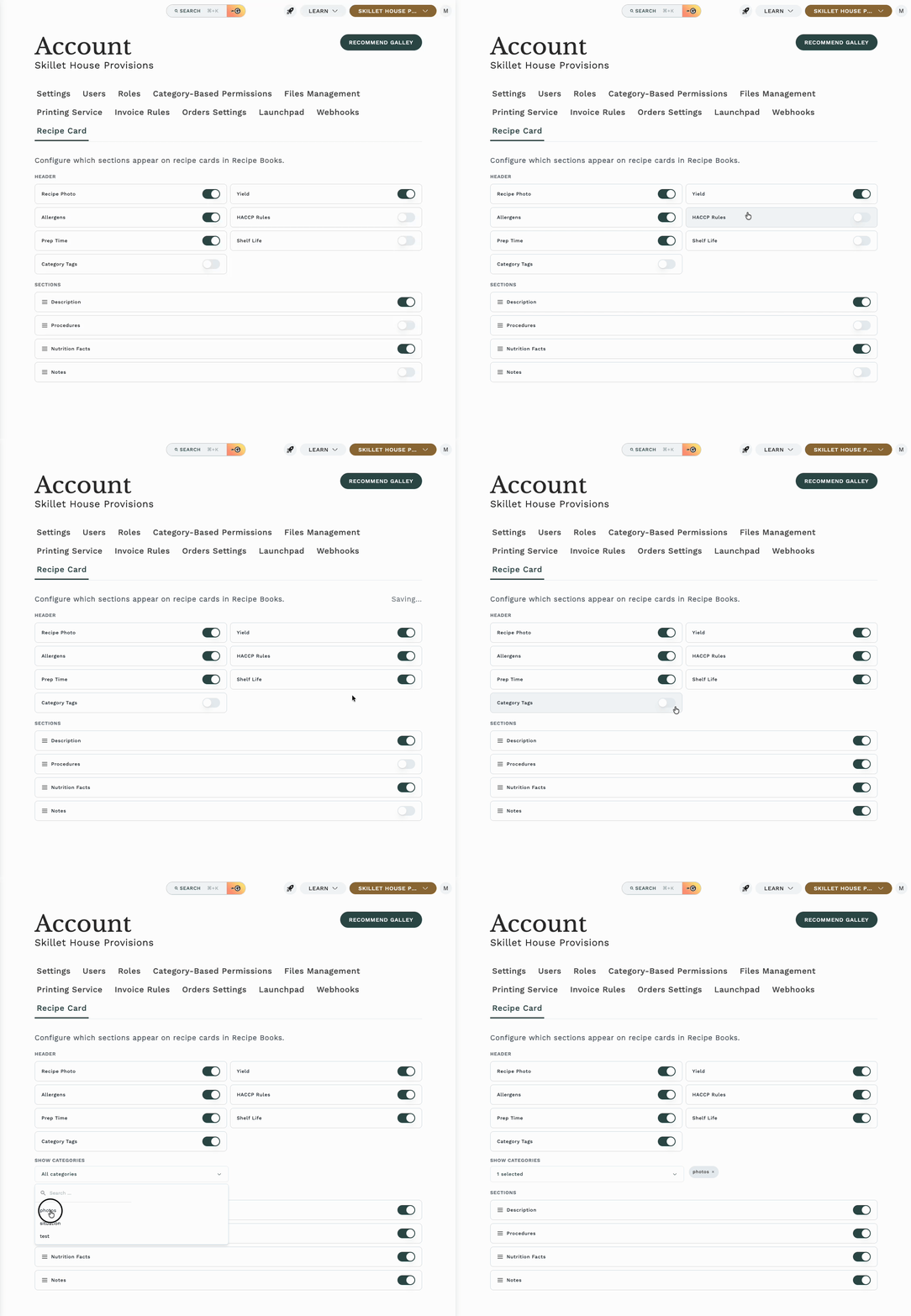
- Navigate to Settings from the main menu
- Select the Recipe Card tab
- Use the toggles and drag handles to customize your layout
- Changes save automatically — no need to click a save button
Option 2: Recipe Book Configure Dialog
- Open any Recipe Book page
- Click the Configure button
- Adjust your settings in the dialog
- Click Save to apply your changes, or Cancel to discard them
The Company Settings tab auto-saves every change instantly. The Recipe Book Configure dialog requires you to click Save — so use whichever workflow feels more comfortable.
Header sections
Header sections appear at the top of every Recipe Card in a compact grid layout. Each one can be toggled on or off independently.
| Section | What it shows | Default | Requires Permission? |
|---|---|---|---|
| Recipe Photo | The recipe's primary image | On | No |
| Yield | Quantity and unit produced (e.g., "24 servings") | On | No |
| Allergens | Dietary flag information from ingredients | On | Dietary Flags |
| HACCP Rules | Food safety rules configured for the recipe | On | HACCP |
| Prep Time | How long the recipe takes to prepare | On | No |
| Shelf Life | How long the finished product lasts (in days) | On | No |
| Category Tags | Recipe category labels | Off | No |
To toggle a section, flip its switch to the on or off position. When a section is turned off, it's completely hidden from all Recipe Cards.
If a section appears grayed out and you can't toggle it, your company may not have the required permission enabled. Contact your Galley administrator to enable HACCP or Nutritionals permissions.
Filtering by category
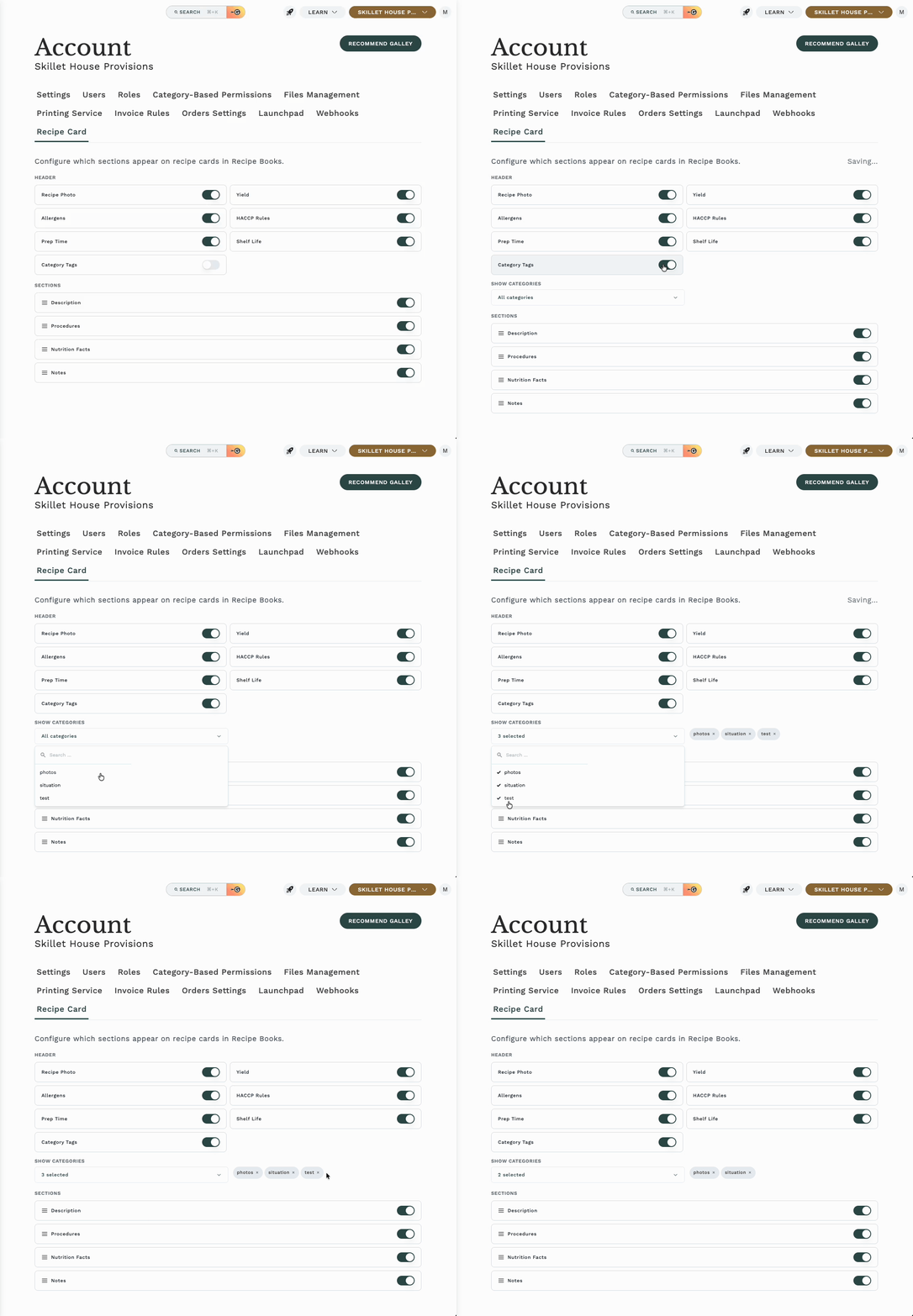
When you enable the Category Tags header section, an additional option called Show Categories appears. This lets you control which category groups are displayed on Recipe Cards.
- Toggle Category Tags to the on position
- The Show Categories dropdown appears below
- Select one or more categories from the dropdown
- Selected categories appear as small pills next to the dropdown
- To remove a category, click the X on its pill
If you don't select any specific categories, all categories will be shown by default. Once you select specific categories, only those will appear on Recipe Cards.
Body sections
Body sections appear below the header and make up the main content area of the Recipe Card. You can toggle these on or off and rearrange their display order using drag and drop.
| Section | What it shows | Default | Requires Permission? |
|---|---|---|---|
| Procedures | Step-by-step cooking instructions | On | No |
| Nutrition Facts | FDA-style nutrition label | Off | Nutritionals |
| Description | Free-form text description of the recipe | Off | No
|
| Notes | Internal notes or additional information | Off | No |
Reordering body sections
- Locate the drag handle (the dotted icon) on the left side of any body section
- Click and hold the drag handle
- Drag the section up or down to your preferred position
- Release to drop it in place
The order you set here determines the order sections appear on every Recipe Card. For example, if your team references procedures most often, keep it at the top. If description context is more important, drag it above procedures.
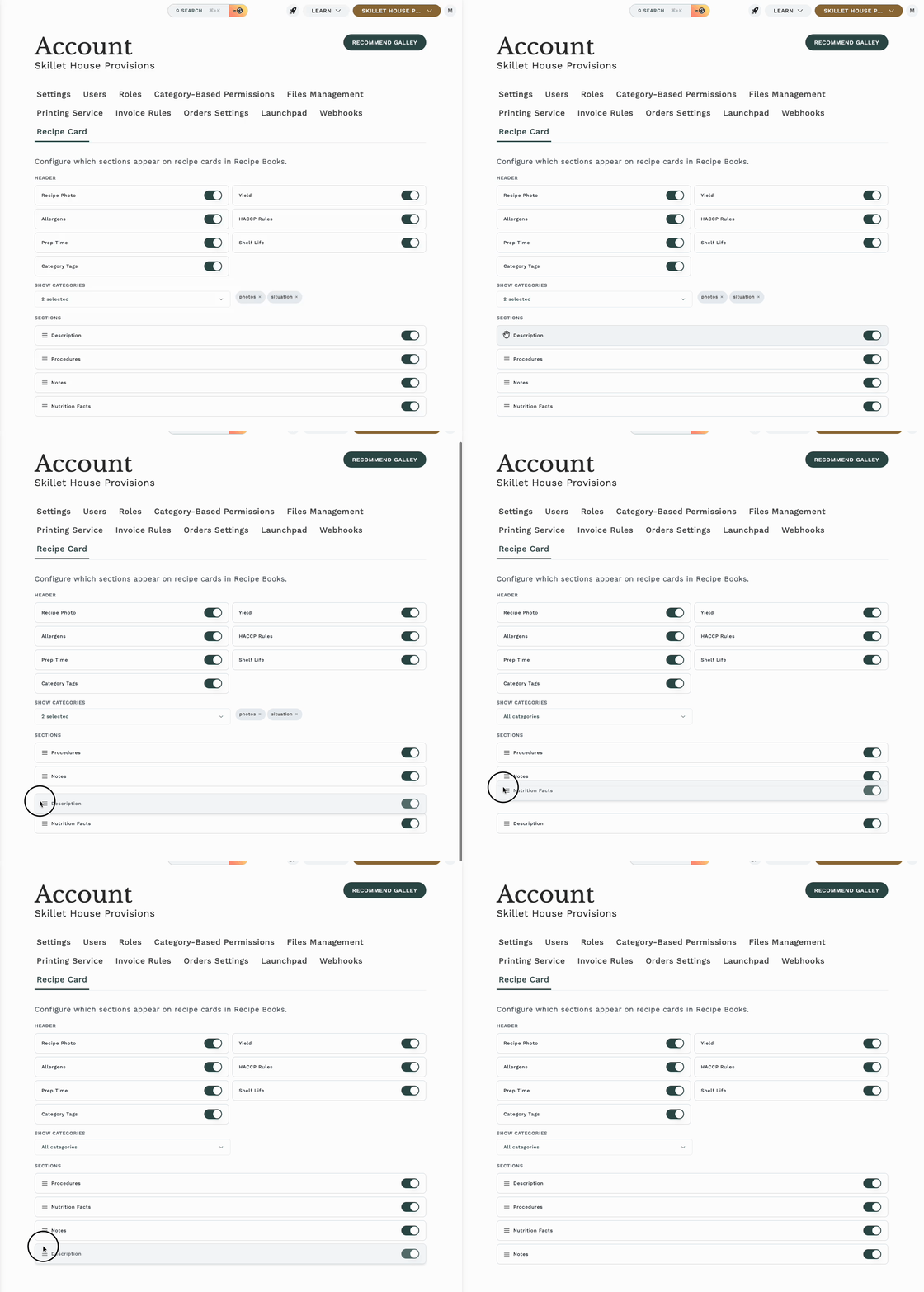
Body sections that are toggled off can still be reordered. This way, if you enable them later, they'll already be in the right position.
Collapsible sections on the Recipe Card
The Description, Notes, and Procedures body sections are collapsible on the Recipe Card itself. This means your team members can expand or collapse these sections while viewing a recipe to focus on what they need.
Collapse state is saved locally per browser — it won't affect what other team members see.
How settings are saved and shared
Recipe Card Settings are saved at the company level. This means:
- All users in your company see the same Recipe Card layout
- Settings are not customizable per user or per location
- Changes made in Company Settings take effect immediately for everyone
- Changes made in the Recipe Book Configure dialog take effect after clicking Save
Only Account Admins can change these settings, and because they apply company-wide, coordinate with your team before making changes. Toggling off a section removes it from every Recipe Card for every user.
Permission requirements
Recipe Card Settings are only accessible to Account Admins. Non-admin users will not see the Recipe Card tab in Company Settings.
In addition, some individual Recipe Card sections require specific company permissions to be enabled. If your company doesn't have the required permission, the section toggle will appear disabled.
| Permission | Controls | How to enable |
|---|---|---|
| Account Admin role | Access to Recipe Card Settings | Assigned by your Galley Administrator |
| Recipe Book UI Enhancements | Enables the Recipe Card tab in Settings | Contact your Galley Administrator |
| HACCP | HACCP Rules section | Contact your Galley Administrator |
| Nutritionals | Nutrition Facts section | Contact your Galley Administrator |
| Dietary Flags | Allergens section data | Contact your Galley Administrator |
Even if a section is toggled on in settings, it won't display on Recipe Cards unless the corresponding permission is active for your company.
Frequently asked questions
Can individual users have their own Recipe Card layout?
No. Recipe Card Settings apply company-wide. All users see the same sections in the same order. However, users can individually collapse or expand sections while viewing a Recipe Card — that preference is saved locally in their browser.
I don't see the Recipe Card tab in Settings. Why?
The Recipe Card tab is only visible to Account Admins. If you don't have an admin role, ask your Account Admin to make changes on your behalf.
I toggled a section on, but it's not showing on Recipe Cards. Why?
Check whether the section requires a specific permission (HACCP, Nutritionals, or Dietary Flags). If your company doesn't have that permission enabled, the section won't appear even if the toggle is on. Reach out to your Galley Administrator to enable the required permission.
What happens if I reorder sections and then toggle one off?
The section keeps its position in the order. If you re-enable it later, it will appear in the same spot where you left it.
Can I configure different Recipe Cards for different Recipe Books?
Not at this time. Recipe Card Settings apply to all Recipe Cards across all Recipe Books in your company.
What's the difference between the Settings Tab and the Configure Dialog?
Both control the same settings. The main difference is that the Settings Tab (in Company Settings) auto-saves every change, while the Configure Dialog (on the Recipe Book page) requires you to click Save. Use whichever is more convenient for you.