
Galley allows you to create and edit dietary flags. Dietary Flags can encompass Allergens and any other attributes you would like to label an Ingredient or Vendor Item. Dietary Flags will appear in your Recipes once assigned.
To create a new dietary flag, go to the Ingredients Catalog and click 'View Dietary Flags'. You will then be directed to a catalog of all Dietary Flags in the account.
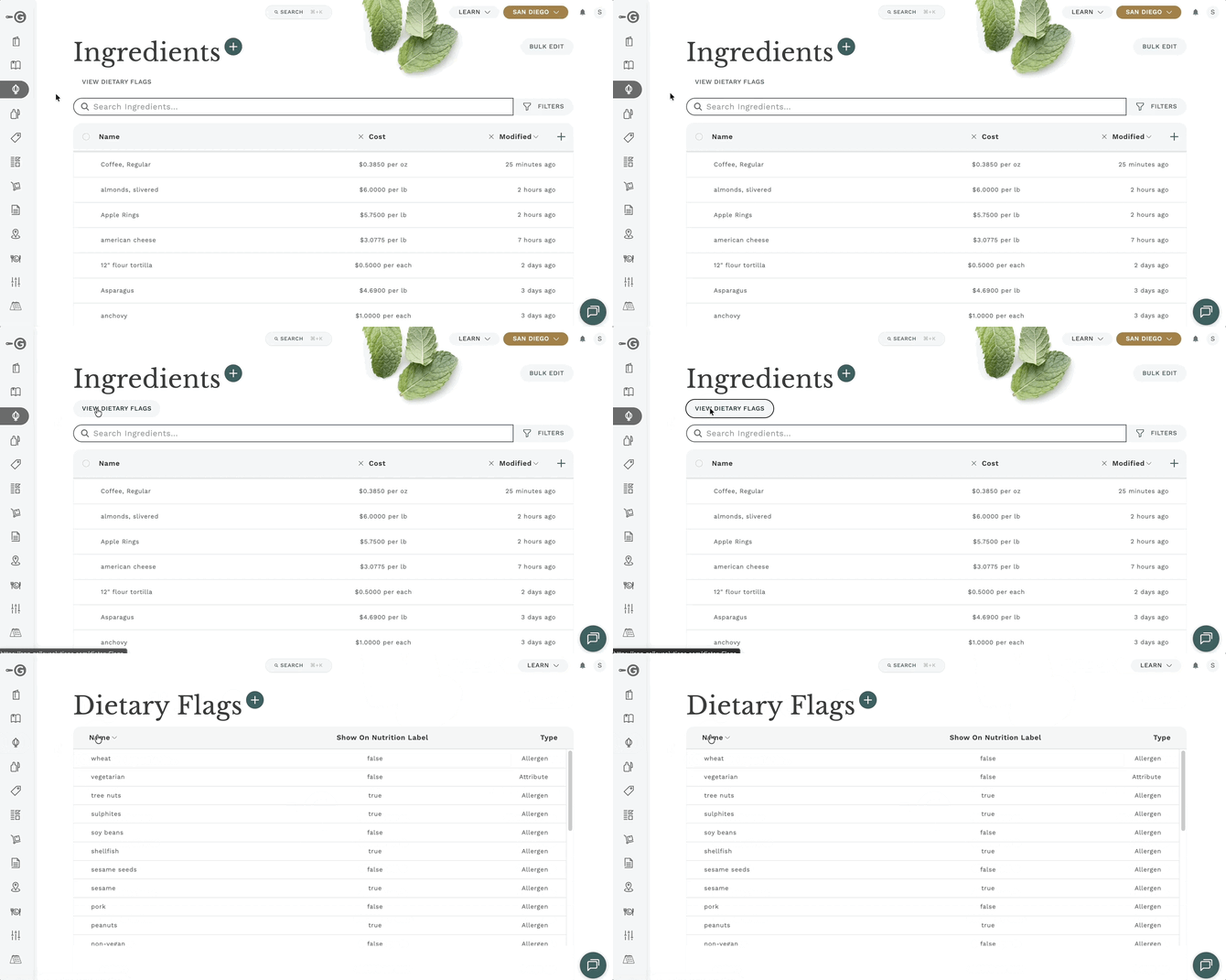
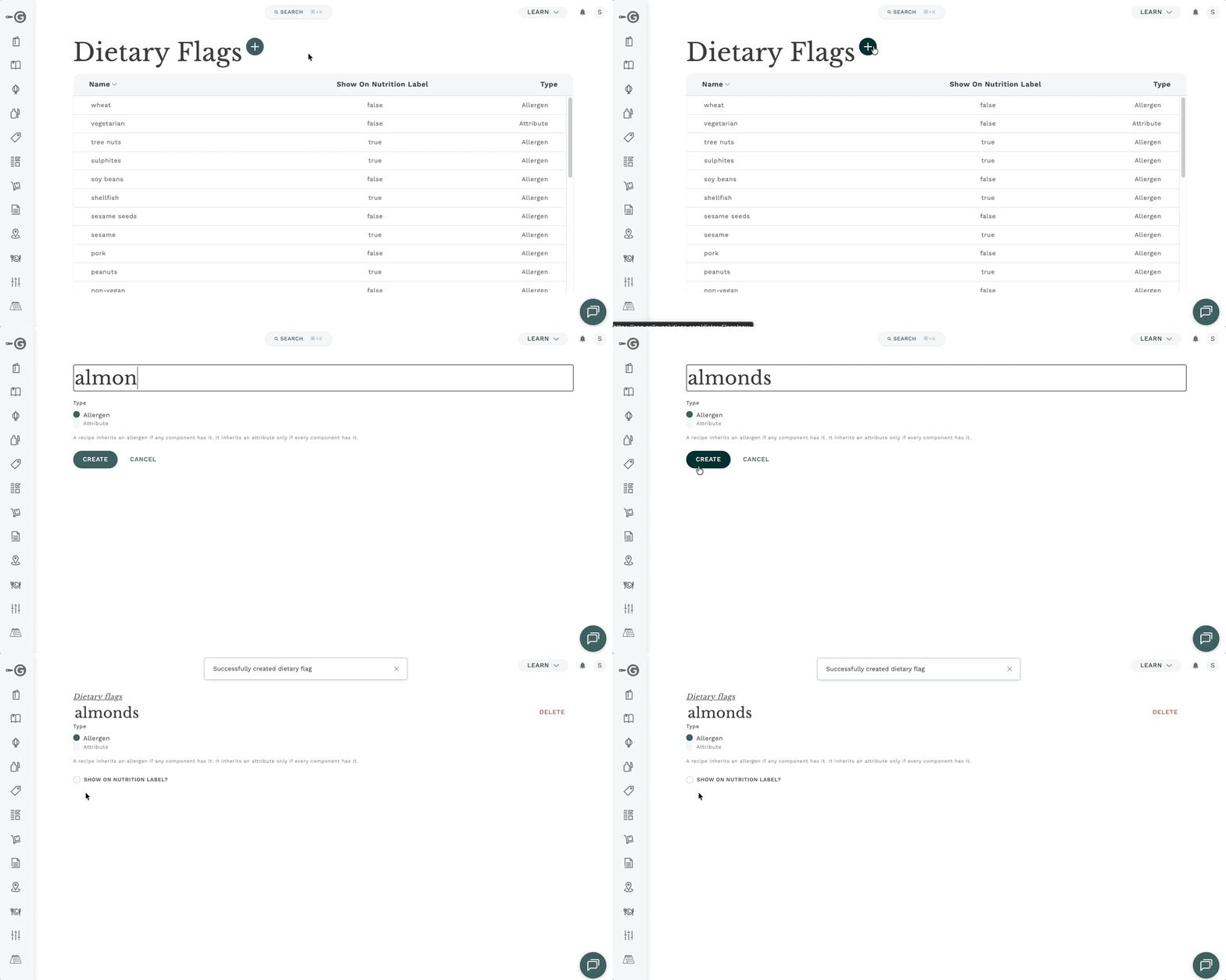
To create a new Dietary Flag, click the '+', enter the title of the Dietary Flag, and click 'Create'.
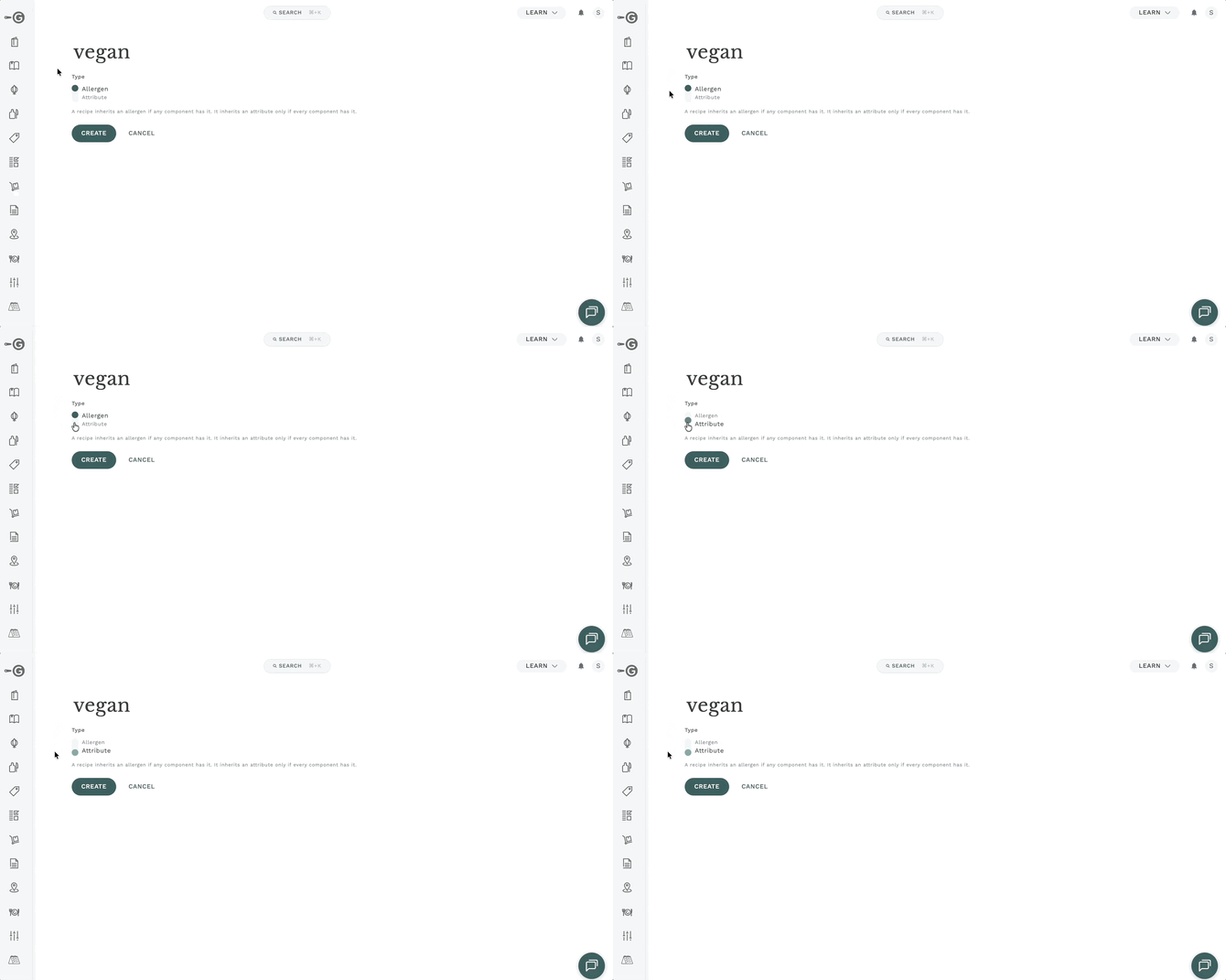
Note that dietary flags have two types: Allergens and Attributes. The difference is that a recipe inherits an allergen is any of the components have that allergen (e.g., a recipe has soy if any of its ingredients contain soy). In contrast, a recipe inherits an attribute only if all of the components have that attribute (e.g., a recipe is vegetarian only if all of its components are vegetarian). You can set a dietary flag's type during or after creation.
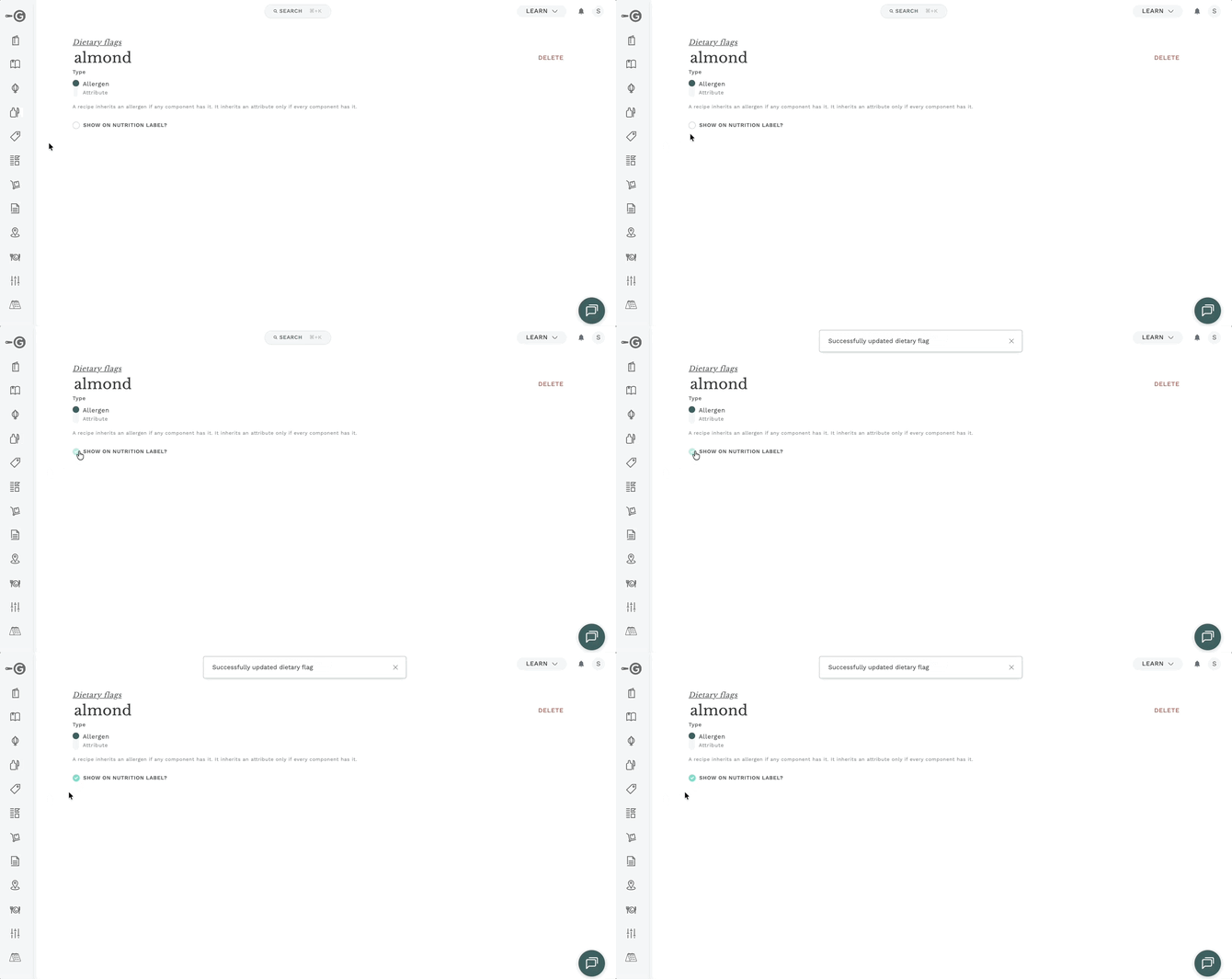
If the dietary flag is an allergen, you may select if the flag should appear on your nutrition labels with the Show on Nutrition Label option.
Follow FDA guidelines when adding custom dietary flags to nutrition labels. Otherwise, your label may not be FDA-compliant. For instance, the beef flag shown in other parts of this article should not be shown on nutrition labels. To locate the FDA required allergens, search for the list on the FDA.gov's website.
After the flag is created, you will then be able to link your new custom flag to Ingredients or Vendor Items by searching the Allergen and Attribute dropdowns on a given Ingredient or Vendor Items' page.
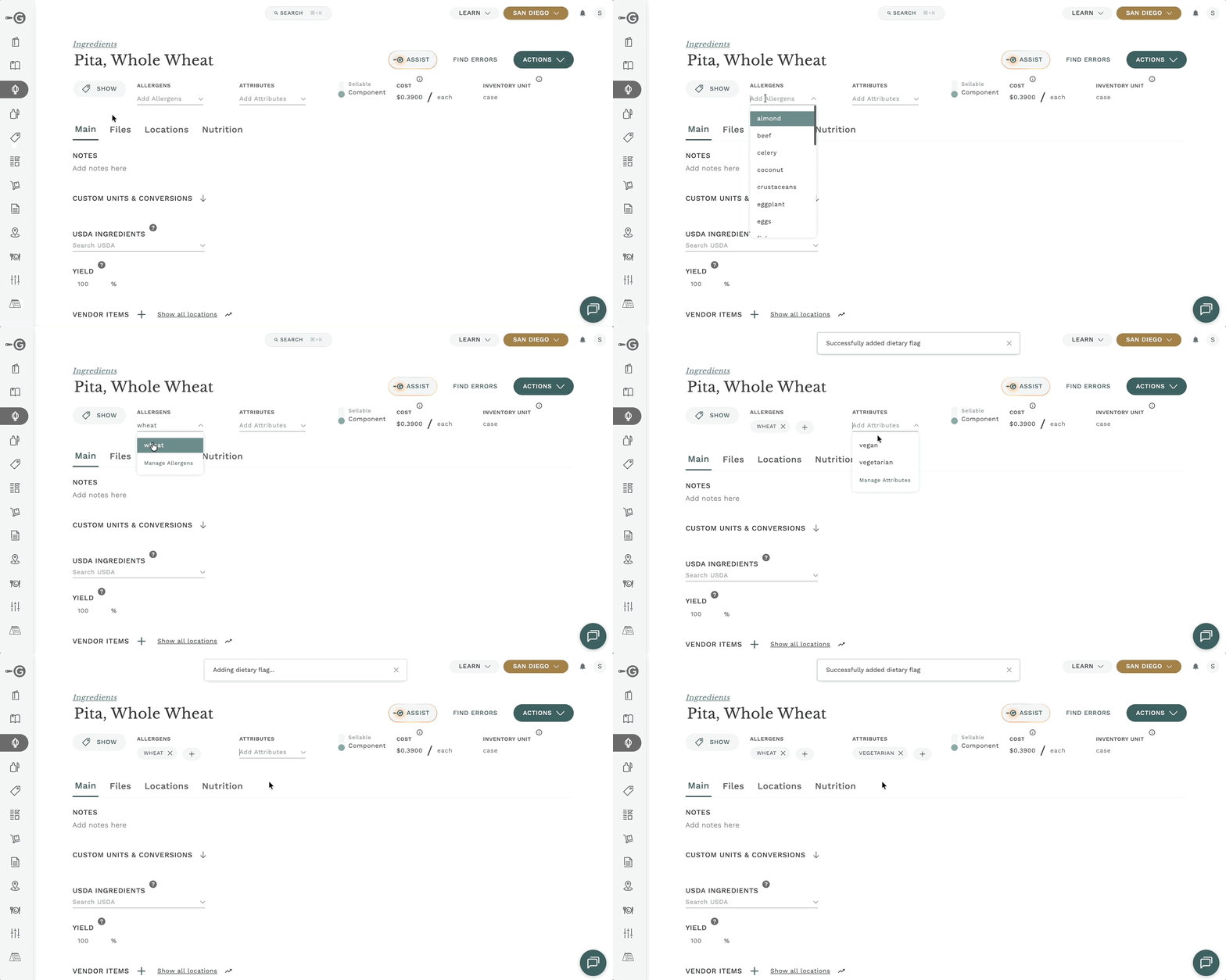
Your new Dietary Flag will then appear in the header of the recipes where the associated Ingredient(s) are used. If the flag is an allergen that is set to appear on nutrition labels it will be in the Allergens section. If it is an allergen not set to appear on nutrition labels it will appear in the Other Flags section. If it is an attribute it will appear in the Attributes section.
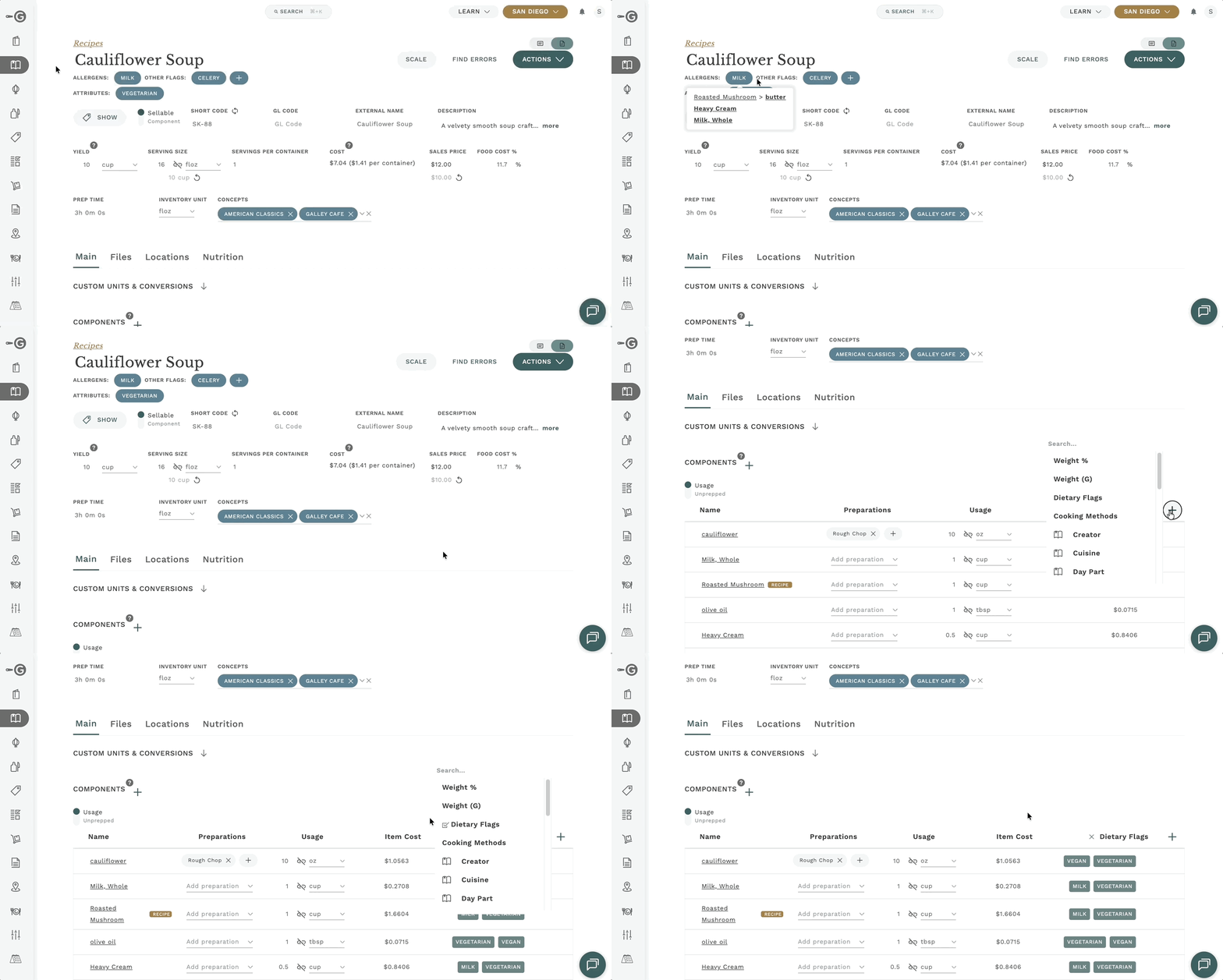
Note: It is recommended Dietary Flags be applied to Vendor Items rather than Ingredients to provide the most detailed, accurate information in your recipes since Ingredients can have multiple Vendor Items attached and can vary.