
Jump to: Overview · Assign items · Your options · Check an item · Filter · Troubleshooting · FAQ
Overview
To assign vendor items to a blanket PO, open the vendor's Vendor Items tab, tick the items, click Assign Blanket PO at the bottom of the screen, choose the blanket PO in the window that opens, and click Assign N items. You only need to do this for selected-items blanket POs. Items that aren't assigned to one follow the vendor's all-items blanket PO.
Each invoice line goes to the blanket PO that covers its item on the invoice date. An item assigned to a selected-items blanket PO goes there. Every other item goes to the vendor's all-items blanket PO.
To see Assign Blanket PO, you need permission to edit vendor items: Edit Vendor and Vendor Item Data, or Edit Vendor Items if your company uses it. If the vendor has no active or upcoming blanket PO, the Assign blanket PO window says so. Add one first, as described in "How do I set up blanket POs for a vendor?"
Assign items in bulk
- Open the vendor and choose the Vendor Items tab.
- Tick the items you want to move. To select every item that matches your search and filters, tick the checkbox at the top of the list. If the list has more than one page, a banner then offers Select all with the number of items, for example Select all 30. Click it.
- In the bar at the bottom of the screen, click Assign Blanket PO. The Assign blanket PO window opens.
- Choose a blanket PO in the table.
- Click Assign N items, where N is the number of items selected. For example, "Assign 30 items".
Galley confirms with a message such as "Assigned 30 items to FY27 Paper Goods" and clears your selection. If you change your mind before you click Assign N items, click Cancel.
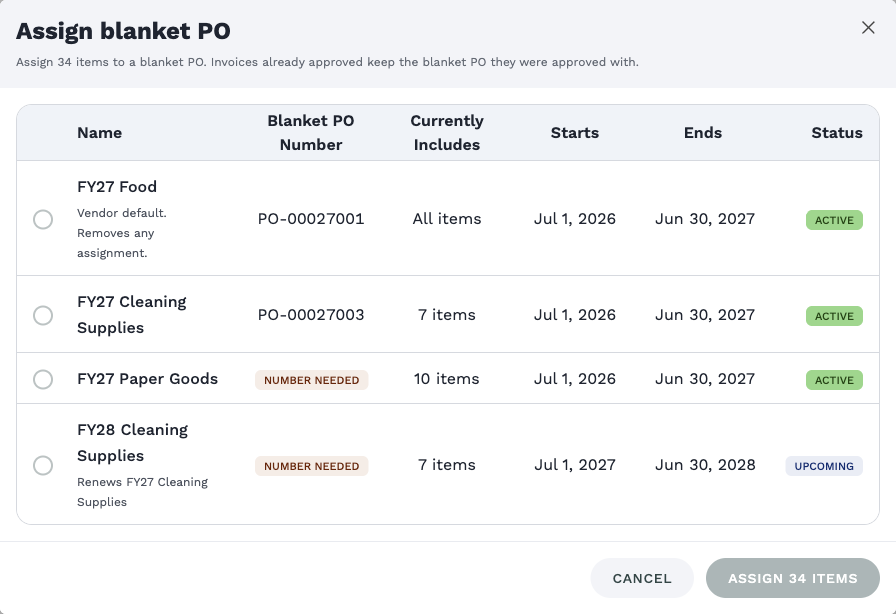
Each row shows the blanket PO's name, its number, its dates and its status. Currently Includes shows All items for the vendor's all-items blanket PO, or how many items are assigned to a selected-items blanket PO now. The window also reminds you that invoices already approved keep the blanket PO they were approved with.
To move many items at once, search or filter the list first, then use Select all. For example, filter by Not on a blanket PO, select everything that matches, and assign it in one step.
Choose the right option
The table lists the vendor's active and upcoming blanket POs. Ended and archived blanket POs aren't offered. Ended blanket POs keep the items they had, so older invoices still go to the right place.
| Row in the table | What it does to the selected items |
|---|---|
| A selected-items blanket PO, with a number of items under Currently Includes | Moves the items onto this blanket PO. If an item was on another selected-items blanket PO with overlapping dates, it moves off that one. |
| The all-items blanket PO, marked Vendor default, with All items under Currently Includes | Puts the items back on the vendor default. They come off any selected-items blanket PO whose dates overlap this one, so they follow the all-items blanket PO again. |
| Not on a blanket PO | Takes the items off every current and upcoming selected-items blanket PO. This option appears only when the vendor has no current or upcoming all-items blanket PO. |
If the vendor has no active or upcoming blanket POs, the window says so and suggests adding one on the Blanket POs tab.
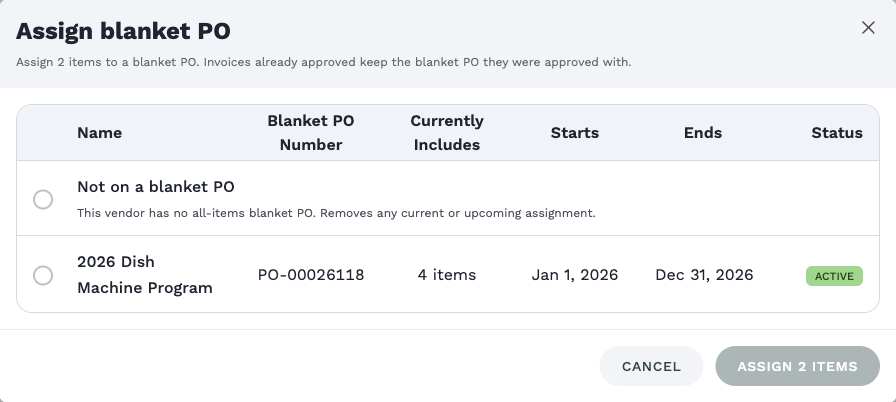
Assigning items changes which blanket PO new invoice lines go to. Invoices that are already approved keep the blanket PO they were approved with. To change an approved invoice, reopen it, then approve it again.
See which blanket PO an item is on
The Blanket PO column in the Vendor Items table shows the blanket PO each item is on today. The name is followed by "assigned" when the item is on a selected-items blanket PO, or "vendor default" when it follows the all-items blanket PO. Three dashes mean the item isn't on any blanket PO today.
If you don't see the column, click + at the right end of the table's header row and add Blanket PO. You can remove it again with the x next to its name.
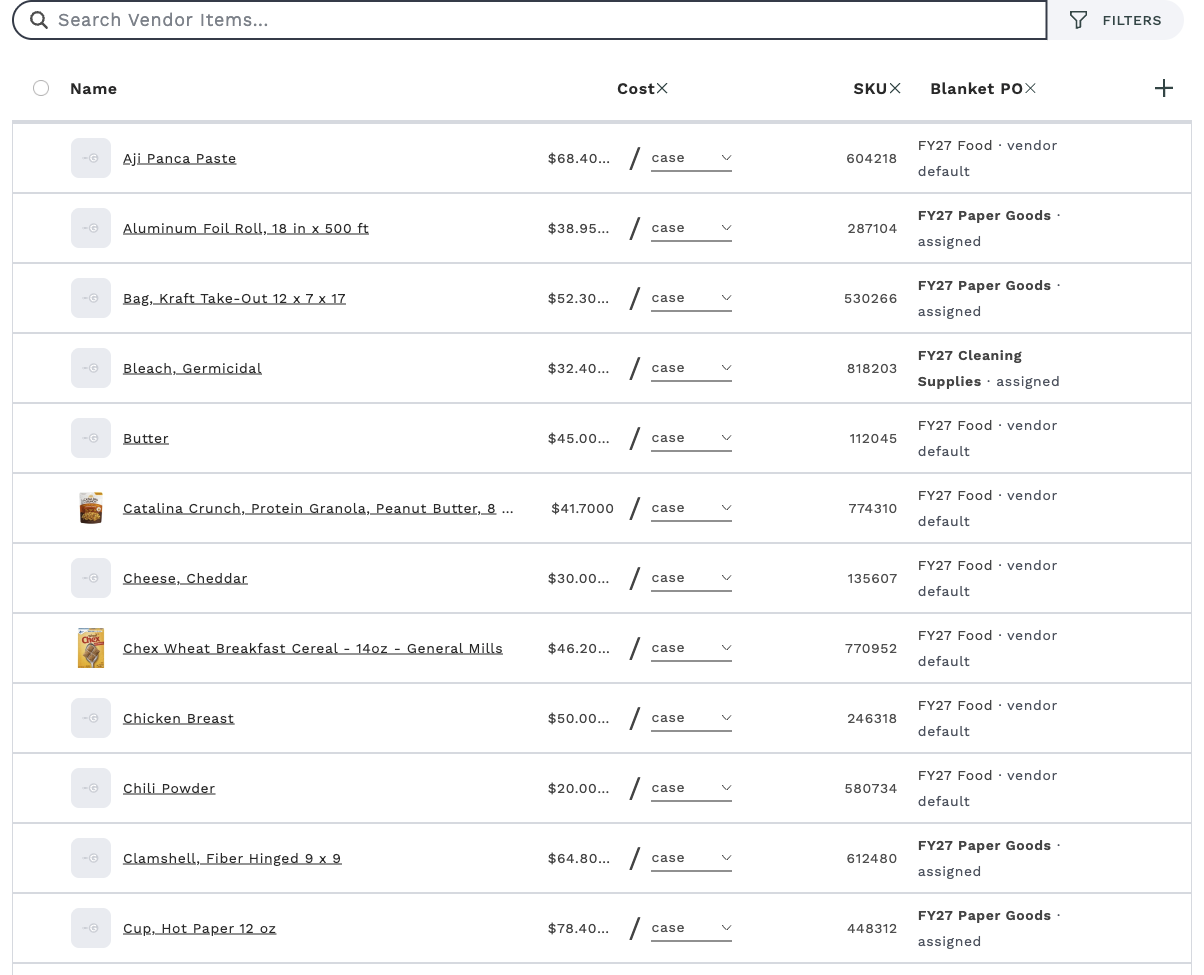
The column shows today's blanket PO. An invoice uses the blanket PO that covers the invoice date, so an invoice dated last year can go to a different blanket PO than the one shown here. An item assigned to a blanket PO that hasn't started yet doesn't show it until the start date.
Each vendor item also has a read-only Blanket PO field, next to Cost and SKU. It shows the blanket PO's name, which links to the vendor's Blanket POs tab, and its number, or "Number needed" if it doesn't have one. Below that, it says "Assigned to this item." or "Vendor default, all items." If the item isn't on a blanket PO, the field reads None and "Not on a blanket PO today."
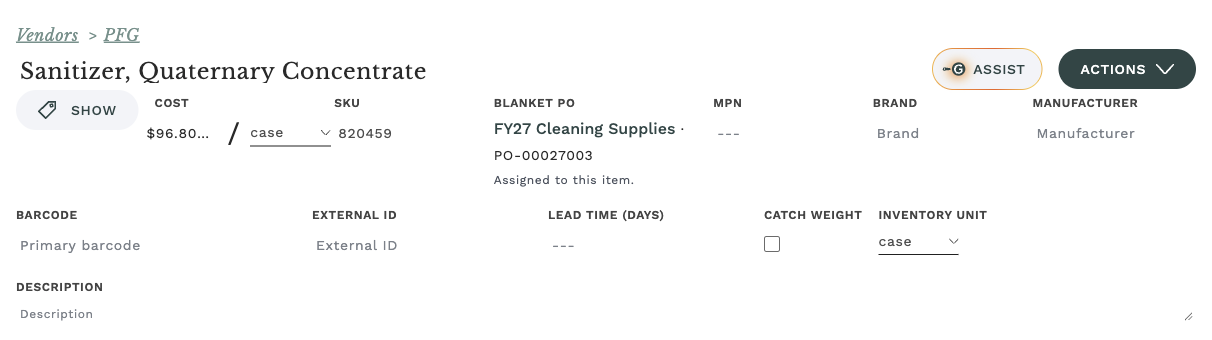
You can't change the blanket PO from the vendor item page. Use Assign Blanket PO on the vendor's Vendor Items tab.
Find items by blanket PO
- On the vendor's Vendor Items tab, click Filters above the table.
- In the Filters panel, open the Blanket PO list. It starts on Any blanket PO.
- Choose an option.
After you choose one, the button reads 1 Filter and Clear Filters appears next to it. Click Clear Filters, or choose Any blanket PO, to see every item again.
| Option in the list | Items shown |
|---|---|
| Name · selected items | The items assigned to this blanket PO. |
| Name · vendor default | The items that follow this blanket PO, meaning items that aren't assigned to a selected-items blanket PO at the same time. |
| Name · selected items · upcoming, or Name · vendor default · upcoming | The same lists for a blanket PO that hasn't started yet. |
| Not on a blanket PO | Items on no blanket PO today. This option appears only when no all-items blanket PO covers today's date. |
The list includes only active and upcoming blanket POs. Ended and archived blanket POs aren't offered.
Troubleshooting
| What you see | Why it happens | What to do |
|---|---|---|
| No Assign Blanket PO at the bottom of the screen | Your role doesn't include permission to edit vendor items, no items are ticked, or Blanket POs isn't turned on for your company. | Tick at least one item. If it still doesn't appear, ask an admin to check your permissions, or contact Galley Support. |
| The Assign N items button is dimmed | You haven't chosen a blanket PO yet. | Choose a row in the table. |
| "This vendor has no active or upcoming blanket POs" | The vendor's blanket POs have all ended, or none exist. | Add a blanket PO on the Blanket POs tab, then try again. |
| "Couldn't change the blanket PO. Check your connection and try again." | The change didn't reach Galley. | Check your connection and click Assign N items again. |
| An item still shows "vendor default" after you assigned it | The blanket PO you chose hasn't started yet, so today's column doesn't show it. | Check the blanket PO's start date on the Blanket POs tab. The item moves over when the blanket PO starts. |
FAQ
Do I need to assign items if the vendor has one all-items blanket PO?
No. Every item, including items you add later, goes to the all-items blanket PO. Assign items only when you have selected-items blanket POs.
Can an item be on more than one blanket PO?
Not at the same time. If you assign an item to a selected-items blanket PO and it was on another one with overlapping dates, Galley moves it. An item can still be on one blanket PO this year and a different one next year.
What happens to items I add to the vendor later?
They go to the vendor's all-items blanket PO. To put them on a selected-items blanket PO, assign them the same way.
How do I take items off a selected-items blanket PO?
Select the items and open Assign Blanket PO. Choose the vendor's all-items blanket PO to put them back on the vendor default. If the vendor has no all-items blanket PO, choose Not on a blanket PO.