
Jump to: Overview · Find it · Create · Differences · In recipes · Troubleshooting · FAQ
What are Supplies?
Supplies are the non-food items your kitchen depends on but never eats — cleaning chemicals, sanitizer, gloves, packaging, to-go containers, napkins, and other disposables. You can now track these right alongside your ingredients, so your whole catalog lives in one place.
Because a supply isn't food, it skips everything that only applies to food — nutrition, allergens, and dietary information. You keep just what matters for a supply: its name, cost, the units you buy or count it in, and its vendors.
Where to find Supplies
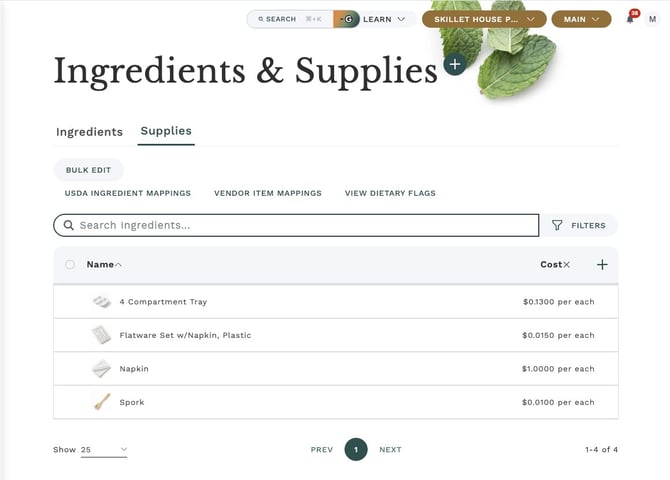
Your Ingredients catalog is now called "Ingredients & Supplies." Open it from the left-hand navigation, the same place you've always managed your ingredients.
At the top of the catalog you'll see two tabs:
- Ingredients — the food items you cook with.
- Supplies — your non-food items.
Click the Supplies tab to view, search, and manage all of your non-food items.
How to create a supply
- Open Ingredients & Supplies and select the Supplies tab.
- Click the "+" (add) button.
- Enter a name for the supply — for example, "Nitrile Gloves — Medium" or "16 oz To-Go Container."
- Add its cost and choose the unit you buy or count it in (each, case, box, and so on).
- Optionally link one or more vendors so the cost stays up to date.
- Save.
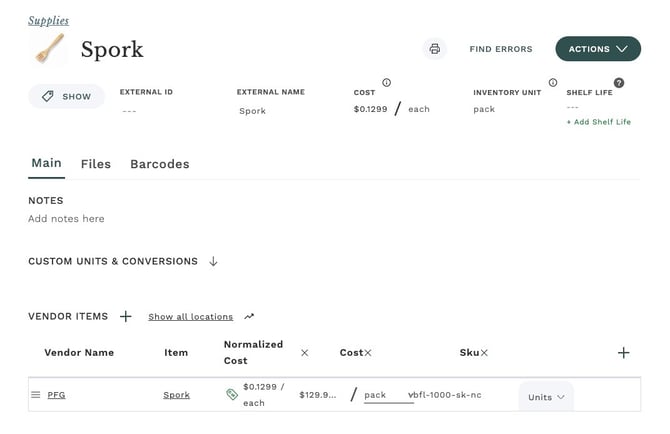
Creating a supply from the Supplies tab skips the food-ingredient setup steps and asks only for what a supply actually needs — so it's quick, and you won't see empty nutrition fields.
How a supply is different from a food ingredient
A supply behaves like any other item where it counts — you can cost it, set its units, and link vendors. The difference is that the food-only details are hidden, because they don't apply to a non-food item.
| Detail | Food ingredient | Supply |
|---|---|---|
| Name, cost, units, vendors | Yes | Yes |
| Nutrition and calories | Yes | Hidden |
| Allergens and dietary flags | Yes | Hidden |
| USDA / nutrition database matching | Yes | Hidden |
| Counts toward recipe nutrition and labels | Yes | No |
Supplies are automatically left out of recipe nutrition calculations and nutrition labels — even when a supply is used inside a recipe, such as packaging on a finished, sellable item. You never have to remember to exclude them.
Using supplies when building recipes and menus
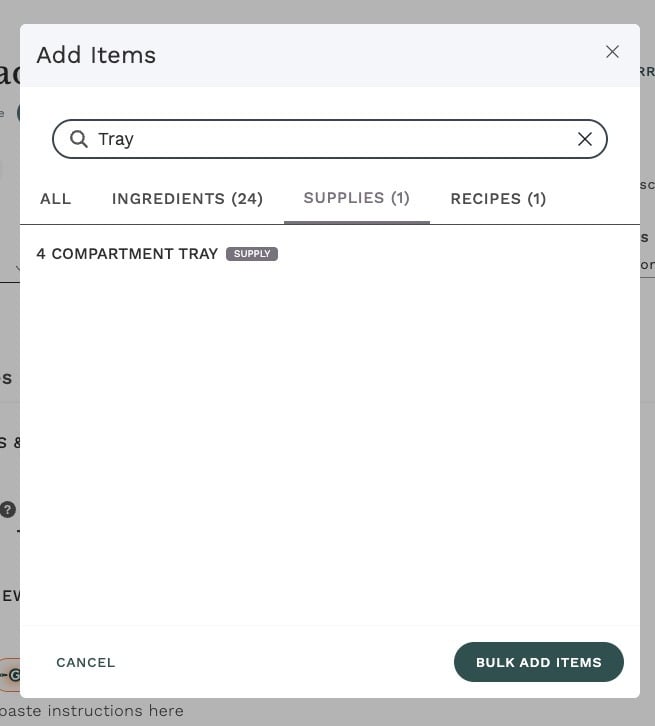
When you add items to a recipe, a menu, a collection, or a storage location, supplies are easy to spot. In the item search they carry a distinct Supply badge and have their own Supplies tab, so they're never mixed in with the food you cook with.
Selecting a supply works exactly the same as adding any other item — pick it, set the quantity and unit, and you're done.
Troubleshooting
A supply is showing up under the Ingredients tab. Open the item and confirm it's marked as a supply (a non-food item). Food items stay on the Ingredients tab; only items marked as supplies appear on the Supplies tab.
You don't see a Supplies tab yet. The Supplies tab appears once the feature is turned on for your company. If your catalog still shows only "Ingredients," reach out to your Galley contact and we'll help.
Frequently asked questions
Can I turn an existing ingredient into a supply?
Yes. A supply is simply an item marked as non-food, so you can change an item's type. Once it's marked as a supply, it moves to the Supplies tab and its food-only fields (nutrition, allergens, and dietary information) are hidden.
Will supplies affect my recipe nutrition or nutrition labels?
No. Supplies are always excluded from recipe nutrition calculations and from nutrition labels, so adding a supply to a recipe never changes its nutrition information.
Can I track cost and vendors for a supply?
Yes. Cost, units, and vendors work the same way for a supply as they do for any ingredient, so you can keep purchasing information accurate and up to date.
Where do supplies appear when I build a recipe or menu?
In the "Add Items" search you'll find them under the Supplies tab, each marked with a Supply badge. This keeps non-food items clearly separated from the food you cook with.