
Jump to: Overview · Before you start · How it splits · Upload · Results · Fix a split · Tips · FAQ
The short answer
Yes. You can add up to 50 files to a single upload, and Galley sorts the pages into separate invoices for you, whether one file holds several invoices or one invoice is spread across several files.
Galley reads everything in an upload as one stack of pages, in the order you added the files. It starts a new invoice whenever the vendor or the invoice number changes.
That means you can mix multi-invoice PDFs, single-invoice PDFs, and individual page scans in the same upload. The one thing to watch is order: Galley never re-sorts pages, so each invoice's pages need to sit together and in order.
Before you start
You'll find invoice uploads under Invoices → Uploads. Before you add files, decide which location the invoices belong to and check that your files fit the limits below.
| What | What's allowed |
|---|---|
| File types | PDF, PNG, JPG/JPEG, TIFF/TIF |
| Files per upload | Up to 50 |
| File size | Up to 25 MB per file |
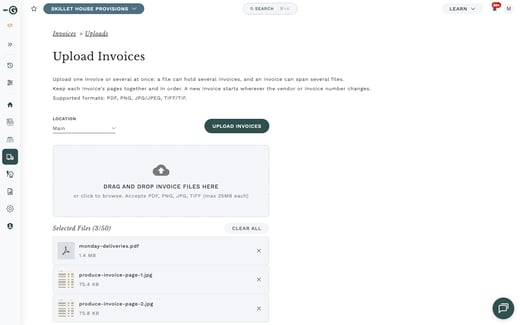
The Upload Invoices page asks for a location first. The Upload Invoices button stays greyed out until you've chosen a location and added at least one file.
How Galley decides where each invoice starts
Galley reads all the files in one upload as a single stack of pages, in the order you added them. A PDF adds all of its pages in order, and each image file (a scan or photo saved as PNG, JPG, or TIFF) counts as one page. Where one file ends and the next begins doesn't matter.
On every page, Galley reads the vendor and the invoice number. Whenever either one changes from one page to the next, Galley starts a new invoice.
If Galley can't read either one on a page, such as a continuation page with no header, it adds that page to the invoice before it.
Galley never re-sorts pages. Here is how that plays out in a few common cases:
| What you upload | Invoices Galley creates | Why |
|---|---|---|
| One PDF with 3 invoices | 3 invoices | Each invoice starts where the vendor or invoice number changes |
| One 3-page invoice in one PDF | 1 invoice | All three pages have the same vendor and invoice number |
| 3 scans, one per page of the same invoice | 1 invoice | The scans are read as one stack of pages, so it doesn't matter that they are separate files |
| A 2-page PDF of invoice A, a scan of invoice B, and a PDF with invoices C and D | 4 invoices (A, B, C, D) | Galley starts a new invoice at each change, even when it happens in the middle of a file |
| Pages out of order: page 1 of invoice A, then invoice B, then page 2 of invoice A | 3 invoices (A, B, then A's second page on its own) | Page 2 of invoice A isn't next to page 1, so Galley treats it as a separate invoice |
Keep each invoice's pages together and in order. Galley never re-sorts pages, so an invoice whose pages are separated or out of order comes out as more than one invoice, and invoices can't be merged after you upload them.
How to upload your invoices
- Go to Invoices → Uploads.
- Click Upload Invoices.
- Choose a location where it says Select location. The Upload Invoices button stays greyed out until you do.
- Add your files by dragging them onto the drop area, or by clicking the drop area to browse for them. Add them in the order you want the pages read.
- Check that each invoice's pages are together and in order across the files you added.
- Click Upload Invoices.
When Galley finishes processing, the upload shows each invoice it found.
How to check the results
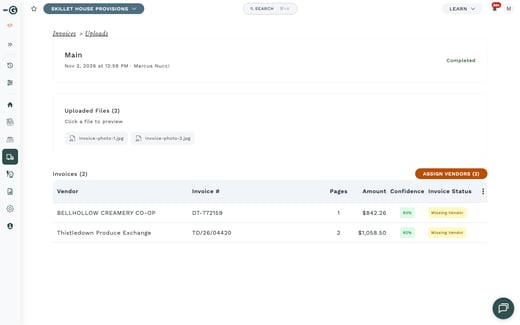
You can reopen any upload at any time from Invoices → Uploads. The upload's detail page lists one row per invoice that Galley found.
- Go to Invoices → Uploads and click the upload you want to check.
- Compare the number of rows with the number of invoices you expected.
- Look at the Pages column for each row. It shows the page range within the whole upload, counted in the order you added the files. For example, 1-2 is the first two pages, and 3 is the third page on its own.
- Look at the Confidence column. It shows a percentage in green, yellow, or red for how sure Galley is about that invoice.
- Click a row to open that invoice.
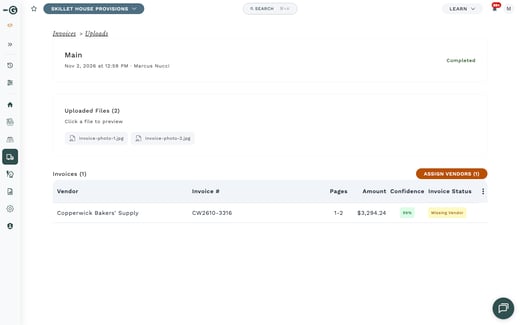
If you see one row that covers every page and shows 50% Confidence, Galley couldn't work out where the invoices begin and end. It kept the whole upload as a single invoice. This usually means the split didn't work, so see "How to fix an invoice that was split wrong" below.
How to fix an invoice that was split wrong
There's no way to split or merge invoices after you upload them. Instead, you delete the invoice that came out wrong and upload those pages again. Invoices that came out right can stay as they are.
- Go to Invoices → Uploads and open the upload.
- Click the row of the invoice that came out wrong to open it.
- Click Delete.
- Upload those pages again, with each invoice's pages together and in order. You can also upload each invoice on its own.
Delete is available unless the invoice is Approved or Completed.
Tips and troubleshooting
Tips for a clean split
- Add pages in order.
- Keep each invoice's pages together.
- Make sure the top of each invoice's first page, where the vendor name and invoice number appear, is clear and not cut off.
When in doubt, upload one invoice at a time. It takes a little longer, but each upload then holds exactly one invoice.
If something looks off
- One row covers every page and shows 50%. Galley couldn't tell where the invoices begin and end. Delete the invoice and upload your invoices one at a time.
- Two invoices from the same vendor came out as one. Galley may not have been able to read the invoice numbers. Delete the invoice and upload each of the two invoices on its own.
- An invoice joined the invoice before it. The top of its first page may be too blurry or cut off for Galley to read the vendor and invoice number. Delete the invoice, scan or photograph the first page again so the top is clear, and upload it again.
- One invoice came out as several. Its pages were probably not together or not in order. Delete those invoices and upload the pages again, together and in order.
Frequently Asked Questions
Do I need one file per invoice?
No. A single PDF can hold several invoices, and one invoice can be spread across several files. Galley looks at the pages, not at where the files start and end.
Does the order I add files matter?
Yes. Galley reads the pages in the order you added the files and never re-sorts them. Pages that belong to the same invoice should be next to each other and in order.
Can I mix PDFs and scans in one upload?
Yes. You can combine multi-invoice PDFs, single-invoice PDFs, and individual page scans in the same upload. Each PDF adds all of its pages, and each image file adds one page.
What if two invoices from the same vendor came out as one?
This can happen when Galley can't read the invoice numbers, because it relies on the vendor and invoice number to see where one invoice ends and the next begins. Delete the invoice and upload each of the two invoices on its own.
Why did my whole upload become one invoice?
When Galley can't work out where the invoices begin and end, it keeps the whole upload as a single invoice and marks it with a low Confidence, shown as 50%. Delete that invoice and upload your invoices one at a time.
Can I split or merge invoices after I upload them?
No. To fix a wrong split, open the invoice, click Delete, and upload those pages again. Delete isn't available once an invoice is Approved or Completed.
Is there a limit?
Yes. Each upload can hold up to 50 files, and each file can be up to 25 MB. Galley accepts PDF, PNG, JPG/JPEG, and TIFF/TIF files.